> ## Documentation Index
> Fetch the complete documentation index at: https://docs.hotglue.com/llms.txt
> Use this file to discover all available pages before exploring further.
# Overview
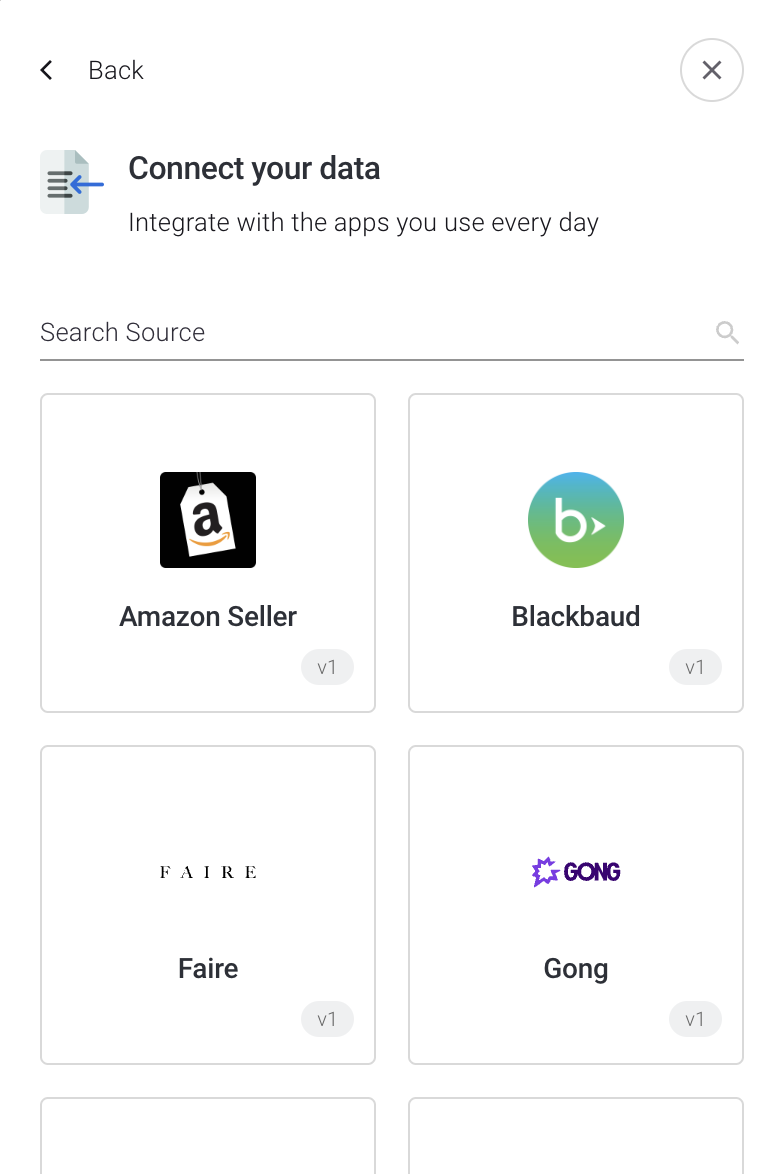
> The hotglue widget allows you to offer native, inline integrations in your app with a few lines of code.
# Introduction to the widget
The hotglue widget is a white-labeled component that allows your users to integrate instantly, without leaving your app. You can embed the widget using a few lines of [Javascript](https://docs.hotglue.com/docs/embed-hotglue) or [React](https://docs.hotglue.com/docs/embed-hotglue).
***
# Installation (React)
## Install the @hotglue/widget package
If your project is built in React, you can install the [@hotglue/widget](https://www.npmjs.com/package/@hotglue/widget) package.
using npm
```
npm install @hotglue/widget
```
or using yarn
```
yarn add @hotglue/widget
```
## Launch the widget
First you must include the `HotglueConfig` provider as a higher order component in your React app. For example, in `index.js`:
```javascript index.js theme={null}
import React from 'react';
import ReactDOM from 'react-dom';
import App from './App';
import HotglueConfig from '@hotglue/widget';
ReactDOM.render(
,
document.getElementById('root')
);
```
Now you can launch the widget using the `useHotglue` hook:
```javascript App.js theme={null}
import { useHotglue } from '@hotglue/widget';
const App = (props) => {
const { openWidget } = useHotglue();
return
}
export default App;
```
You can also use the [Connections component](https://docs.hotglue.com/docs/connections) if you want to use the widget inline rather than in a modal.
# Installation (Next.js)
Just like above, begin by installing the [@hotglue/widget](https://www.npmjs.com/package/@hotglue/widget) package
using npm
```
npm install --save @hotglue/widget
```
or yarn
```
yarn add @hotglue/widget
```
Import `HotglueConfig` on your page and configure it.
```javascript next.js theme={null}
import dynamic from 'next/dynamic'
const HotglueConfig = dynamic(() => import('@hotglue/widget'), { ssr: false })
export default function Home() {
return (
)}
```
Create the `HomeComponent`. Inside of it you can launch the widget using the useHotglue hook:
```javascript next.js theme={null}
import { useHotglue } from '@hotglue/widget'
const HomeComponent = (props, ref) => {
const { openWidget } = useHotglue()
const handleOpenWidget = (tenant) => {
openWidget(tenant)
}
return (
)
}
export default HomeComponent
```
You can also use the `connections` component.
```javascript next.js theme={null}
import dynamic from 'next/dynamic'
const HotglueConfig = dynamic(() => import('@hotglue/widget'), { ssr: false })
import { Connections } from '@hotglue/widget'
export default function Home() {
return (
)
}
```
# Installation (Vanilla JavaScript)
[](https://docs.hotglue.com/docs/embed-hotglue#installation-vanilla-javascript)
## 1. Call and mount the widget
[](https://docs.hotglue.com/docs/embed-hotglue#1-call-and-mount-the-widget)
The first step of embedding hotglue is to add the widget to your web app. Simply copy the code generated from the hotglue environment dashboard into your HTML `head` tag.
```javascript HTML theme={null}
```
```javascript HTML theme={null}
```
## 2. Launch the widget
***Option 1 - HotGlue.link()***
Now that the hotglue widget is installed in your web app, open the widget by calling `HotGlue.link(, , , , )`. In the example below, we also use `options` to hide the back button and add a listener to close the widget once the source is successfully linked.
```HTML theme={null}
```
***Option 2 - HotGlue.open()***
Alternatively, you can open the widget "flows" menu by calling `HotGlue.open()`
```HTML theme={null}
```
 ***
# Installation (React)
## Install the @hotglue/widget package
If your project is built in React, you can install the [@hotglue/widget](https://www.npmjs.com/package/@hotglue/widget) package.
using npm
```
npm install @hotglue/widget
```
or using yarn
```
yarn add @hotglue/widget
```
## Launch the widget
First you must include the `HotglueConfig` provider as a higher order component in your React app. For example, in `index.js`:
```javascript index.js theme={null}
import React from 'react';
import ReactDOM from 'react-dom';
import App from './App';
import HotglueConfig from '@hotglue/widget';
ReactDOM.render(
***
# Installation (React)
## Install the @hotglue/widget package
If your project is built in React, you can install the [@hotglue/widget](https://www.npmjs.com/package/@hotglue/widget) package.
using npm
```
npm install @hotglue/widget
```
or using yarn
```
yarn add @hotglue/widget
```
## Launch the widget
First you must include the `HotglueConfig` provider as a higher order component in your React app. For example, in `index.js`:
```javascript index.js theme={null}
import React from 'react';
import ReactDOM from 'react-dom';
import App from './App';
import HotglueConfig from '@hotglue/widget';
ReactDOM.render(