> ## Documentation Index
> Fetch the complete documentation index at: https://docs.hotglue.com/llms.txt
> Use this file to discover all available pages before exploring further.
# BigQuery
# Connector Details
| Name | Value |
| :------------- | :---------------------------------------------------------------------------------------------------------------------------------------------------------------------------------------------------------------------------------------------------------------------------------------------------------------- |
| Platform | [BigQuery](https://cloud.google.com/bigquery) |
| Auth Type | API Keys |
| Direction | Bidirectional |
| Tap Repo | [https://gitlab.com/hotglue/tap-bigquery](https://gitlab.com/hotglue/tap-bigquery) |
| Target Repo | [https://github.com/hotgluexyz/target-bigquery](https://github.com/hotgluexyz/target-bigquery) |
| Tap Metrics | Usage:
|
| Target Metrics | Usage:
|
# Credentials Setup
Follow the steps below to get the credentials you need to use the BigQuery connector.
# How to get your BigQuery credentials
## Enable the BigQuery API
First and foremost, make sure you are logged in to the correct Google account that you would like to access BigQuery from. Once you're logged in to the correct Google account, head to the [Google Cloud Platfrom Web Console](https://console.cloud.google.com).
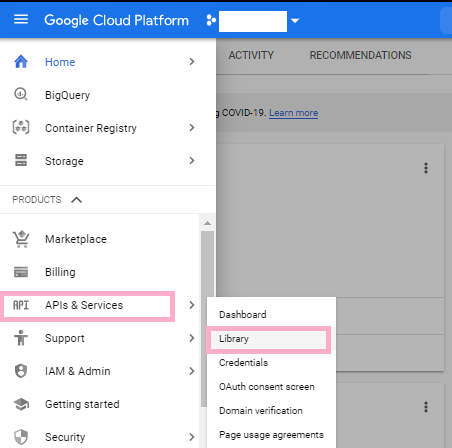
Once you are on the home page of GCP's Web Console, head to the navigation bar on the left side of the screen. Once you open the Navigation bar, head to the **APIs & Services** tab, and select **Library** from the resulting drop down.
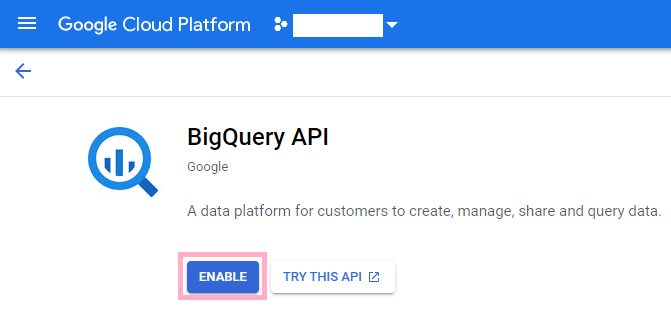
This will take you to a page where you should input **BigQuery** in the search box. Once it pops up, go ahead and click on it.

Now, go ahead and click the **Enable** button in order to enable the **BigQuery API**.
## Authenticating with a service account
It is recomended that you use a service account with the BigQuery target. To create service account credentials, take the following steps.
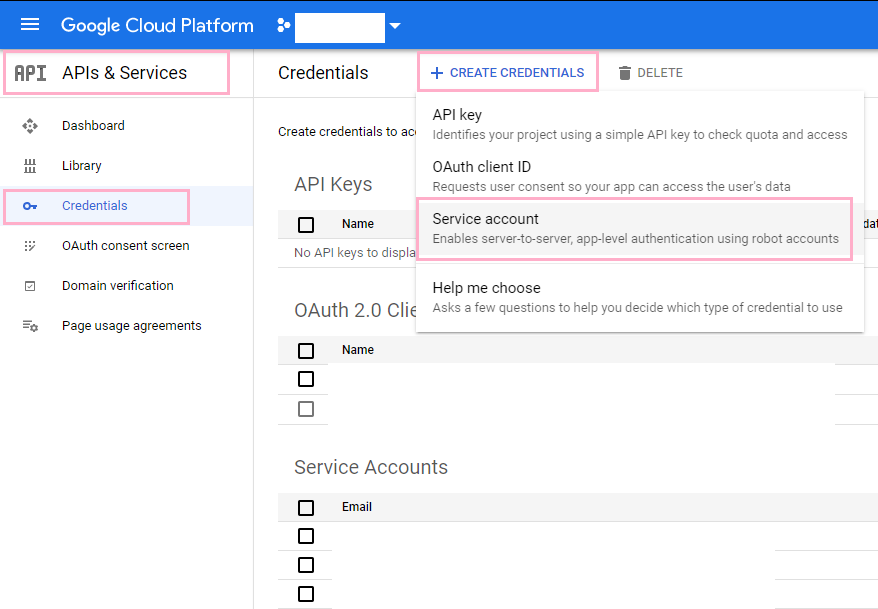
Use the navigation bar on the left again to navigate to the **APIs & Services** tab and select **Credentials** from the resulting drop down menu. Once you are on the **Credentials** page, click the **Create Credentials** button at the top of the page, which will trigger a drop down menu. From that drop down menu, go ahead and select **Service Account**.
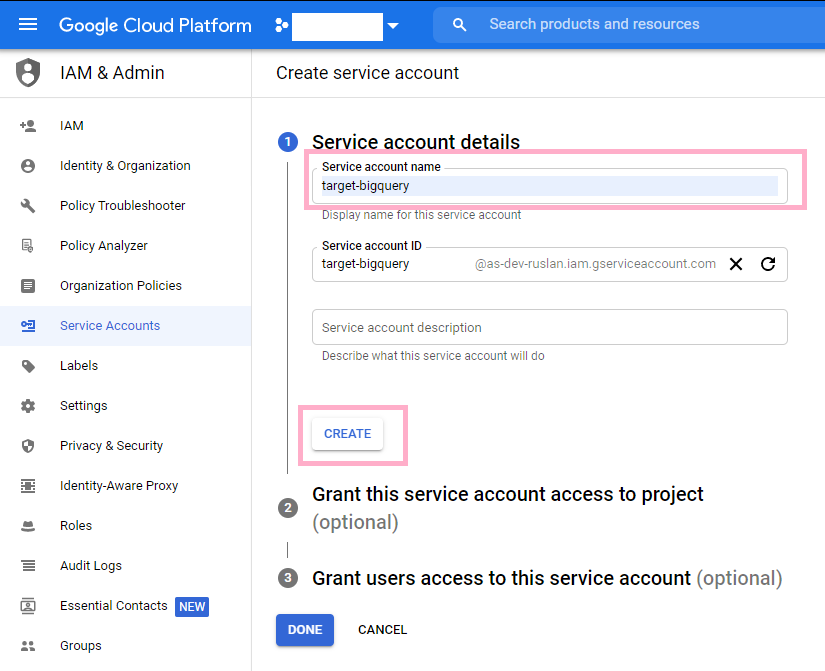
Under the **Service account details**, title the account target-bigquery and click the **Create** button.
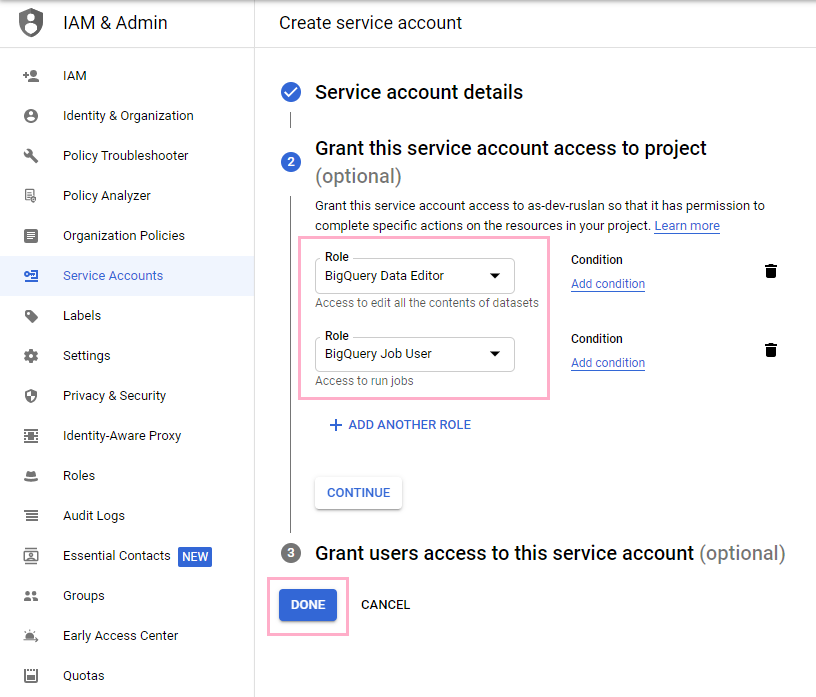
Under **Grant this service account access to project**, make sure that you have two roles. The first role should allow the service account to be a **BigQuery Data Editor**. This allows the target to edit the contents of the data sets (write permissions). Make sure that the second role is **BigQuery Job User**. This is a bit self explanatory, it allows the target to run jobs.
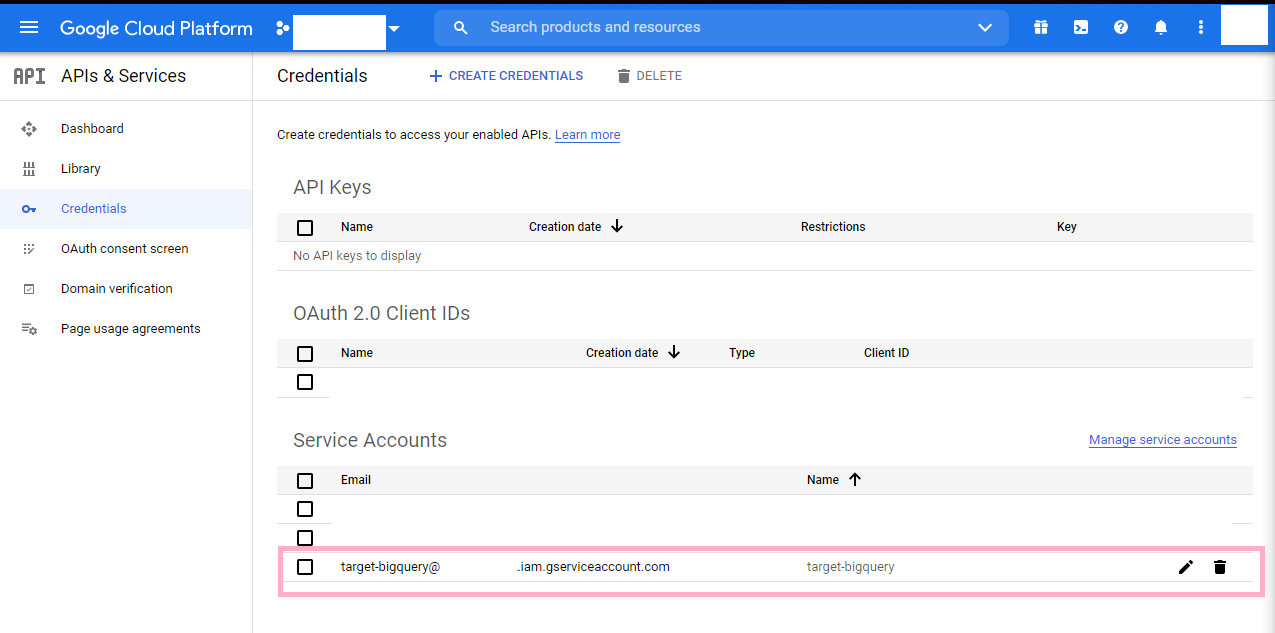
Now, using the navigation panel again, head back to the APIs & Services tab and go the **Credentials** tab within the tab. You should see the service account you just created near the bottom of your screen. Go and click on it.
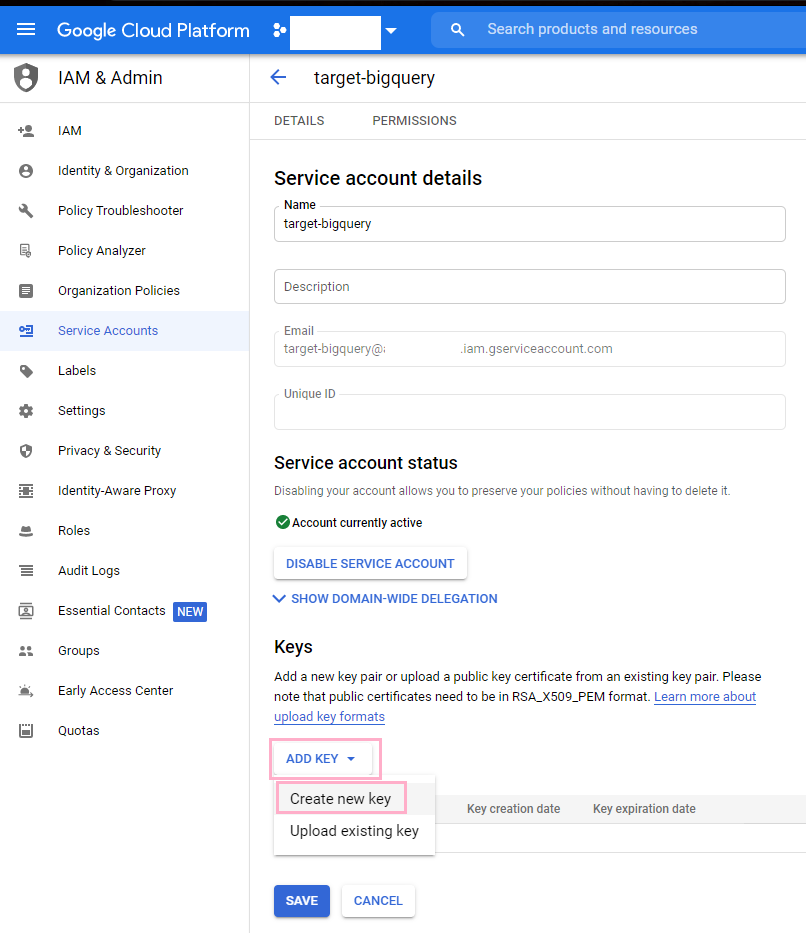
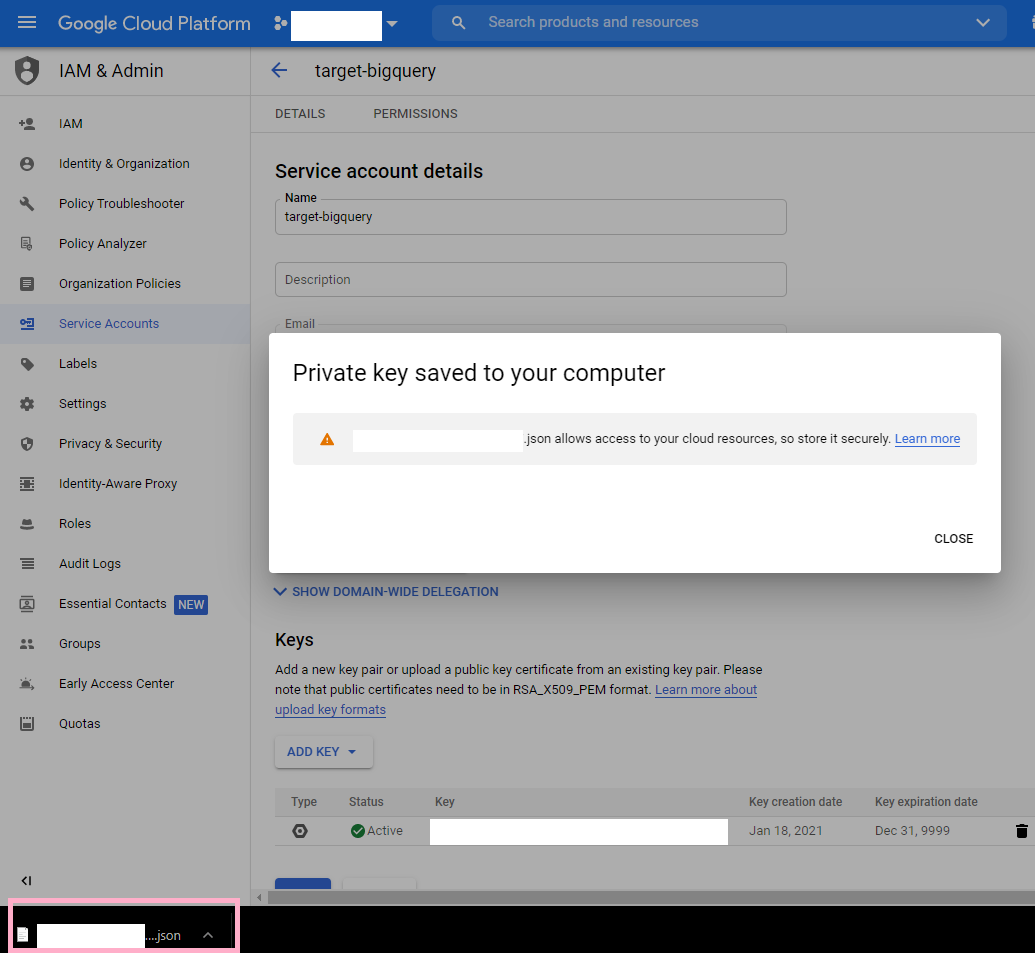
Near the bottom of the page, you should go ahead and click the **Add Key** button which will prompt a dropdown. Once it does this, click **Create new key**.
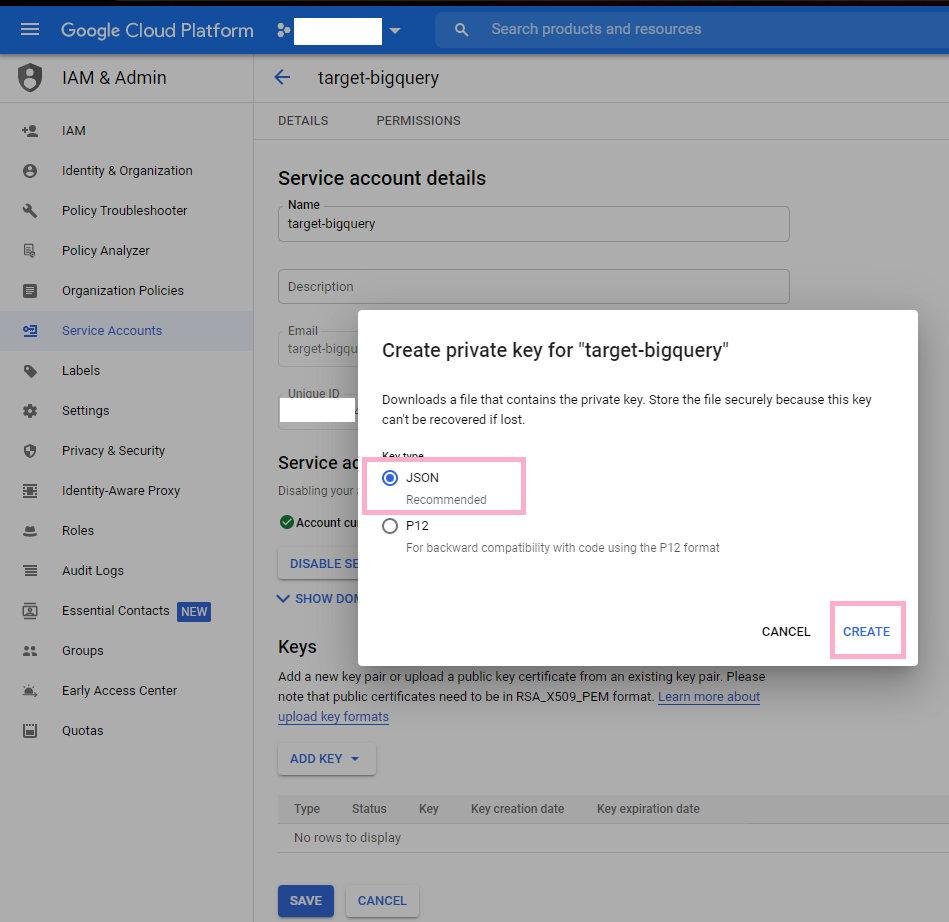
Select **JSON** for your private key and click **Create**.
You should go ahead and open the file. Make sure you keep this somewhere safe. This file holds the credentials that you should use to connect your BigQuery account as a target in hotglue.
These are the credentials that are relevant for configuring your hotglue target. Paste them into their corresponding places in hotglue and you are all set!
```json theme={null}
{
"type": "service_account",
"project_id": "acme",
"private_key_id": "1**********************************f",
"private_key": "-----BEGIN PRIVATE KEY-----\n*************\n*****************************\n************************n/*************************\n******************************\n*************************\n************************************\n*******************************\n**********************************\n**********************************\n**********************************\n**********************************\n**********************************\n**********************************\n**********************************\n**********************************\n**********************************\n**********************************\n**********************************\n**********************************\n**********************************\n**********************************\n**********************************\n**********************************\n**********************************\n-----END PRIVATE KEY-----\n",
"client_email": "***********@acme.iam.gserviceaccount.com",
"client_id": "1************7",
"auth_uri": "https://accounts.google.com/o/oauth2/auth",
"token_uri": "https://oauth2.googleapis.com/token",
"auth_provider_x509_cert_url": "https://www.googleapis.com/oauth2/v1/certs",
"client_x509_cert_url": "https://www.googleapis.com/robot/v1/metadata/x509/**************image
40acme.iam.gserviceaccount.com"
}
```
# Target BigQuery
## Config
In addition to the BigQuery credentials above, you will need to specify the dataset the target should write to:
```json theme={null}
{
"type": "service_account",
"project_id": "acme",
"private_key_id": "1**********************************f",
"private_key": "-----BEGIN PRIVATE KEY-----\n*************\n*****************************\n************************n/*************************\n******************************\n*************************\n************************************\n*******************************\n**********************************\n**********************************\n**********************************\n**********************************\n**********************************\n**********************************\n**********************************\n**********************************\n**********************************\n**********************************\n**********************************\n**********************************\n**********************************\n**********************************\n**********************************\n**********************************\n**********************************\n-----END PRIVATE KEY-----\n",
"client_email": "***********@acme.iam.gserviceaccount.com",
"client_id": "1************7",
"auth_uri": "https://accounts.google.com/o/oauth2/auth",
"token_uri": "https://oauth2.googleapis.com/token",
"auth_provider_x509_cert_url": "https://www.googleapis.com/oauth2/v1/certs",
"client_x509_cert_url": "https://www.googleapis.com/robot/v1/metadata/x509/**************image
40acme.iam.gserviceaccount.com",
"dataset_id": "id-of-dataset"
}
```
## target-tables-config: Set up partioning and clustering
Target-BigQuery also supports an optional `target-tables-config.json` which can be written during the ETL phase.
The config allows you to detail partioning and clustering logic for particular streams.
### Partitioning background
A [partitioned table](https://cloud.google.com/bigquery/docs/partitioned-tables) is a special table that is divided into
segments, called partitions, that make it easier to manage and query your data. By dividing a large table into smaller
partitions, you can:
* improve query performance,
* control costs by reducing the number of bytes read by a query.
You can partition BigQuery tables by:
* Ingestion time: Tables are partitioned based on the data's ingestion (load) time or arrival time.
* Date/timestamp/datetime: Tables are partitioned based on a TIMESTAMP, DATE, or DATETIME column.
* Integer range: Tables are partitioned based on an integer column.
### Clustering background
* When you create a clustered table in BigQuery, the table data is automatically organized based on the contents of one
or more columns in the table’s schema.
* The columns you specify are used to colocate related data.
* When you cluster a table using multiple columns, the order of columns you specify is important. The order of the
specified columns determines the sort order of the data.
* Clustering can improve the performance of certain types of queries such as queries that use filter clauses and queries
that aggregate data.
* You can cluster up to 4 columns in a table
### Replication Methods
There is also an optional parameter `replication_method` which can be used to determine the upserting behavior for a particular stream.
Possible values are:
* `append`: Adding new rows to the table (Default value)
* `truncate`: Deleting all previous rows and uploading the new ones to the table
* `incremental`: **Upserting** new rows into the table, using the **primary key** given by the tap connector
(if it finds an old row with same key, updates it. Otherwise it inserts the new row)
### Example `target-tables-config.json`
To add partioning and clustering to a given stream, you can specify the `partition_field` and `cluster_fields` values respectively.
```json theme={null}
{
"streams": {
"contacts": {
"partition_field": "updated_at",
"cluster_fields": ["type", "status", "customer_id", "transaction_id"]
},
"companies": {
"replication_method": "truncate"
}
}
}
```
## Example ETL Script
```python theme={null}
import gluestick as gs
import os
# Define standard Hotglue directories
ROOT_DIR = os.environ.get("ROOT_DIR", ".")
INPUT_DIR = f"{ROOT_DIR}/sync-output"
OUTPUT_DIR = f"{ROOT_DIR}/etl-output"
# Write a target target-tables-config if desired
with open(f"{OUTPUT_DIR}/target-tables-config.json", "w") as fp:
json.dump(
{
"streams": {
"GeneralLedgerCashReport_default": {"replication_method": "truncate"},
"BalanceSheetReport": {"replication_method": "truncate"},
"CashFlowReport": {"replication_method": "truncate"},
"DailyCashFlowReport": {"replication_method": "truncate"},
}
},
fp,
)
# Read sync output
input = gs.Reader()
# Get tenant id
tenant_id = os.environ.get('USER_ID', os.environ.get('TENANT', 'default'))
# Iterate through the different streams in the sync output
for key in eval(str(input)):
input_df = input.get(key)
"""
Here we get the key properties, also known as the primary keys.
The database export targets will utilize these primary keys when upserting data.
If you wish to hardcode your choice of primary keys, you can do so here.
"""
key_properties = input.get_pk(key)
# Include tenant_id as a field if desired
input_df["tenant"] = tenant_id
# Write this stream to the OUTPUT directory with the specified key_properties
gs.to_singer(input_df, key, OUTPUT_DIR, keys=key_properties)
```
## Optional config flags
| Property | Type | Description |
| --------------------------------- | ------- | ----------------------------------------------------------------------------------------------- |
| table\_suffix | String | Suffix to be added to the table name. |
| validate\_records | Boolean | If true, validates records before loading. |
| add\_metadata\_columns | Boolean | If true, adds metadata columns to the table. |
| location | String | Specifies the location where the data will be stored. Default is "US". |
| replication\_method | String | Method for replicating data. Options: `append`, `truncate`, `incremental`. Default is `append`. |
| max\_cache | Integer | Maximum number of records to cache before writing to BigQuery. |
| merge\_state\_messages | Boolean | If true, merges state messages. |
| force\_alphanumeric\_table\_names | String | If true, replaces all non-alphanumeric characters in table names with `_` |
# Target Changelog
| Version | Notes |
| :------------------------------------------------------------------------------ | :------------------- |
| [v0.11.10](https://github.com/hotgluexyz/target-bigquery/releases/tag/v0.11.10) | |
| [v0.11.9](https://github.com/hotgluexyz/target-bigquery/releases/tag/v0.11.9) | |
| [v0.11.8](https://github.com/hotgluexyz/target-bigquery/releases/tag/v0.11.8) | |
| [v0.11.7](https://github.com/hotgluexyz/target-bigquery/releases/tag/v0.11.7) | |
| [v0.11.6](https://github.com/hotgluexyz/target-bigquery/releases/tag/v0.11.6) | |
| [v0.11.5](https://github.com/hotgluexyz/target-bigquery/releases/tag/v0.11.5) | |
| [v0.11.4](https://github.com/hotgluexyz/target-bigquery/releases/tag/v0.11.4) | |
| [v0.11.3](https://github.com/hotgluexyz/target-bigquery/releases/tag/v0.11.3) | fix infinite support |
| [v0.11.2](https://github.com/hotgluexyz/target-bigquery/releases/tag/v0.11.2) | |
| [v0.11.1](https://github.com/hotgluexyz/target-bigquery/releases/tag/v0.11.1) | |