> ## Documentation Index
> Fetch the complete documentation index at: https://docs.hotglue.com/llms.txt
> Use this file to discover all available pages before exploring further.
# Microsoft Dynamics Business Central
# Connector Details
| Name | Value |
| :------------- | :---------------------------------------------------------------------------------------------------------------------------------------------------------------------------------------------------------------------------------------------------------------------------------------------------------------- |
| Platform | [Microsoft Dynamics Business Central](https://dynamics.microsoft.com) |
| Auth Type | OAuth or Client Credentials |
| Direction | Bidirectional |
| Tap Repo | [https://gitlab.com/hotglue/tap-dynamics-bc](https://gitlab.com/hotglue/tap-dynamics-bc) |
| Target Repo | [https://gitlab.com/hotglue/target-dynamics-bc](https://gitlab.com/hotglue/target-dynamics-bc) |
| Tap Metrics | Usage:
|
| Target Metrics | Usage:
|
| Unified Schema | Supported in [Accounting Unified Schema](https://hotglue.com/docs/unified). |
# Credentials Setup
There are two separate authentication flows available for the Microsoft Dynamics Business Central connector:
* OAuth.
* Client Credentials.
Use only the section that matches your authentication flow.
# OAuth flow
## OAuth flow on Microsoft Entra
1. [Sign in](https://entra.microsoft.com/) to the Microsoft Entra admin center as at least a Cloud Application Administrator.
2. If you have access to multiple tenants, use the Settings icon in the top menu to switch to the tenant in which you want to register the application from the **Directories + subscriptions** menu.
3. Go to **Identity** > **Applications** > **App registrations** and select **New registration**.
4. Enter a display name for your application. Users of your application might see this display name when they connect their Dynamics Business Central account.
5. For **Sign-in audience**, make sure to allow all accounts to use your application.
6. For **Redirect URI**, use `https://hotglue.xyz/callback`.
7. Complete your registration by selecting **Register**.
The next step is to enable this app to access Dynamics Business Central:
8. On the left-hand panel, navigate to **Manage** > **API Permissions**. Add the following permissions:
* Dynamics 365 Business Central > `Financials.ReadWrite.All`
* Dynamics 365 Business Central > `user_impersonation`
* Microsoft Graph > `User.Read`
The last step in the Microsoft Entra application is to retrieve the Client Id and Client Secret:
9. Select **Overview**. There, you will see the Application (client) ID. You'll need to add this Client Id to Hotglue in future steps.
10. Under **Manage** > **Certificates and Secrets** > **Client Secrets**, add a new client secret. You'll need to add this client secret value to Hotglue in future steps.
## Enabling the OAuth Dynamics Business Central Connector on Hotglue
Add the Dynamics Business Central source to a new or existing flow, and add credentials under the source's credentials tab:
* `OAuth Client Id`: Use the **Application (client) ID** from your Microsoft Entra app registration.
* `OAuth Client Secret`: Use the **client secret value** (not the secret Id) from your Microsoft Entra app.
## Tenant registration with OAuth
When your tenants sign into their Dynamics Business Central accounts, they'll need to enter the following information:
* `Environment Name`: There is a dedicated section explaining [How to retrieve the Environment Name](#how-to-retrieve-the-environment-name).
# Client Credentials flow
## Client Credentials flow on Microsoft Entra
This involves the end user creating their own app in Microsoft Entra. Guide them to:
1. [Sign in](https://entra.microsoft.com/) to the Microsoft Entra admin center as at least a Cloud Application Administrator.
2. Go to **Identity** > **Applications** > **App registrations** and select **New registration**.
3. Enter a display **Name** for the application.
4. For **Supported account types**, select **Single tenant only**.
5. Complete the registration by selecting **Register**.
The next step is to enable this app to access Dynamics Business Central:
6. On the left-hand panel, navigate to **Manage** > **API Permissions**. Add the following permissions:
* Dynamics 365 Business Central > `API.ReadWrite.All`
* Dynamics 365 Business Central > `AdminCenter.ReadWrite.All`
The last step in the Microsoft Entra application is to retrieve the Client Id and Client Secret:
7. Select **Overview**. There, you will see the Application (client) ID. You'll need to add the Client Id to Hotglue in future steps.
8. Under **Manage** > **Certificates and Secrets** > **Client Secrets**, add a new client secret. You'll need to add the Client Secret value to Hotglue in future steps.
## Client Credentials flow on Microsoft Dynamics Business Central
This involves the end user granting access to their Microsoft Entra application in Microsoft Dynamics Business Central. Guide them to:
1. Sign in to [Dynamics 365 Business Central](https://businesscentral.dynamics.com/) with an Administrator account.
2. Use the search icon in the top-right and open **Microsoft Entra Applications**.
3. Select **New**.
4. Configure the app record:
* **Client Id**: Paste the Application (client) ID from your Entra app registration.
* **Description**: Enter a clear name.
* **State**: Set to **Enabled**.
5. Under **User Permission Sets**, add the permissions:
* `D365 Basic`.
* `D365 FULL ACCESS`.
## Enabling the Client Credentials Dynamics Business Central connector on Hotglue
Add the Dynamics BC Client Credentials source to a new or existing flow. No credentials are necessary in this step.
## Tenant registration with Client Credentials
When your tenants sign into their Dynamics Business Central accounts, they'll need to enter the following information:
* `Environment Name`: There is a dedicated section explaining [How to retrieve the Environment Name](#how-to-retrieve-the-environment-name).
* `Tenant Id`: There is a dedicated section explaining [How to retrieve the Tenant Id](#how-to-retrieve-the-tenant-id).
* `Client Id`: Use the **Application (client) ID** from the Microsoft Entra application.
* `Client Secret`: Use the **client secret value** (not the secret Id) from the Microsoft Entra application.
# How to retrieve the Environment Name
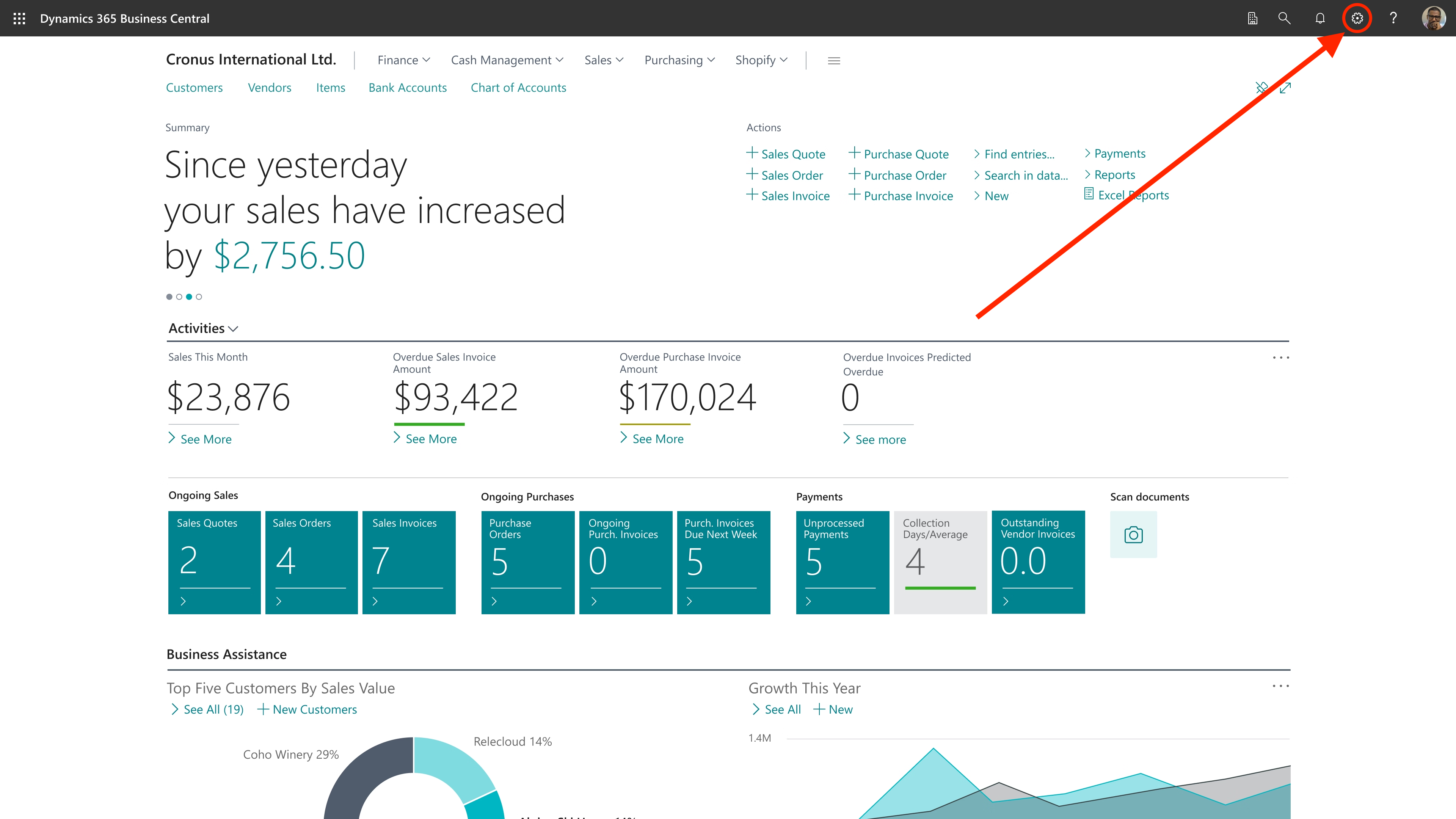
Your users can find their `Environment Name` by first navigating to the **Settings** tab in Dynamics Business Central:
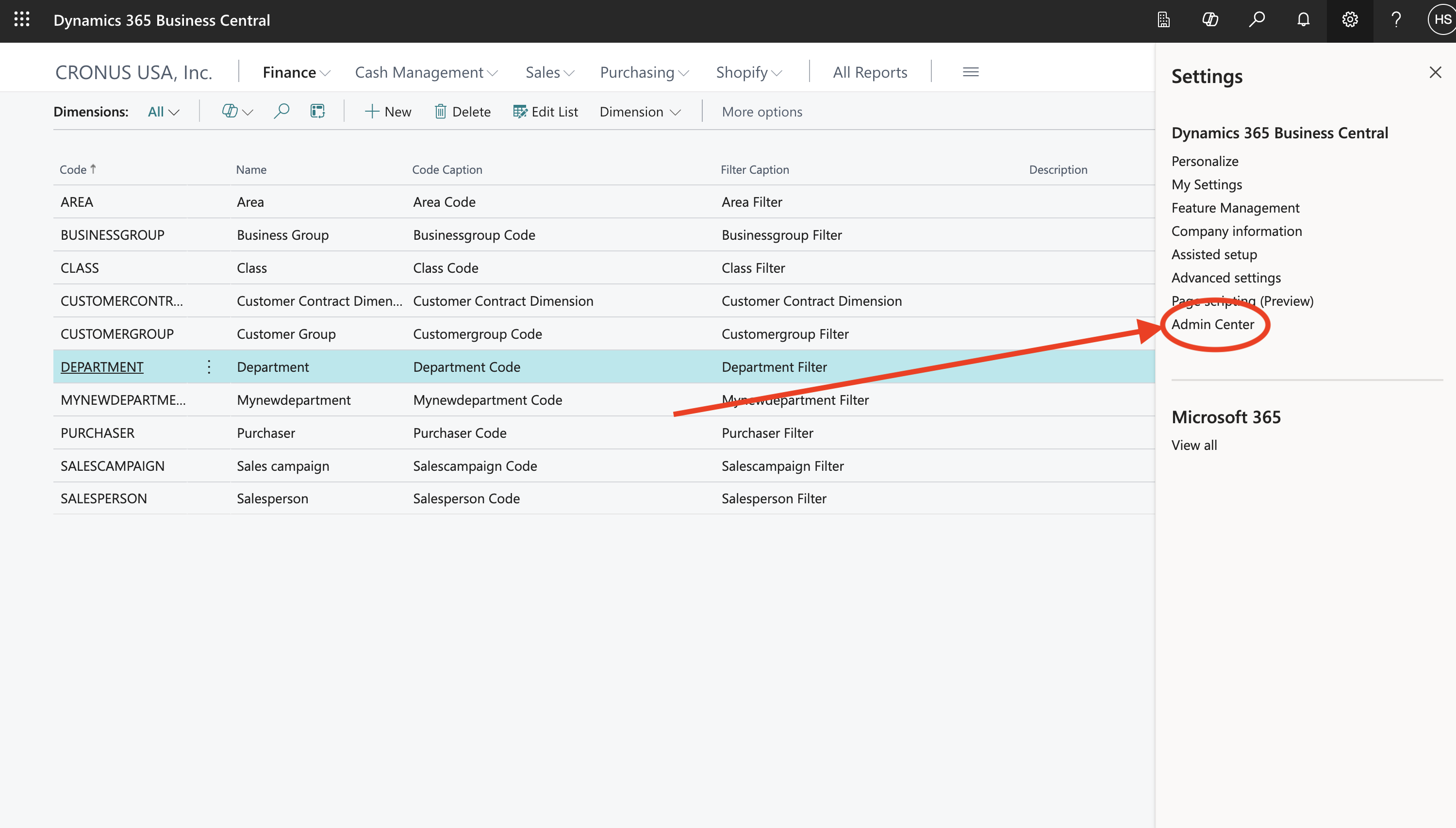
 Then, clicking on **Admin Center**:
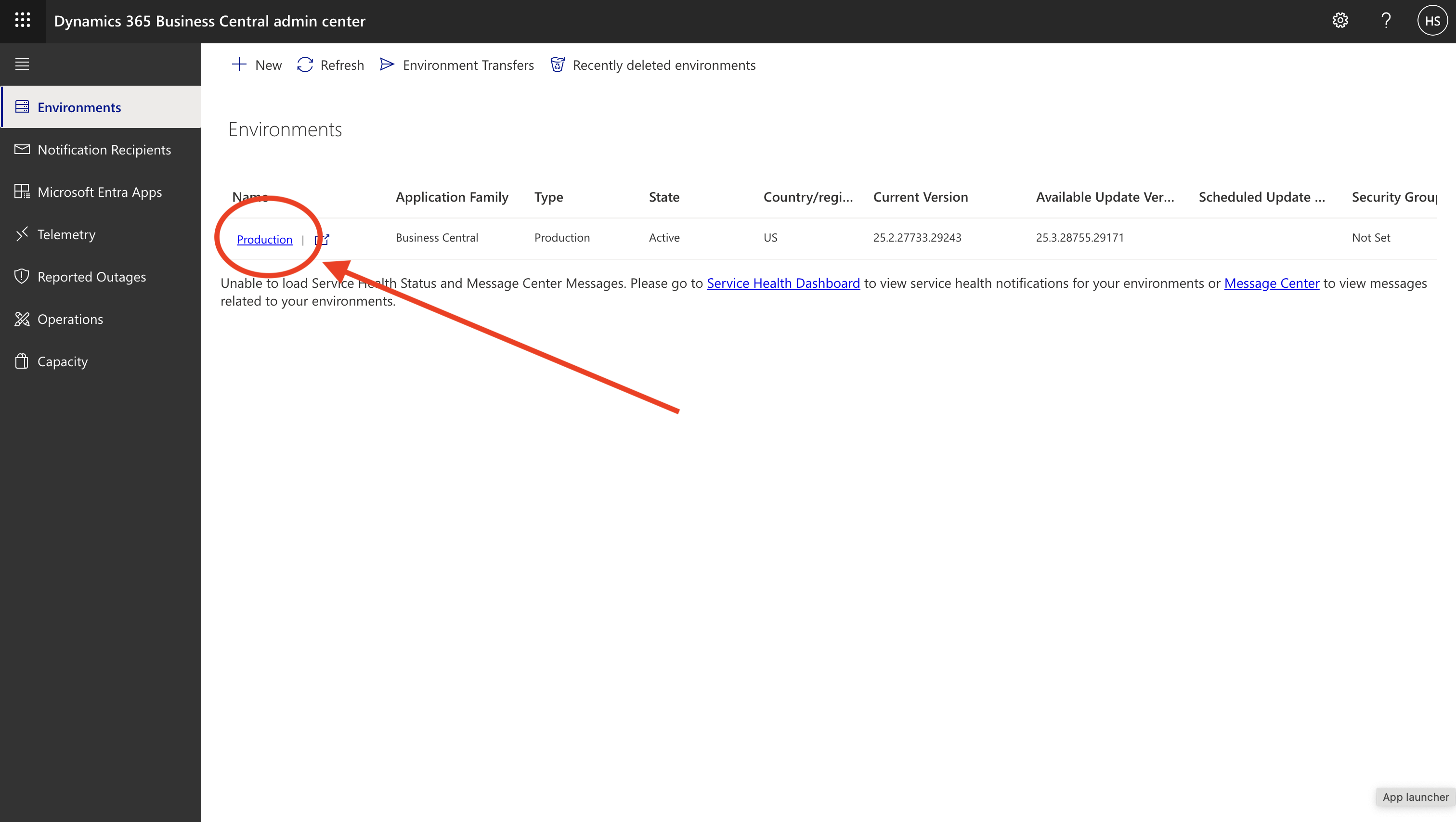
 Finally, they can find all their Business Central environments under **Environments**.
 # How to retrieve the Tenant Id
Your users can find their `Tenant Id` by first navigating to the **Settings** tab in Dynamics Business Central:
Then, clicking on **Admin Center**:
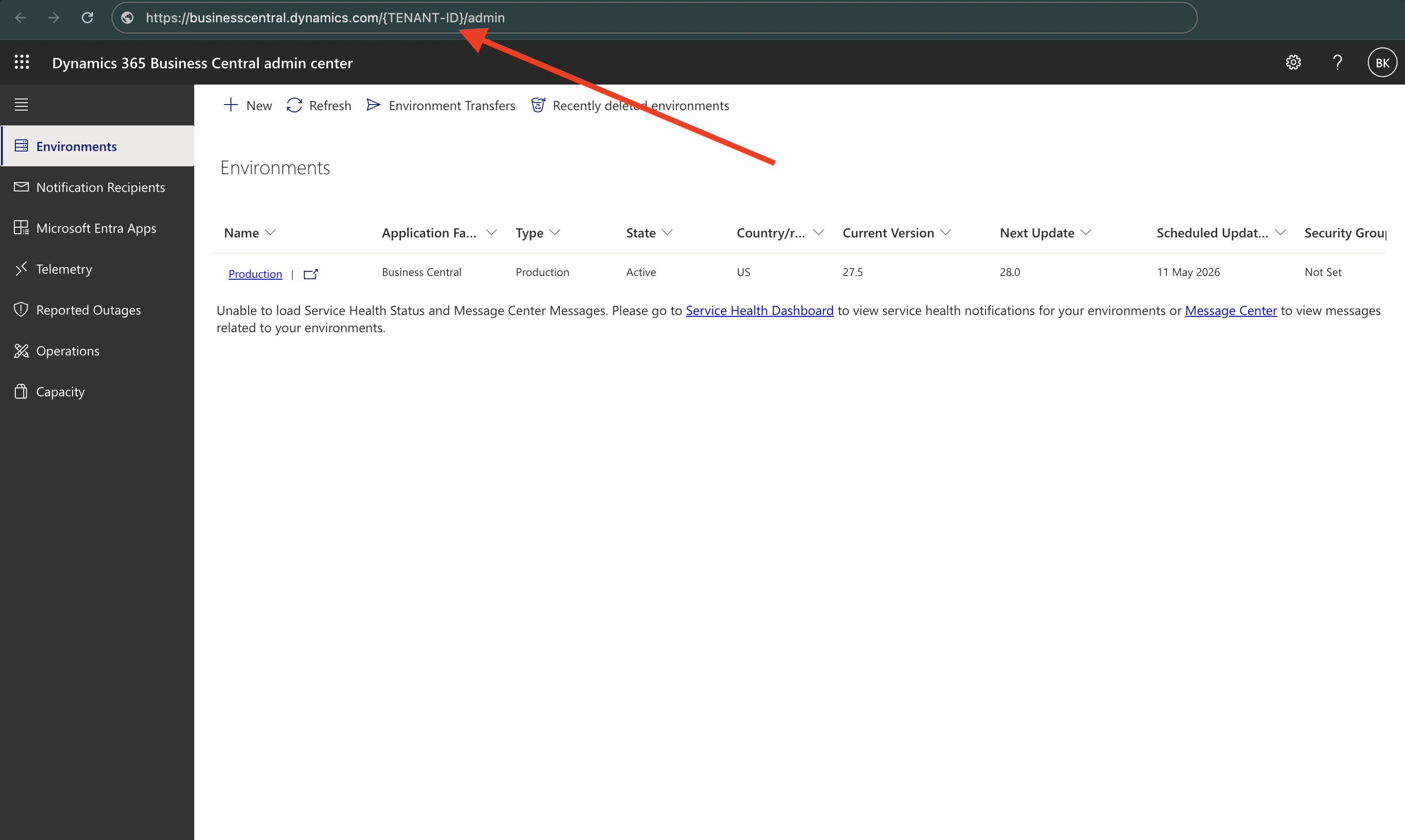
Finally, they can find their `Tenant Id` in the page URL, such as:
`businesscentral.dynamics.com/{TENANT-Id}/admin`
# How to retrieve the Tenant Id
Your users can find their `Tenant Id` by first navigating to the **Settings** tab in Dynamics Business Central:
Then, clicking on **Admin Center**:
Finally, they can find their `Tenant Id` in the page URL, such as:
`businesscentral.dynamics.com/{TENANT-Id}/admin`