> ## Documentation Index
> Fetch the complete documentation index at: https://docs.hotglue.com/llms.txt
> Use this file to discover all available pages before exploring further.
# Microsoft Dynamics 365
# Connector Details
| Name | Value |
| :------------- | :---------------------------------------------------------------------------------------------------------------------------------------------------------------------------------------------------------------------------------------------------------------------------------------------------------------- |
| Platform | [Microsoft Dynamics 365](https://dynamics.microsoft.com) |
| Auth Type | OAuth |
| Direction | Bidirectional |
| Tap Repo | [https://github.com/hotgluexyz/tap-dynamics](https://github.com/hotgluexyz/tap-dynamics) |
| Target Repo | [https://gitlab.com/hotglue/target-dynamics](https://gitlab.com/hotglue/target-dynamics) |
| Tap Metrics | Usage:
|
| Target Metrics | Usage:
|
| Unified Schema | Supported in [Sales Unified Schema](https://hotglue.com/docs/unified). |
# Credentials Setup
Follow the steps below to get the credentials you need to use the Microsoft Dynamics 365 connector.
The first thing that you need to do to get your Microsoft Dynamics 365 CRM OAuth credentials is to [login](https://go.microsoft.com/fwlink/?linkid=2083908) to the Azure portal using an account with administrator permission. If you do not have an Azure account, you can create learn how to create one [here](https://docs.microsoft.com/en-us/office/developer-program/microsoft-365-developer-program).
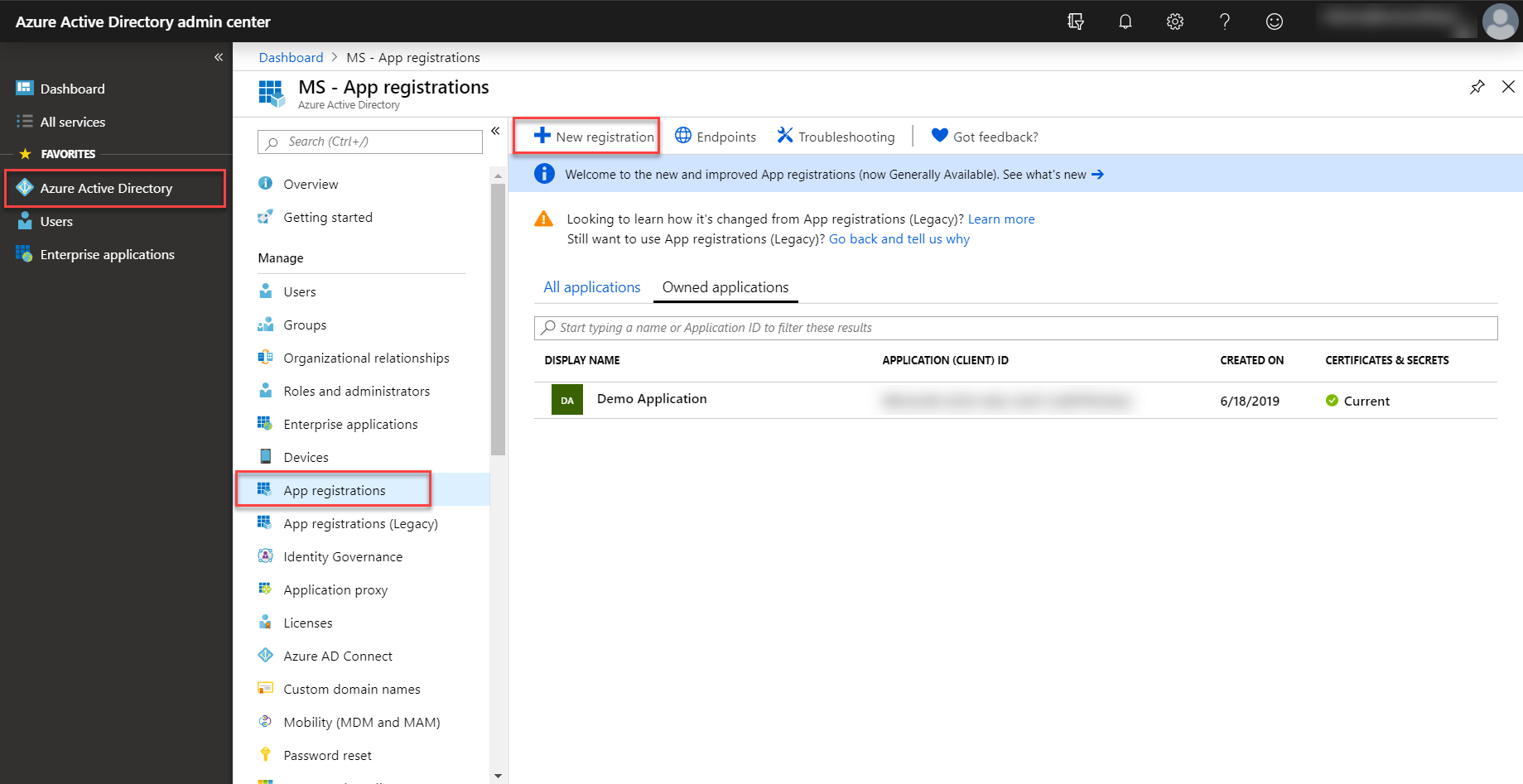
Once in the Azure Portal, select the Azure Active Directory in the left pane and select App registrations and click on New registration.
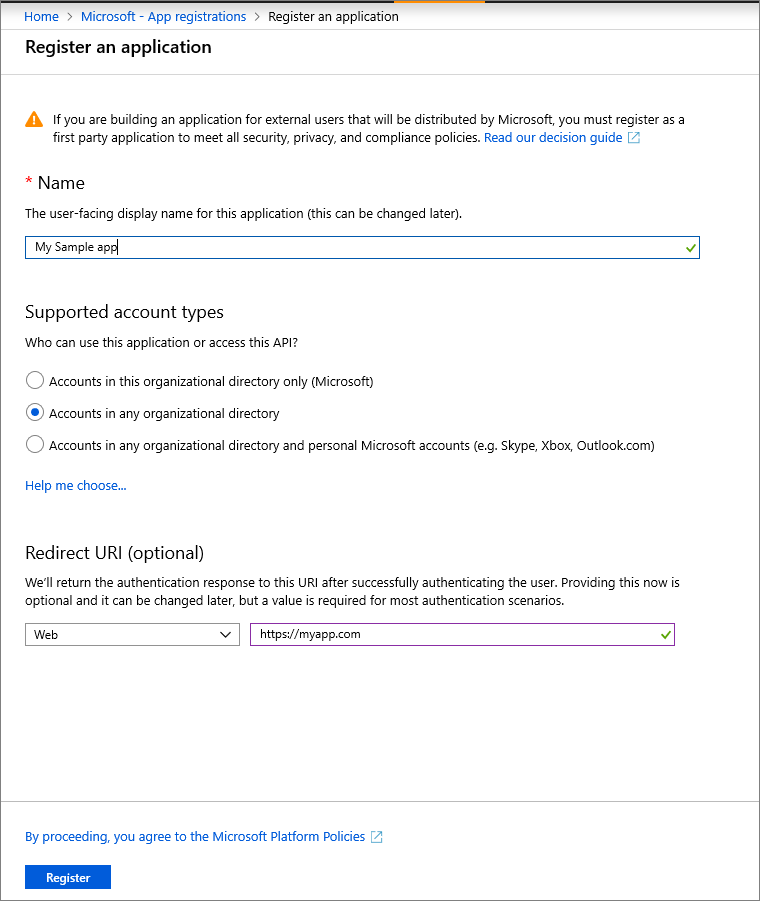
In the Register an application page, enter your application's registration information!
Firstly, in the name Section enter your company's name. Then select Accounts in any organizational directory option from the Supported account types section.
Set the Redirect URI to
```text theme={null}
https://hotglue.xyz/callback
```
Click on Register to create the application.

On the app Overview page, hover over Application (client) ID value, and select the Copy icon to copy the value as you'll need to specify this in your application's authentication code or app.config file where appropriate.
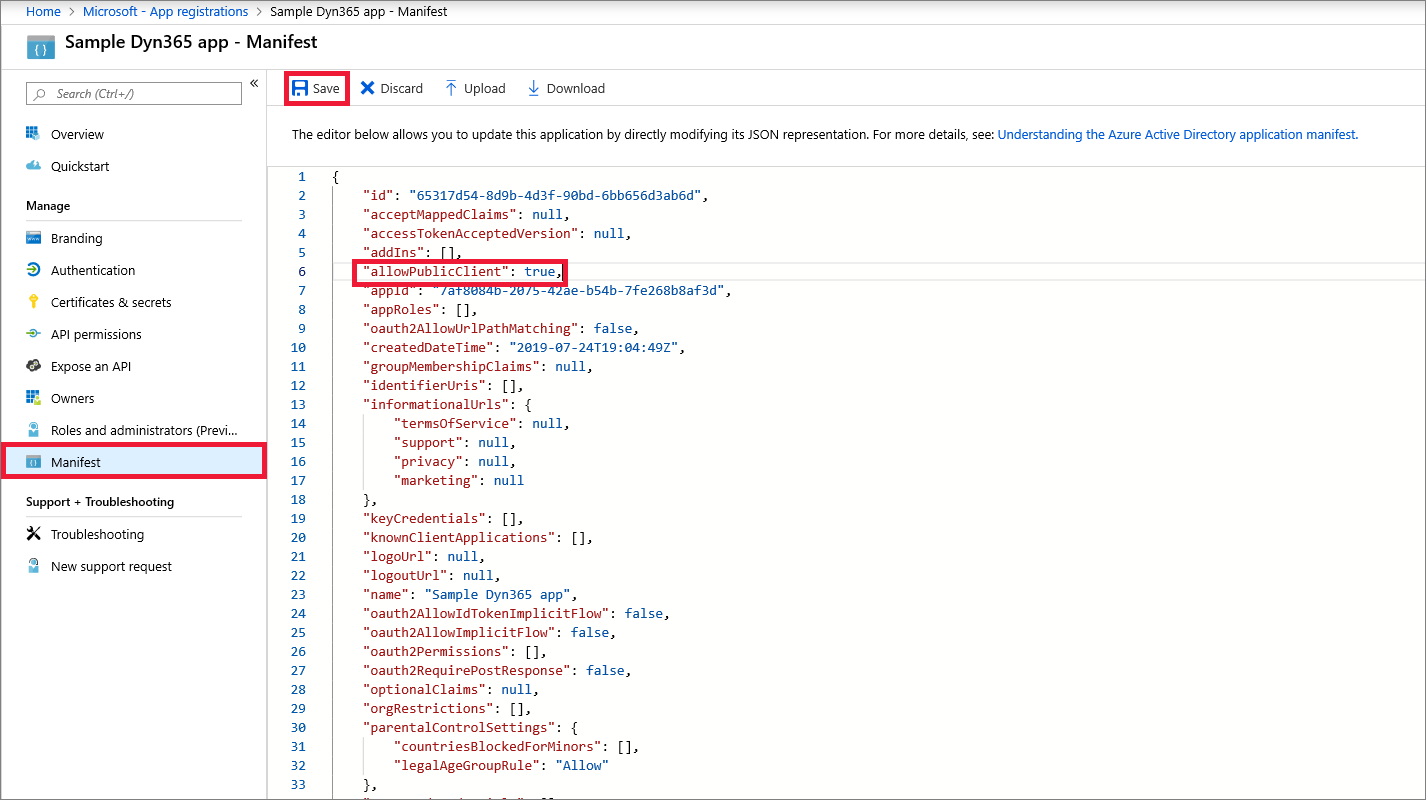
Select Manifest tab, in the manifest editor, set the allowPublicClient\* property to true and click on Save.
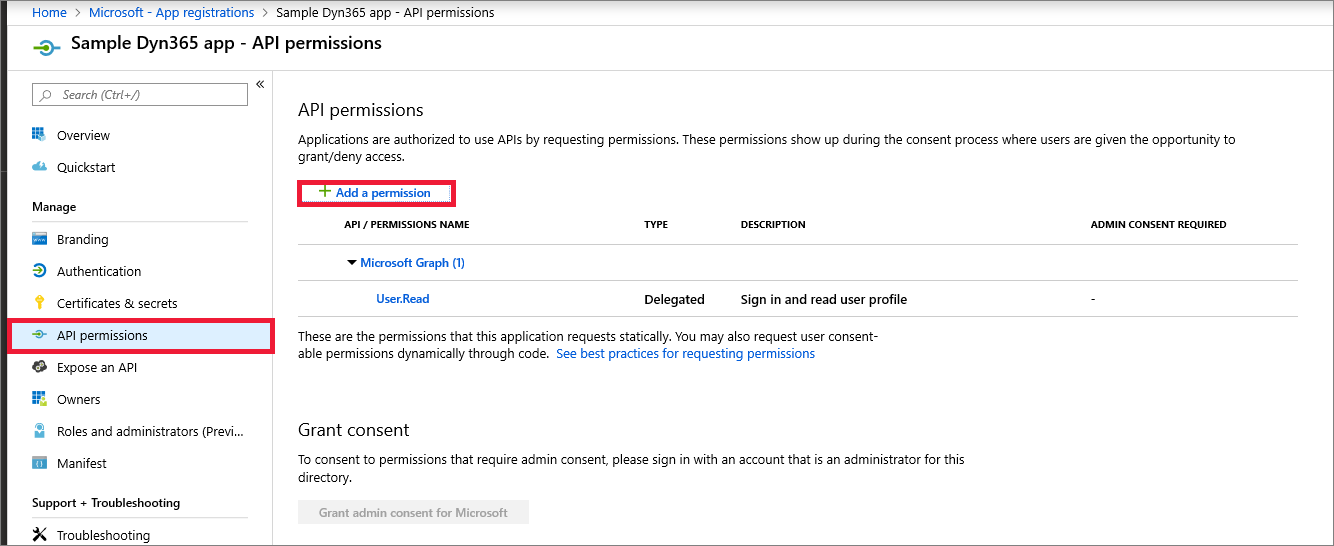
Select the API permissions tab and then go ahead and click on the Add a permission button.
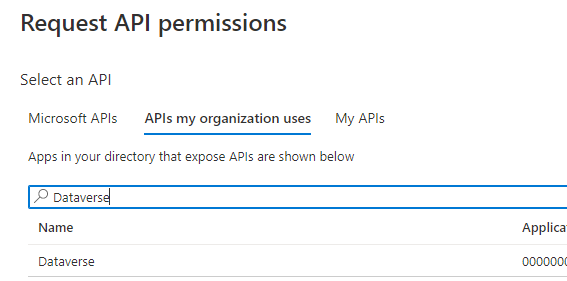
Search for and choose Dataverse under the APIs my organization uses tab. If Dataverse is not found, then search for Common Data Service".
> 📘 Tip
>
> If you are presented with more than one Common Data Service item in the search list, choose any one of them. In the next step the service name and URL will be shown. At that point you can go back to the API search and choose a different Dataverse list item if needed.
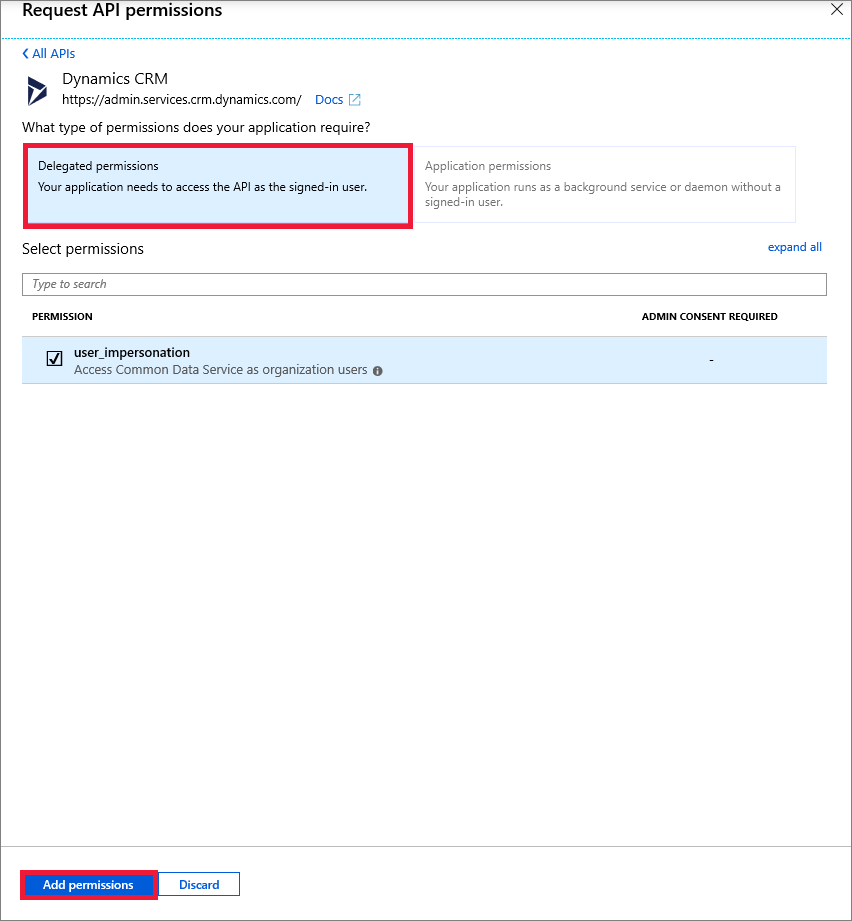
Click on Delegated permissions and check the options and click on Add permissions. This will wrap up registering your app in the Azure Active Directory!
Now you can insert the client id and client secret pair into your hotglue Microsoft Dynamics 365 source settings.
# Tap Changelog
| Version | Notes |
| :---------------------------------------------------------------------------------------------------- | :--------------------------------------------------------------------------------- |
| [v0.1.6](https://github.com/hotgluexyz/tap-dynamics/releases/tag/v0.1.6) | fixes |
| [v0.1.5](https://github.com/hotgluexyz/tap-dynamics/releases/tag/v0.1.5) | bug fixes |
| [v0.1.3](https://github.com/hotgluexyz/tap-dynamics/releases/tag/v0.1.3) | |
| [](https://github.com/hotgluexyz/tap-dynamics/releases/tag/v0.1.2) | |
| [v0.1.1 - Rename domain field to org](https://github.com/hotgluexyz/tap-dynamics/releases/tag/v0.1.1) | - Renamed `domain` field to `org`
- Changed catalog generation to `available` |