Usage:
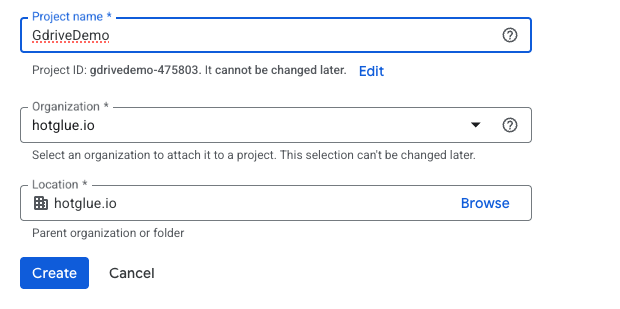 ## Enable the Google Picker API
Next navigate to the **Enabled APIs & Services** menu:
## Enable the Google Picker API
Next navigate to the **Enabled APIs & Services** menu:
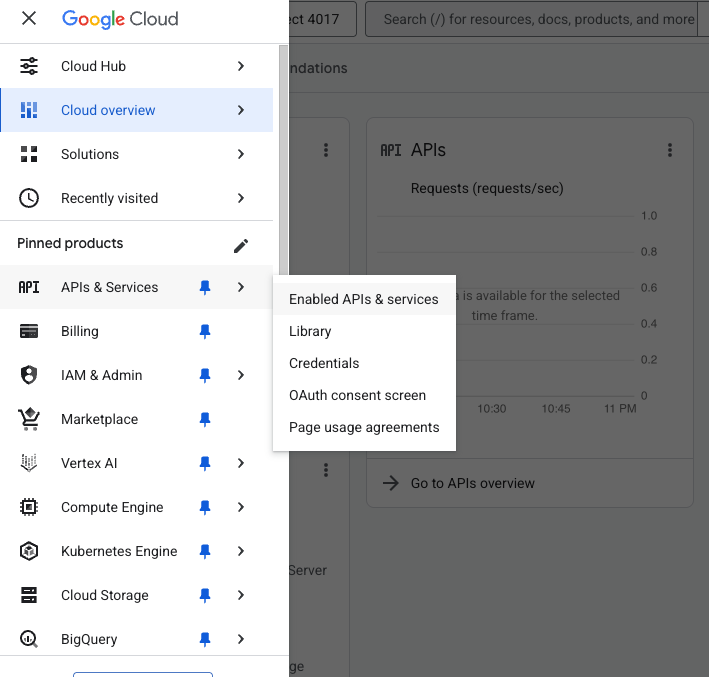 Press **+ Enable APIs & Services** and enable the `Google Picker` API. This allows your OAuth application to download files that your tenant explicitly gives you access to.
## Creating an OAuth application
Next, navigate to the [Google Auth Platform](https://console.cloud.google.com/auth/overview) to create your OAuth application.
Press **+ Enable APIs & Services** and enable the `Google Picker` API. This allows your OAuth application to download files that your tenant explicitly gives you access to.
## Creating an OAuth application
Next, navigate to the [Google Auth Platform](https://console.cloud.google.com/auth/overview) to create your OAuth application.
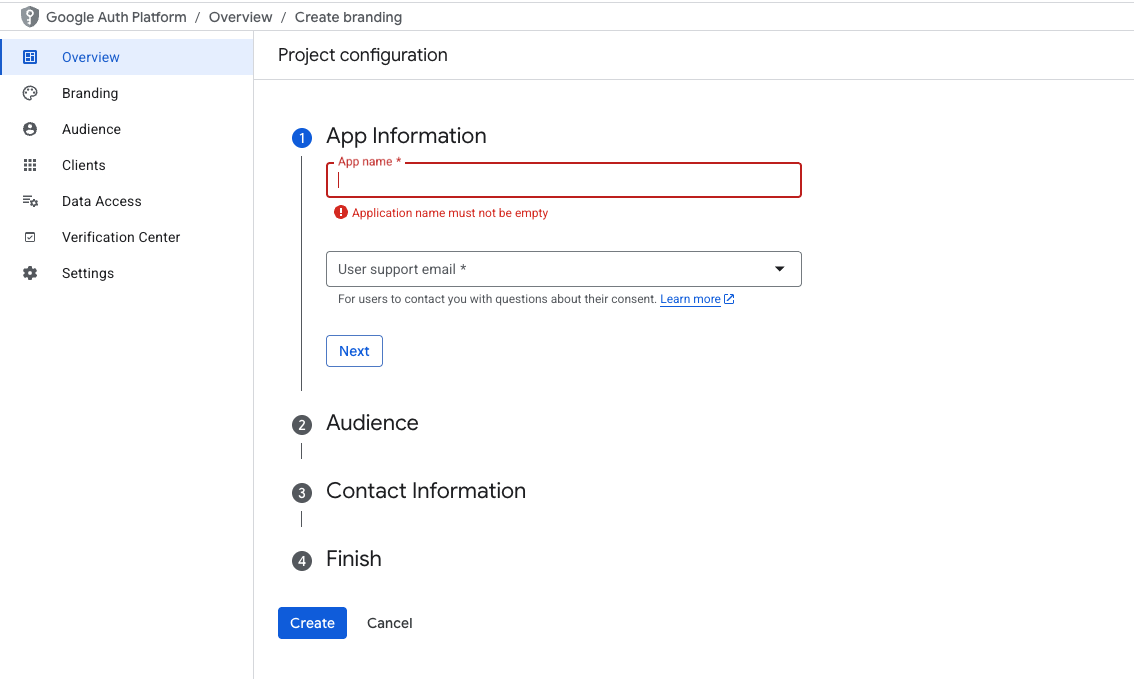 Create an external application with the support emails that you would like to surface to your tenants.
Next create an OAuth client with the callback `https://hotglue.xyz/callback`:
Create an external application with the support emails that you would like to surface to your tenants.
Next create an OAuth client with the callback `https://hotglue.xyz/callback`:
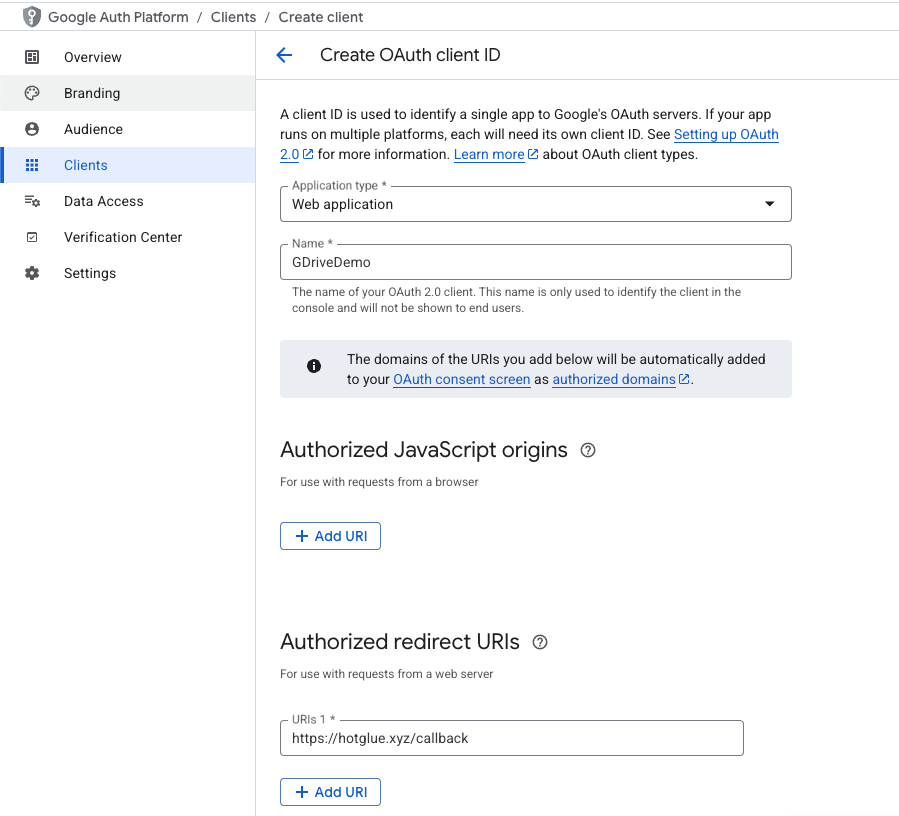 Make sure to copy your client id and secret to be later used in the hotglue dashboard.
Finally, navigate to the **Audience** tab to publish your application. Note that until the application is verified by google, your tenants will see a warning before authenticating.
## Generating a client side developer token
In order to use Google's client-side file picker, you'll need to generate a developer token for the hotglue widget to use.
On the lefthand sidebar, navigate to **APIs & Services > Credentials**.
Next press **+ Create Credentials** > **API key** to get an API key. Once its generated, we recommend restricted its scope to just the Google Picker API.
## Getting your App ID
Finally, in order to support the Google Picker API, hotglue requires your Google Cloud project number (AKA `app id`). You can find the file picker by navigating to the hot dog icon in the top right corner and pressing project settings.
## Configuring Google Drive connector in hotglue
### Authorization URL
The proper authorization url for the Google Picker API is:
```
"https://accounts.google.com/o/oauth2/v2/auth?scope=https%3A//www.googleapis.com/auth/drive.file&access_type=offline&prompt=consent&include_granted_scopes=true&response_type=code"
```
If using Google Drive in a unidirectional (v1) flow, you can configure this by adding the following to your Google Drive [availableSource](/key-concepts/connectors/v1-sources/management):
```json theme={null}
"tap_url": "https://accounts.google.com/o/oauth2/v2/auth?scope=https%3A//www.googleapis.com/auth/drive.file&access_type=offline&prompt=consent&include_granted_scopes=true&response_type=code"
```
If using Google Drive in a bidirectional (v2) flow, you can add the following to your [availableConnector](/key-concepts/connectors/v2-connectors/management):
```json theme={null}
"auth_url": "https://accounts.google.com/o/oauth2/v2/auth?scope=https%3A//www.googleapis.com/auth/drive.file&access_type=offline&prompt=consent&include_granted_scopes=true&response_type=code"
```
### Configuring your Google Console application for the widget
To support using the Google Picker API in the widget, you can add the following to your availableSource or availableConnector:
```json theme={null}
"google_tokens": {
"app_id": "
Make sure to copy your client id and secret to be later used in the hotglue dashboard.
Finally, navigate to the **Audience** tab to publish your application. Note that until the application is verified by google, your tenants will see a warning before authenticating.
## Generating a client side developer token
In order to use Google's client-side file picker, you'll need to generate a developer token for the hotglue widget to use.
On the lefthand sidebar, navigate to **APIs & Services > Credentials**.
Next press **+ Create Credentials** > **API key** to get an API key. Once its generated, we recommend restricted its scope to just the Google Picker API.
## Getting your App ID
Finally, in order to support the Google Picker API, hotglue requires your Google Cloud project number (AKA `app id`). You can find the file picker by navigating to the hot dog icon in the top right corner and pressing project settings.
## Configuring Google Drive connector in hotglue
### Authorization URL
The proper authorization url for the Google Picker API is:
```
"https://accounts.google.com/o/oauth2/v2/auth?scope=https%3A//www.googleapis.com/auth/drive.file&access_type=offline&prompt=consent&include_granted_scopes=true&response_type=code"
```
If using Google Drive in a unidirectional (v1) flow, you can configure this by adding the following to your Google Drive [availableSource](/key-concepts/connectors/v1-sources/management):
```json theme={null}
"tap_url": "https://accounts.google.com/o/oauth2/v2/auth?scope=https%3A//www.googleapis.com/auth/drive.file&access_type=offline&prompt=consent&include_granted_scopes=true&response_type=code"
```
If using Google Drive in a bidirectional (v2) flow, you can add the following to your [availableConnector](/key-concepts/connectors/v2-connectors/management):
```json theme={null}
"auth_url": "https://accounts.google.com/o/oauth2/v2/auth?scope=https%3A//www.googleapis.com/auth/drive.file&access_type=offline&prompt=consent&include_granted_scopes=true&response_type=code"
```
### Configuring your Google Console application for the widget
To support using the Google Picker API in the widget, you can add the following to your availableSource or availableConnector:
```json theme={null}
"google_tokens": {
"app_id": "