> ## Documentation Index
> Fetch the complete documentation index at: https://docs.hotglue.com/llms.txt
> Use this file to discover all available pages before exploring further.
# Sage Intacct
# Connector Details
| Name | Value |
| :------------- | :------------------------------------------------------------------------------------------------------------------------------------------------------------------------------------------------------------------------------------------------------------------------------------------------------------------------------------------------------------------------------------------------------------------------------------------------------------------------------------------------------------------------------------------------------------------------------------------------------------------------------------------------------------------ |
| Platform | [Sage Intacct](https://sageintacct.com) |
| Auth Type | API Keys |
| Direction | Bidirectional |
| Tap Repo | [https://github.com/hotgluexyz/tap-intacct](https://github.com/hotgluexyz/tap-intacct) |
| Target Repo | [https://gitlab.com/hotglue/target-intacct-v2](https://gitlab.com/hotglue/target-intacct-v2) |
| Tap Metrics | Usage:
Success Rate:
|
| Target Metrics | Usage:
Success Rate:
|
| Unified Schema | Supported in [Accounting Unified Schema](https://hotglue.com/docs/unified). |
# Credentials Setup
Follow the steps below to get the credentials you need to use the Sage Intacct connector.
The Sage Intacct tap requires the following fields:
| Field Name | Description |
| :-------------- | :-------------------------------- |
| Company Id | Your Sage Intacct Company Id |
| Sender Id | Your Sage Intacct Sender Id |
| Sender Password | Your Sage Intacct Sender Password |
| User Id | Your Sage Intacct User Id |
| User Password | Your Sage Intacct User Password |
### 1. Enable Web Services
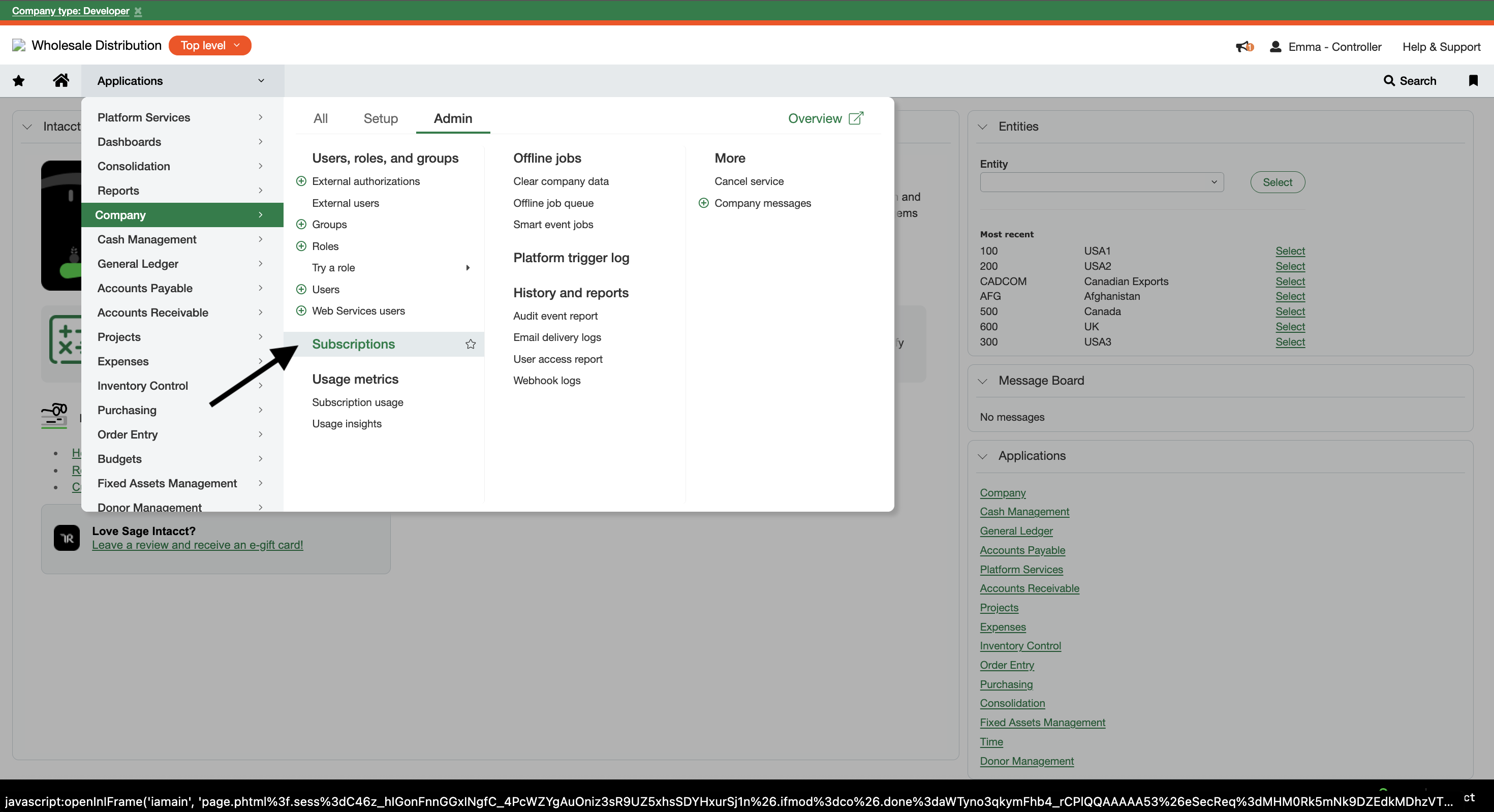
To enable Web Services, go to Company > Admin > Subscriptions
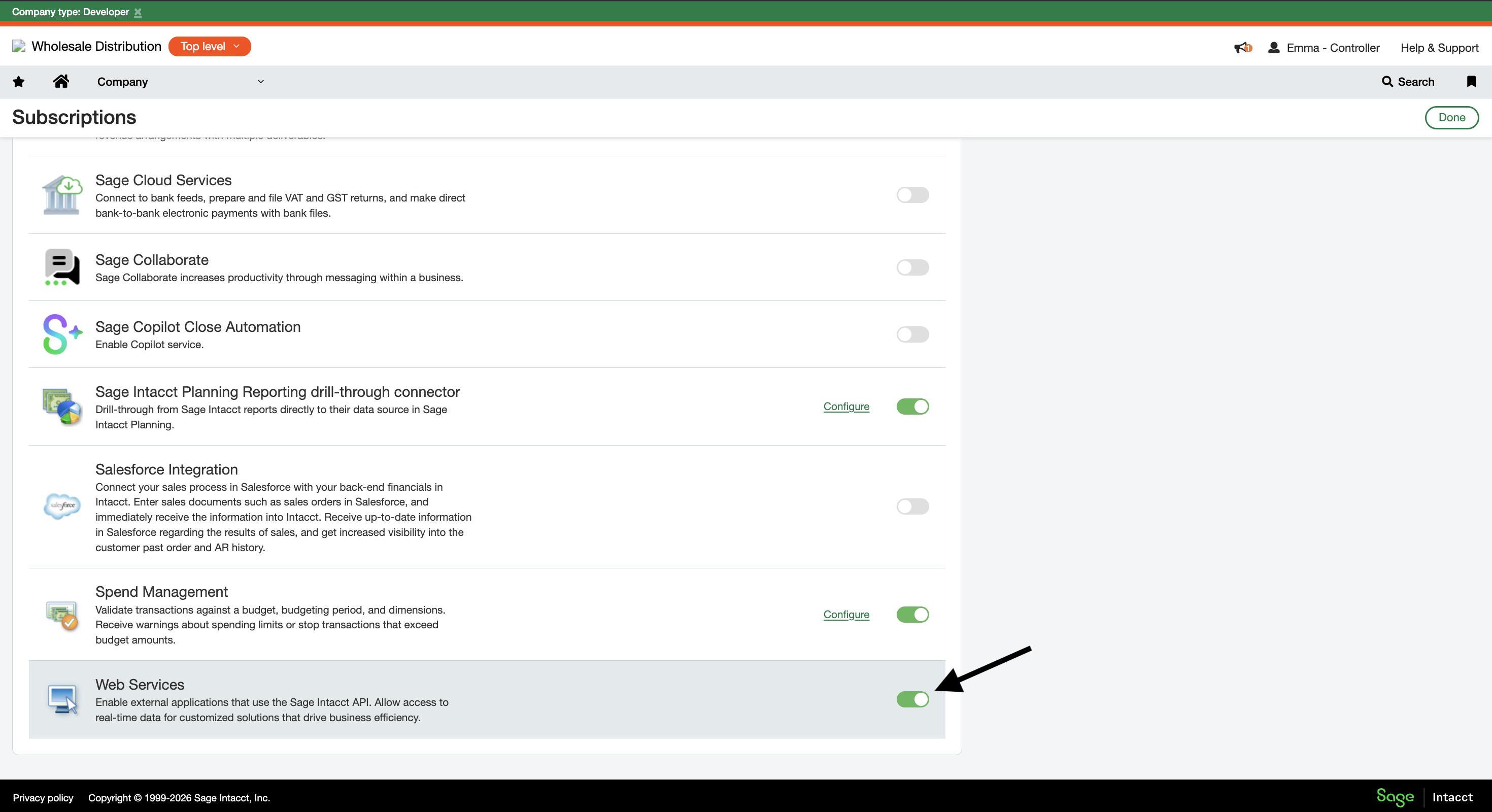
 Ensure “Web Services” is enabled
 ### 2. Generate a Sender ID and password
The Intacct Sender credentials are used to validate your API access. Unfortunately, Intacct does not provide API access to all users by default.
You have two options for obtaining developer credentials.
1. You (the hotglue customer) can register as an Intacct Marketplace partner (link to Intacct page of applying to be a marketplace partner). This involves an approval process that typically takes a couple of months. hotglue can then use your Sender credentials to interact with your tenants' Intacct instances. ([More Information](https://www.sage.com/en-us/sage-business-cloud/intacct/partners/))
2. Your tenant can obtain a developer license, which includes sender credentials. This is paid, however does not involve a lengthy approval process. ([More information](https://developer.sage.com/))
### 3. Authorize the Sender ID
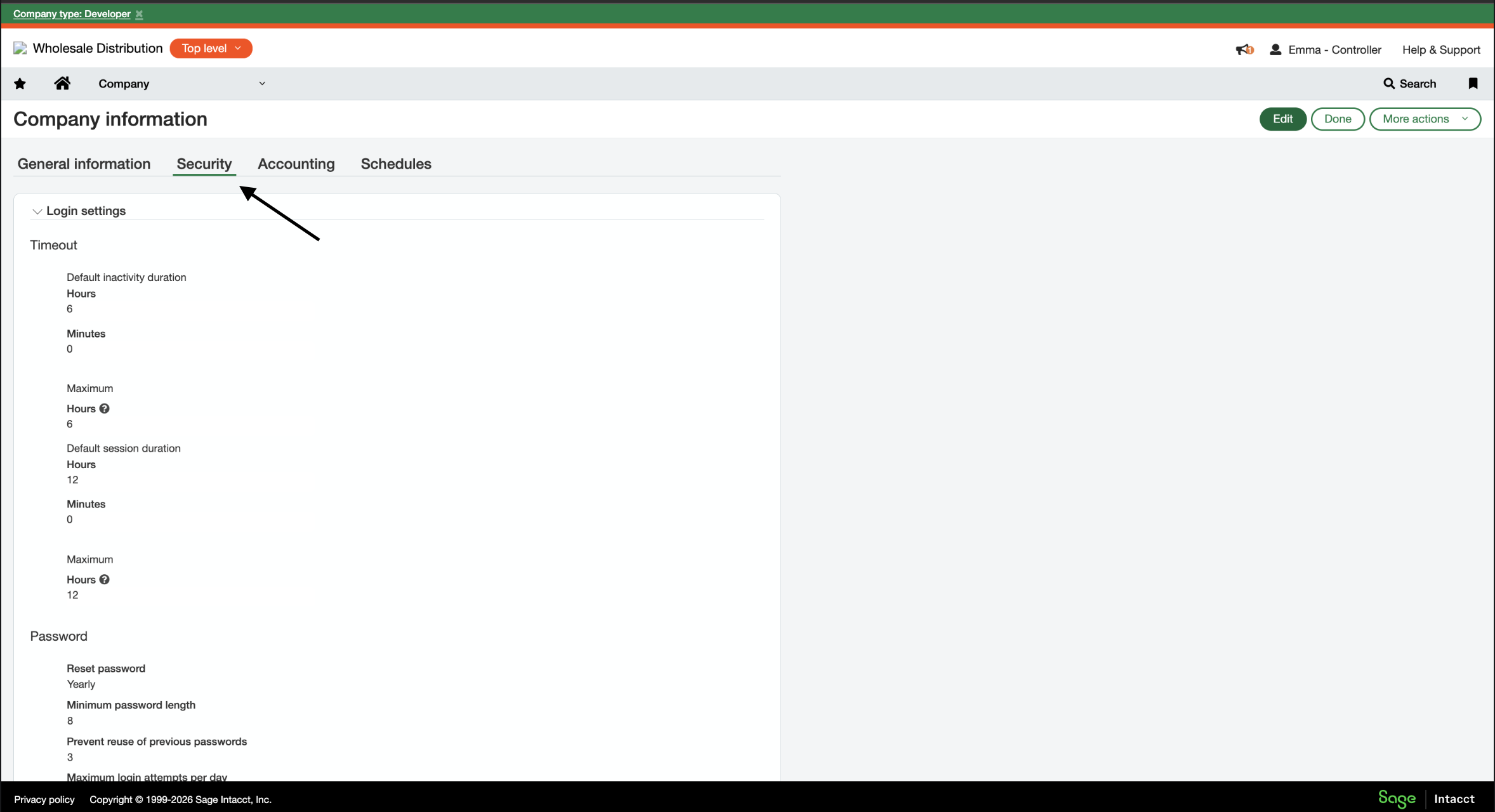
Go to Company > Setup > Company > Security, and select Edit
### 2. Generate a Sender ID and password
The Intacct Sender credentials are used to validate your API access. Unfortunately, Intacct does not provide API access to all users by default.
You have two options for obtaining developer credentials.
1. You (the hotglue customer) can register as an Intacct Marketplace partner (link to Intacct page of applying to be a marketplace partner). This involves an approval process that typically takes a couple of months. hotglue can then use your Sender credentials to interact with your tenants' Intacct instances. ([More Information](https://www.sage.com/en-us/sage-business-cloud/intacct/partners/))
2. Your tenant can obtain a developer license, which includes sender credentials. This is paid, however does not involve a lengthy approval process. ([More information](https://developer.sage.com/))
### 3. Authorize the Sender ID
Go to Company > Setup > Company > Security, and select Edit
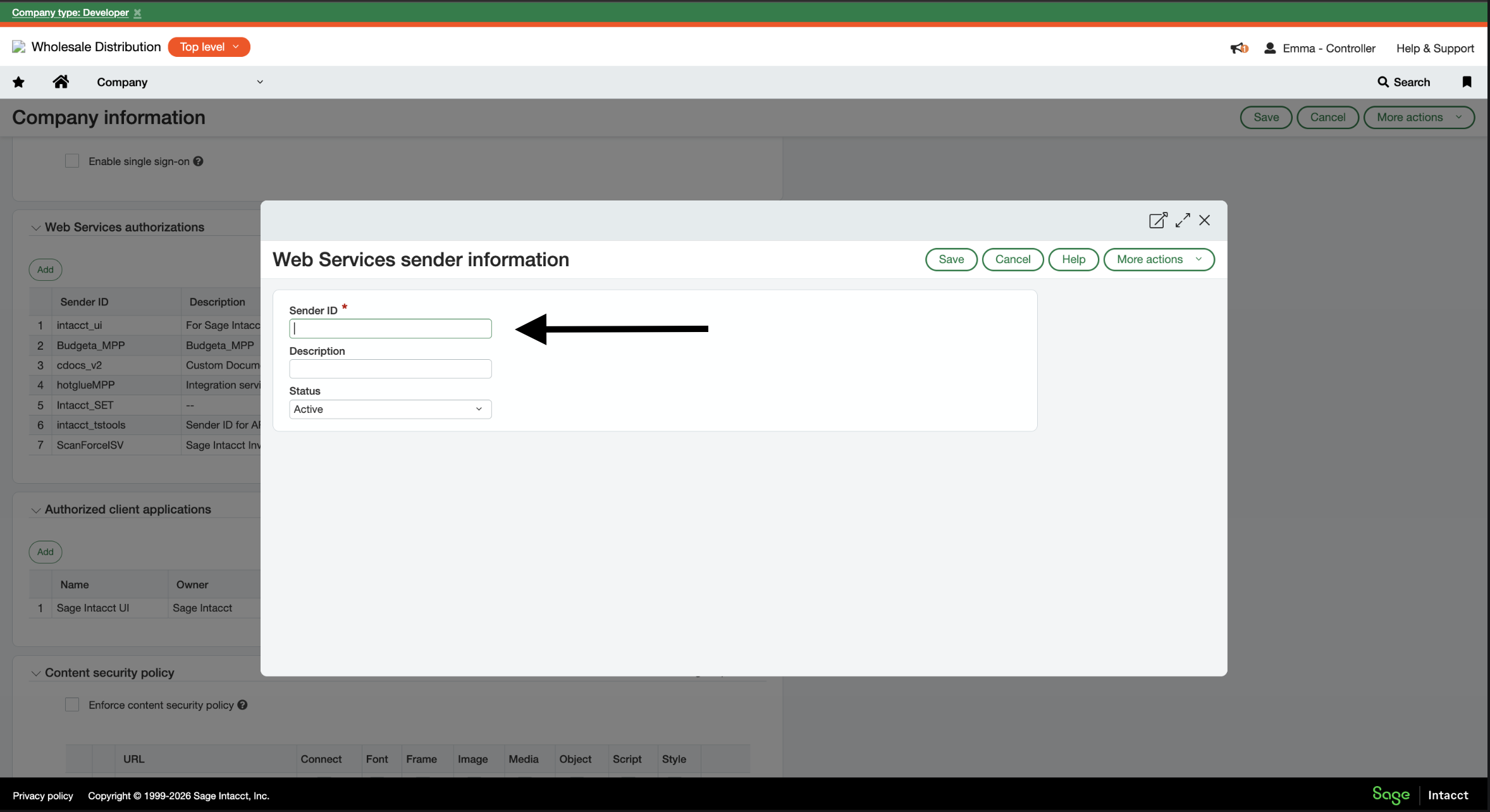
 In the Web Services authorizations section, select Add
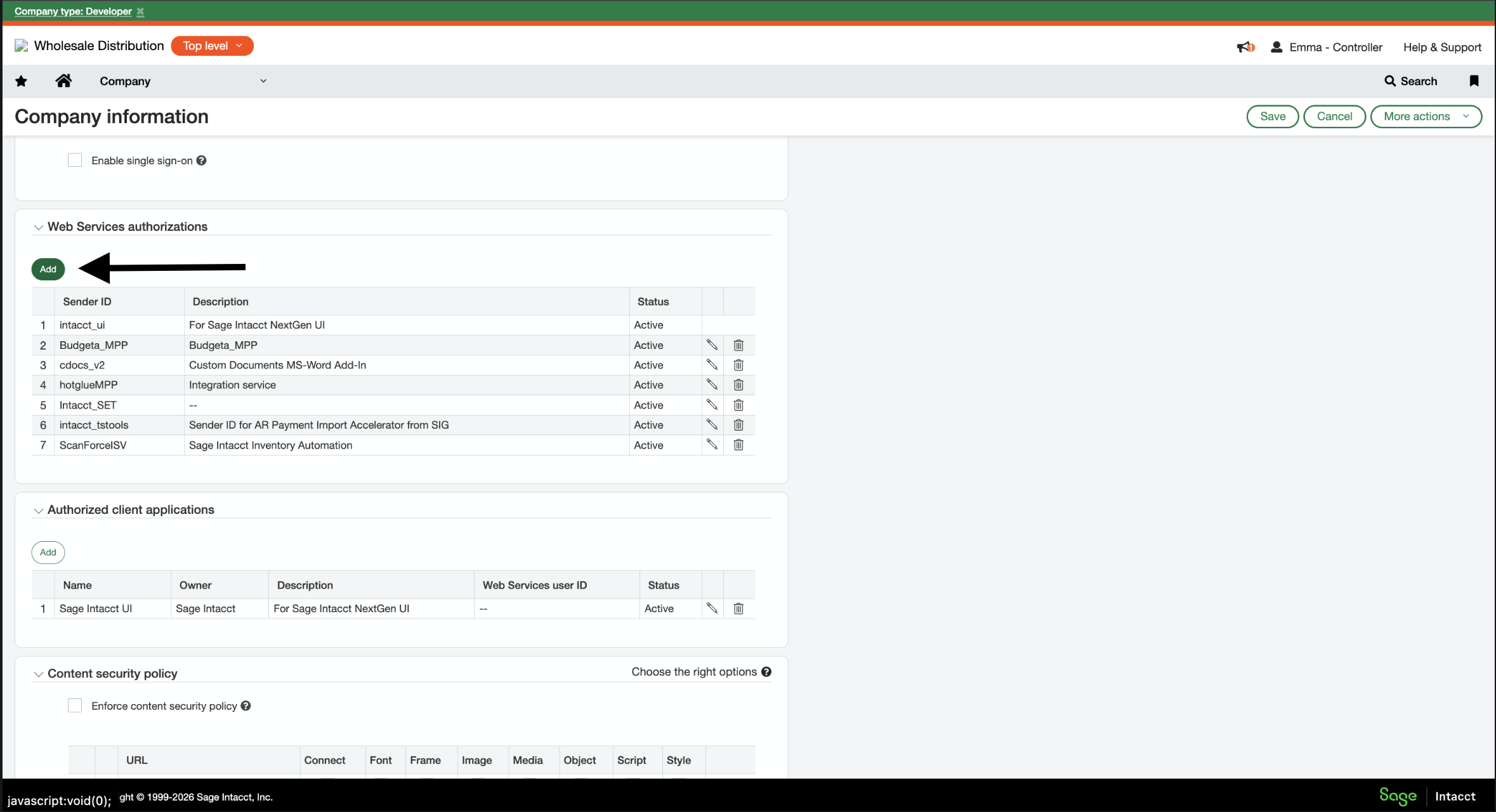 Enter the Sender ID (provided externally), set as Active, select Save
 ### 4. Create a role to be used by the hotglue integration
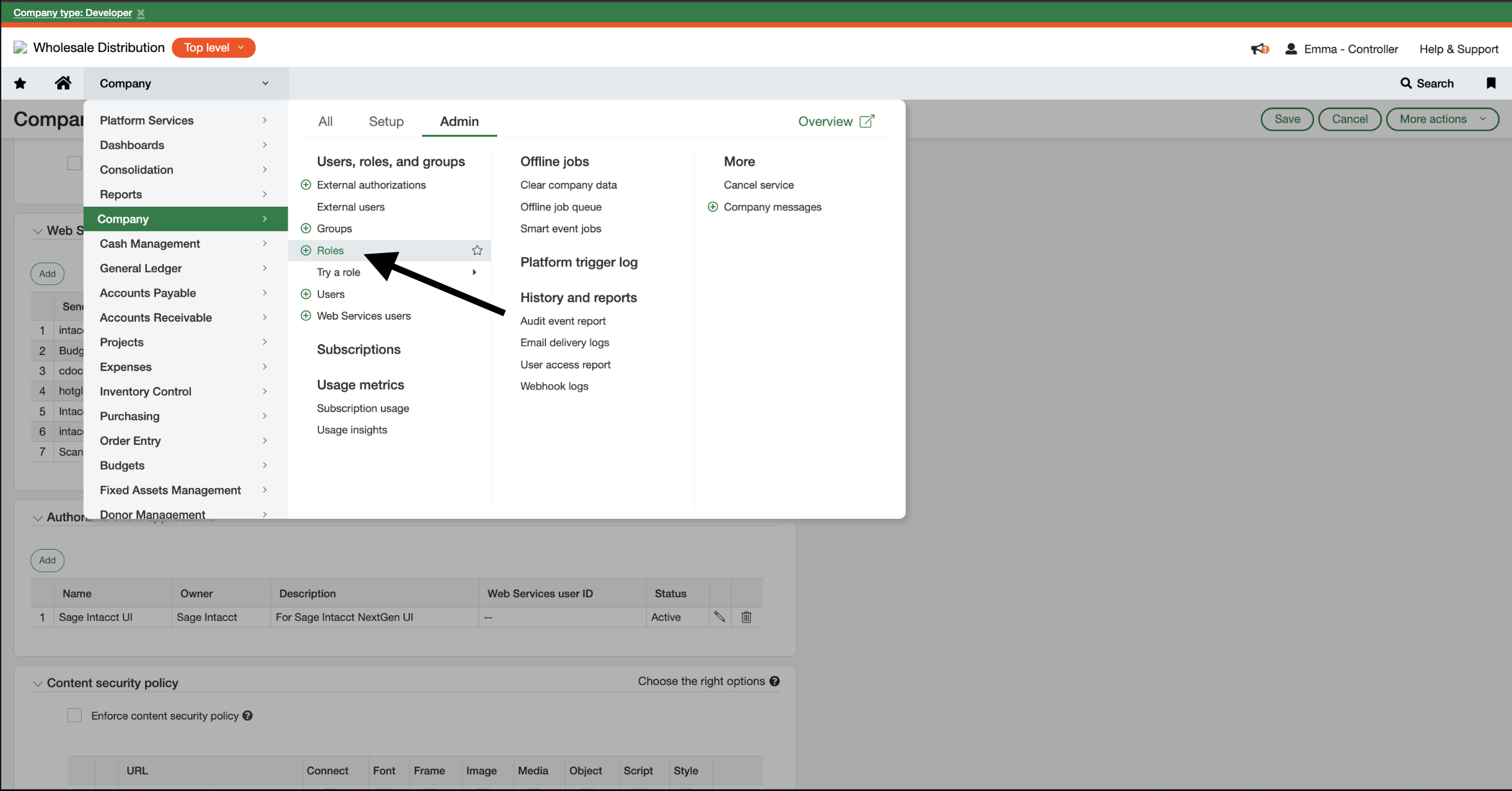
Navigate to Company > Admin > Roles
### 4. Create a role to be used by the hotglue integration
Navigate to Company > Admin > Roles
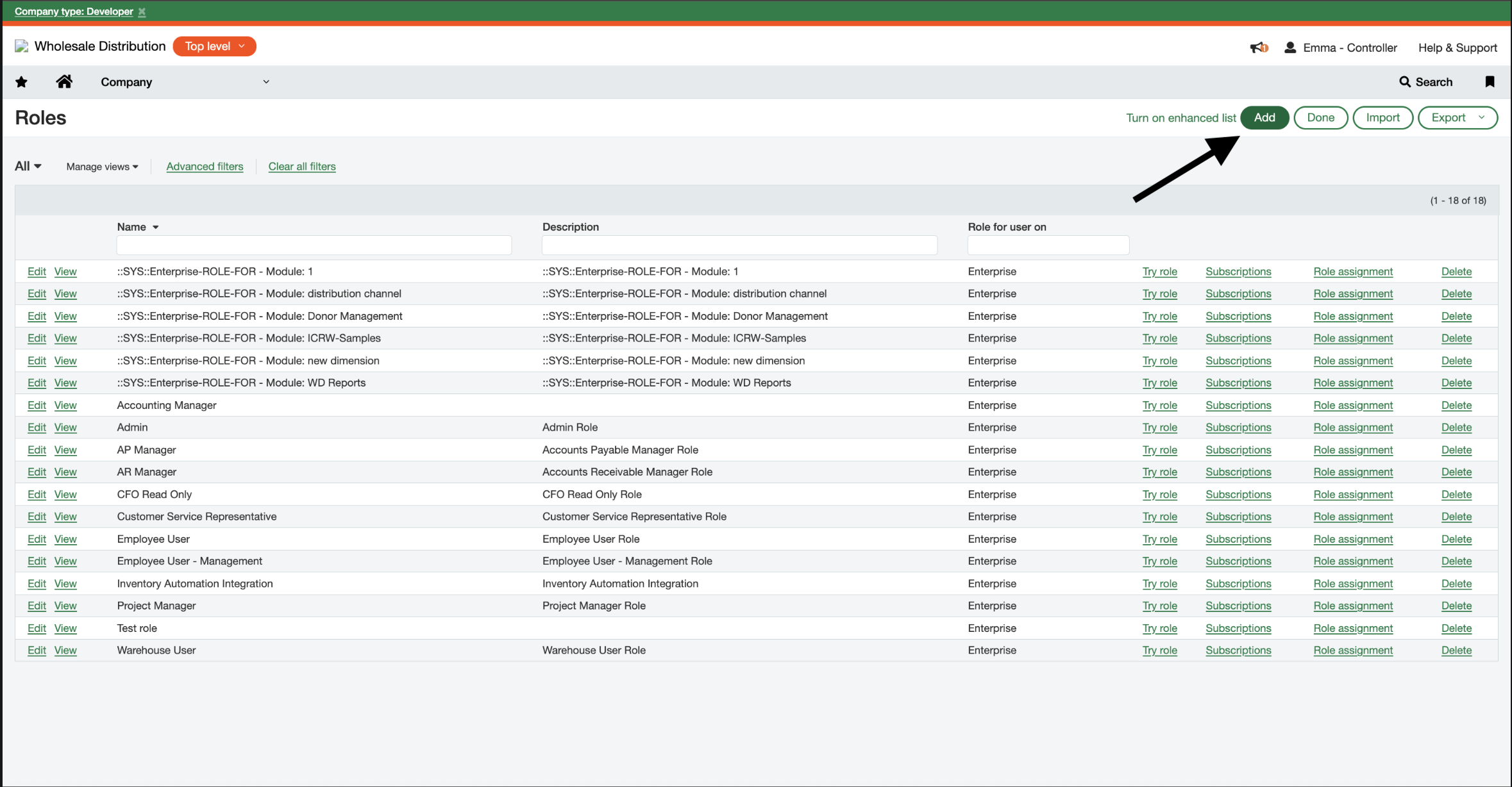
 Select Add
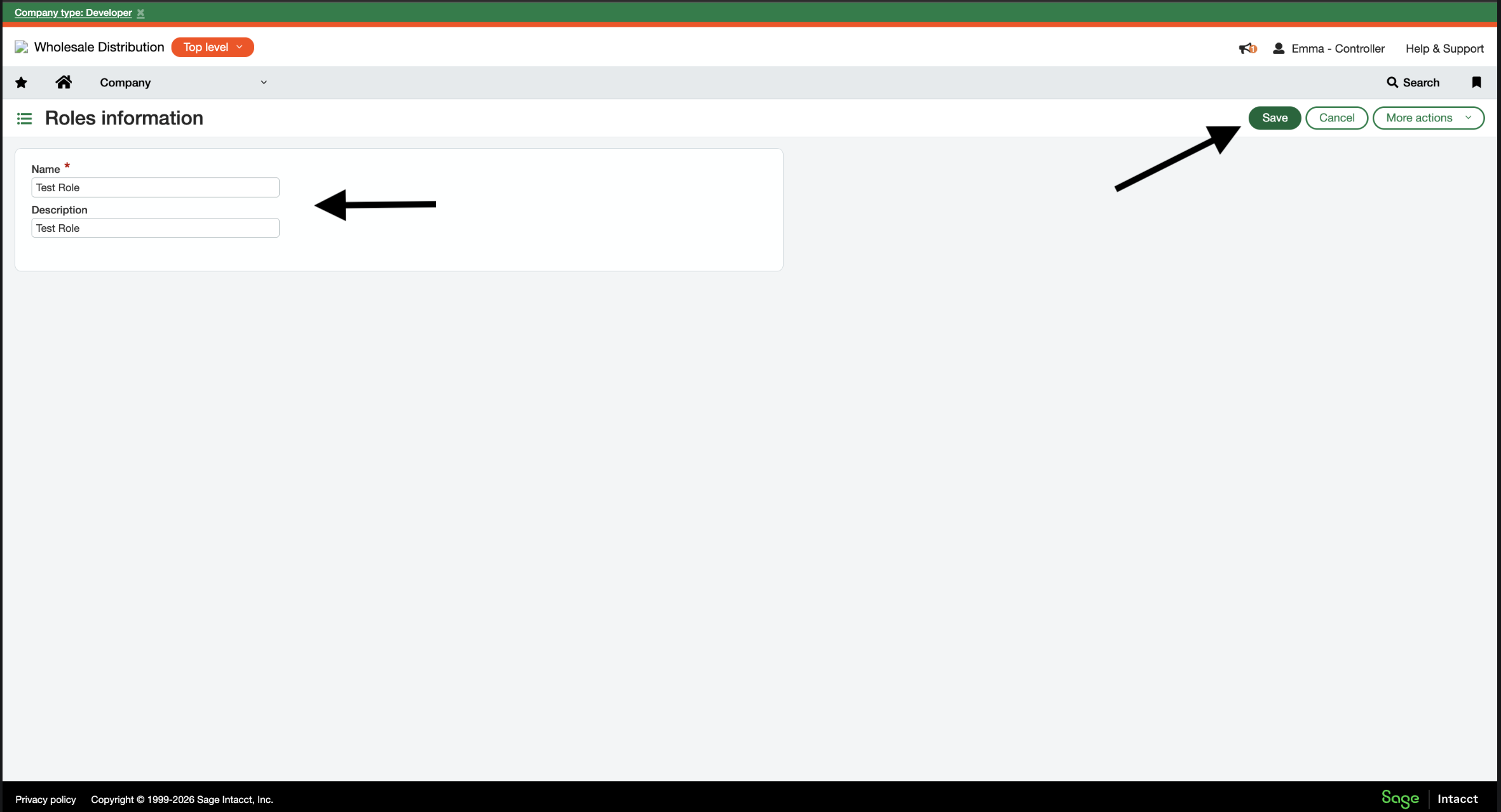
 Name the role and select Save
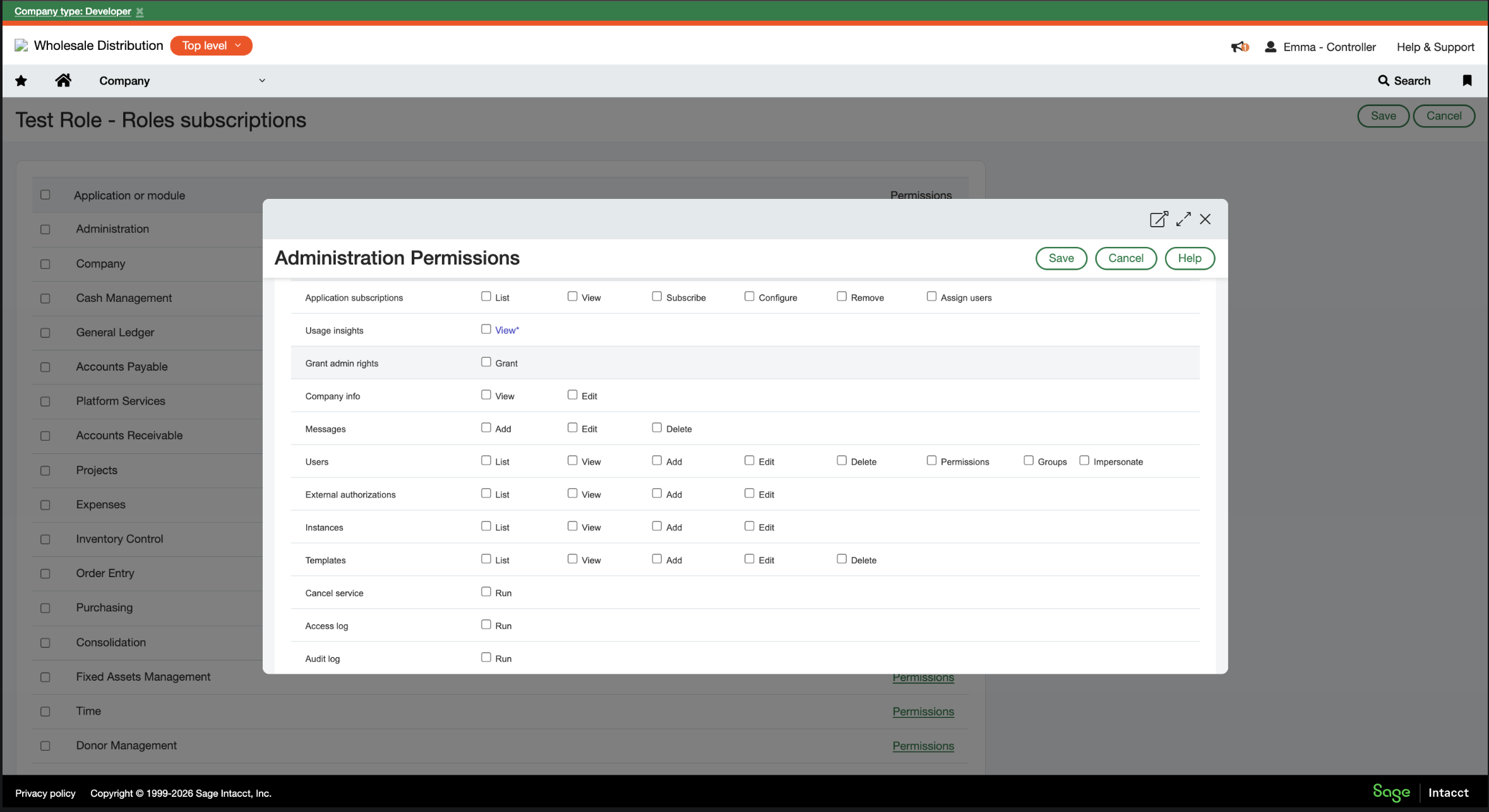
 You should configure this role's permissions based on your hotglue integration. For example, if are you looking to both read and write journal entries, you should make sure to give full permissions for the General Ledger. If you are only reading from Intacct, you can select omnit write access.
 ### 4. Create the Intacct user to be used by the hotglue integration
Go to Company > Admin > Users
### 4. Create the Intacct user to be used by the hotglue integration
Go to Company > Admin > Users
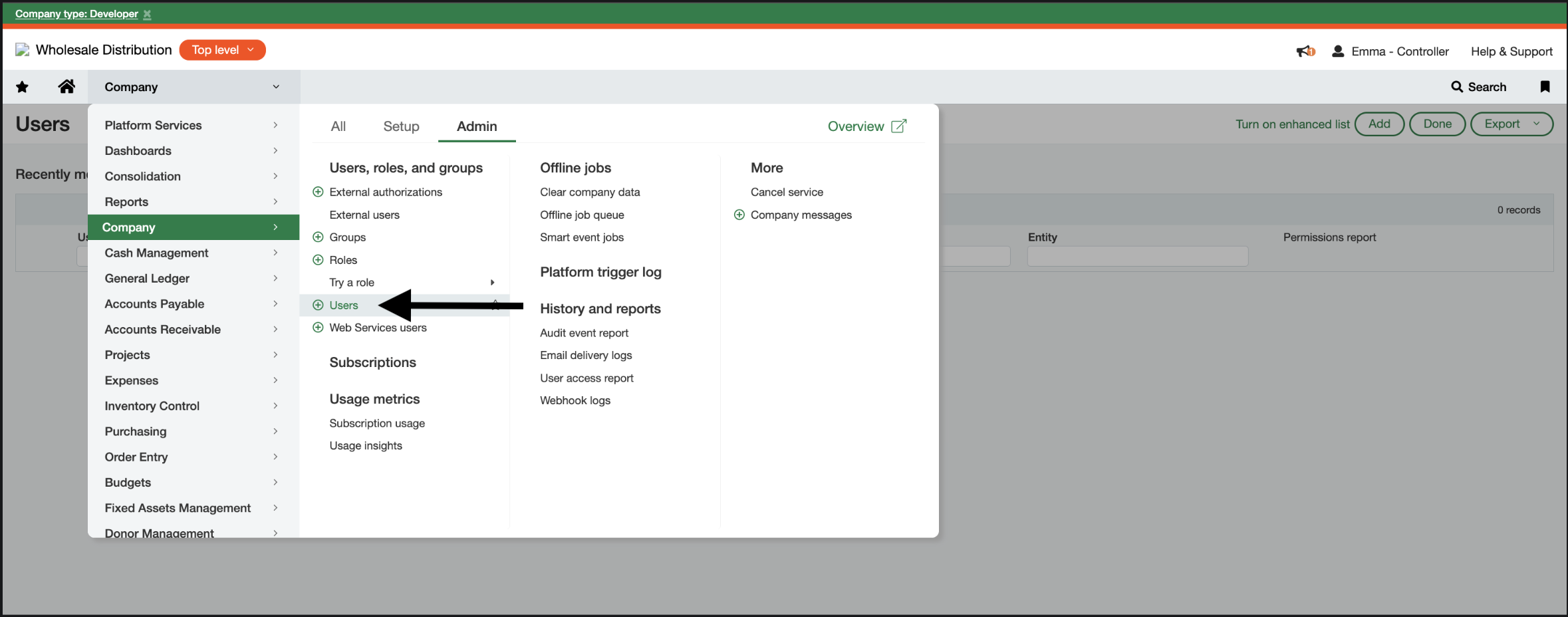 Select Add
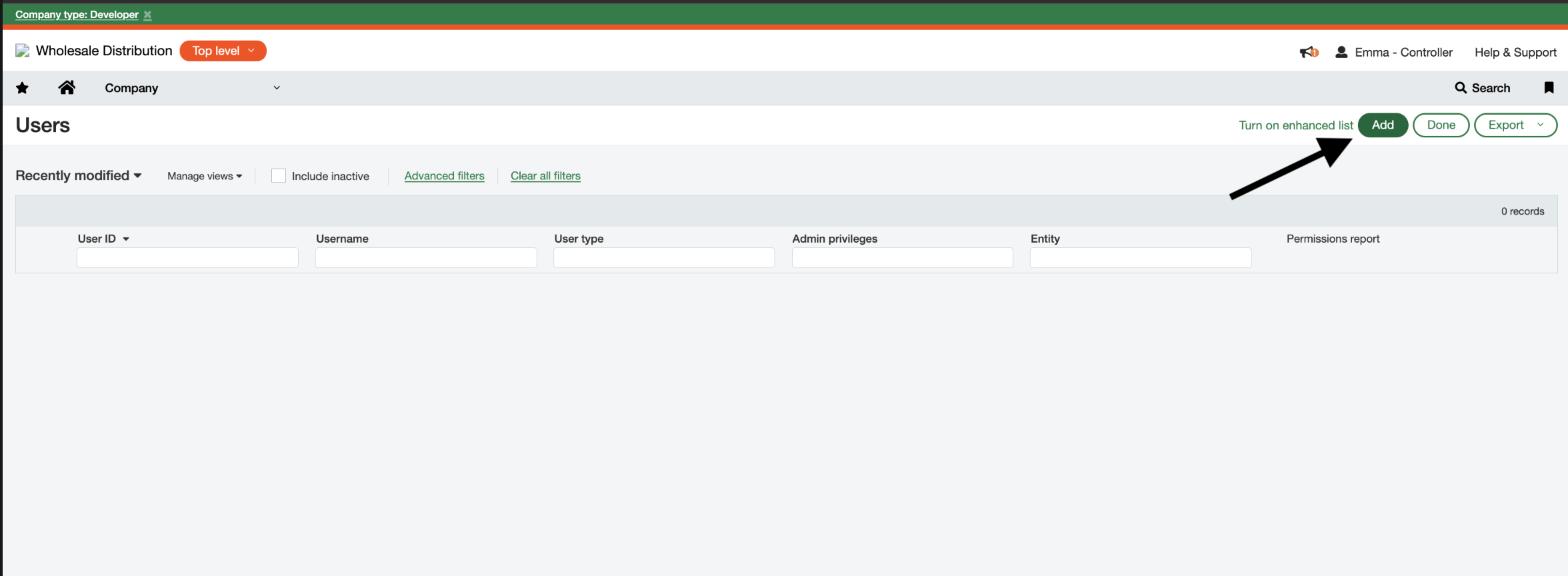 Create a login-enabled user for the integration:
1. User ID: (this becomes the `user_id` field)
2. Username/email
3. Set password (this becomes the `user_password`)
Create a login-enabled user for the integration:
1. User ID: (this becomes the `user_id` field)
2. Username/email
3. Set password (this becomes the `user_password`)
 ### 5. Assign the role to the user
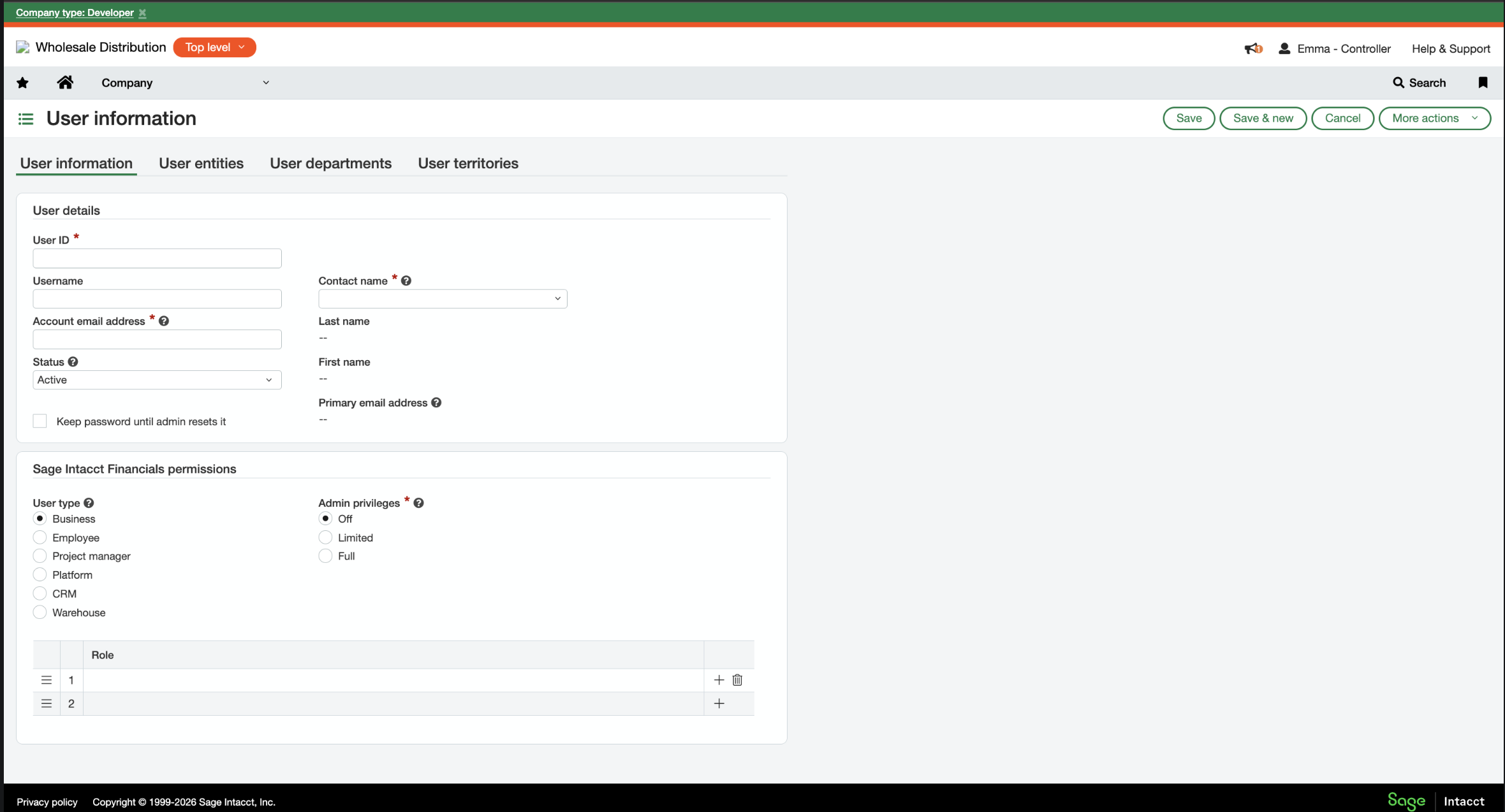
Go to Company → Admin → Users.
Open the integration user you created and select Edit.
Scroll down to the Roles section on the user record.
Select Add.
Choose the integration role you created earlier.
Select Save on the user record.
Note: The Company > Admin > Roles > Role assignment screen only shows assignments; you cannot add users there.
### 6. Find the Company ID
Finally, open Company > Setup > Company
### 5. Assign the role to the user
Go to Company → Admin → Users.
Open the integration user you created and select Edit.
Scroll down to the Roles section on the user record.
Select Add.
Choose the integration role you created earlier.
Select Save on the user record.
Note: The Company > Admin > Roles > Role assignment screen only shows assignments; you cannot add users there.
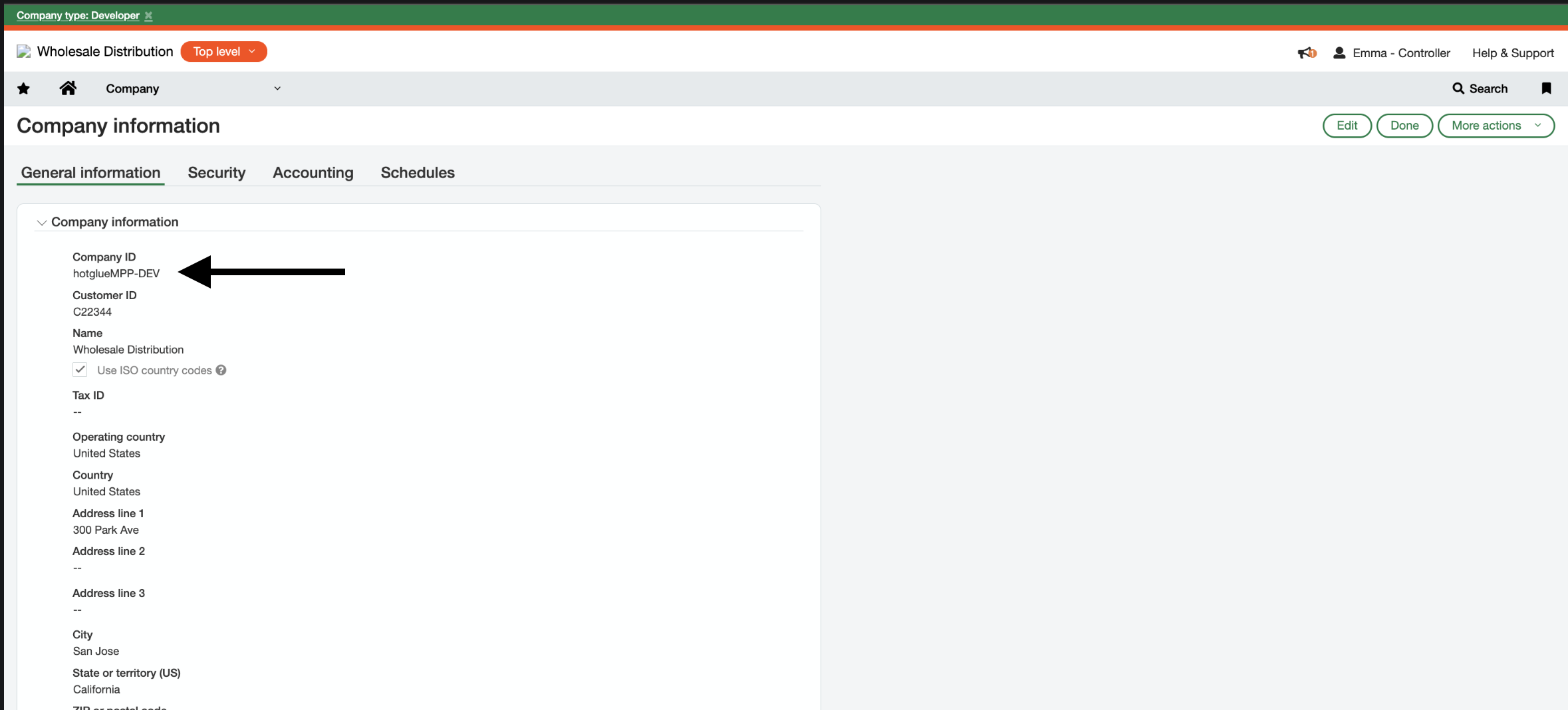
### 6. Find the Company ID
Finally, open Company > Setup > Company
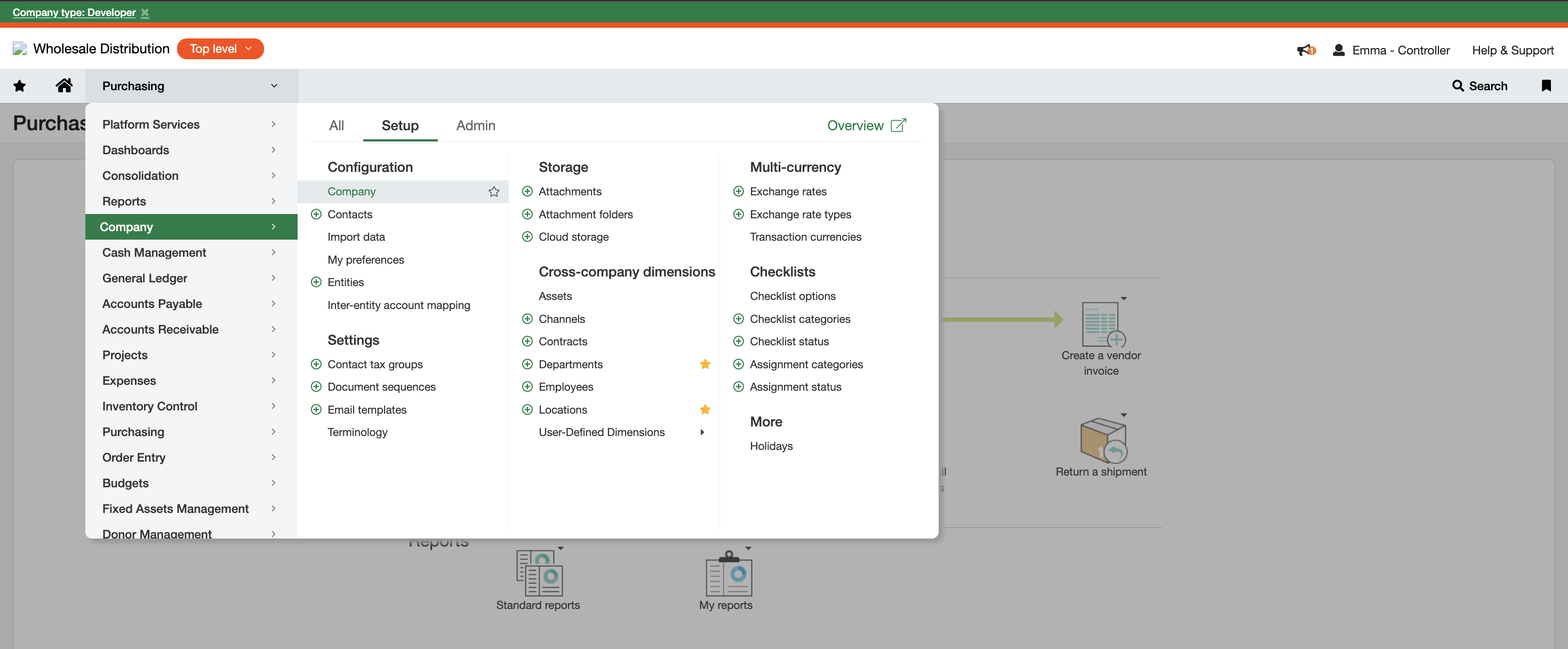 Copy the Company ID shown (this becomes `company_id`)
 All done! You’re ready to use Sage Intacct integration via hotglue.
# Tap Changelog
| Version | Notes |
| :----------------------------------------------------------------------------------------------------------------------------------------- | :------------------------------------------------------------------------------- |
| [v0.1.7](https://github.com/hotgluexyz/tap-intacct/releases/tag/v0.1.7) | |
| [v0.1.6](https://github.com/hotgluexyz/tap-intacct/releases/tag/v0.1.6) | |
| [v0.1.5](https://github.com/hotgluexyz/tap-intacct/releases/tag/v0.1.5) | |
| [v0.1.4](https://github.com/hotgluexyz/tap-intacct/releases/tag/v0.1.4) | |
| [v0.1.3 - Dynamic catalog generation](https://github.com/hotgluexyz/tap-intacct/releases/tag/v0.1.3) | - Handle generating catalog dynamically |
| [v0.1.2 - Add support for support ARINVOICE, ARADJUSTMENT, CUSTOMER & ITEM](https://github.com/hotgluexyz/tap-intacct/releases/tag/v0.1.2) | Added support for ARINVOICE, ARADJUSTMENT, CUSTOMER & ITEM objects |
| [Change name to tap-intacct](https://github.com/hotgluexyz/tap-intacct/releases/tag/v0.1.1) | This is a fork of original `tap-intacct-api` - hotglue is maintaining this fork. |
All done! You’re ready to use Sage Intacct integration via hotglue.
# Tap Changelog
| Version | Notes |
| :----------------------------------------------------------------------------------------------------------------------------------------- | :------------------------------------------------------------------------------- |
| [v0.1.7](https://github.com/hotgluexyz/tap-intacct/releases/tag/v0.1.7) | |
| [v0.1.6](https://github.com/hotgluexyz/tap-intacct/releases/tag/v0.1.6) | |
| [v0.1.5](https://github.com/hotgluexyz/tap-intacct/releases/tag/v0.1.5) | |
| [v0.1.4](https://github.com/hotgluexyz/tap-intacct/releases/tag/v0.1.4) | |
| [v0.1.3 - Dynamic catalog generation](https://github.com/hotgluexyz/tap-intacct/releases/tag/v0.1.3) | - Handle generating catalog dynamically |
| [v0.1.2 - Add support for support ARINVOICE, ARADJUSTMENT, CUSTOMER & ITEM](https://github.com/hotgluexyz/tap-intacct/releases/tag/v0.1.2) | Added support for ARINVOICE, ARADJUSTMENT, CUSTOMER & ITEM objects |
| [Change name to tap-intacct](https://github.com/hotgluexyz/tap-intacct/releases/tag/v0.1.1) | This is a fork of original `tap-intacct-api` - hotglue is maintaining this fork. |