> ## Documentation Index
> Fetch the complete documentation index at: https://docs.hotglue.com/llms.txt
> Use this file to discover all available pages before exploring further.
# SharePoint
# Connector Details
| Name | Value |
| :-------- | :------------------------------------------------------------------------------------------- |
| Platform | [SharePoint](https://sharepoint.microsoft.com) |
| Auth Type | OAuth |
| Direction | Read Only |
| Tap Repo | [https://github.com/hotgluexyz/tap-sharepoint](https://github.com/hotgluexyz/tap-sharepoint) |
# How to create a SharePoint OAuth App
SharePoint OAuth applications are created and managed via Microsoft Entra ID
The first thing that you need to do to get your Microsoft Business Central credentials is to register your OAuth app in Microsoft Entra:
1. [Sign in](https://entra.microsoft.com/) to the Microsoft Entra admin center as at least a Cloud Application Administrator.
2. Go to **Identity** > **Applications** > **App registrations** and select **New registration**.
3. Enter a display Name for your application. Users of your application might see the display name when they connect their SharePoint account.
4. For **Sign-in audience** make sure to allow all accounts to use your application
5. For **Redirect\_uri** use `https://hotglue.xyz/callback`
6. Complete your registration by pressing **Register**
Make note of the automatically generated Application (client) ID, which you will need to configure your OAuth app in hotglue.
The next step is to enable this OAuth app to access Microsoft SharePoint. On the left-hand panel, navigate to **Manage** > **API Permissions**
Add the following permissions:
* Microsoft Graph > `Sites.Read.All`
* Microsoft Graph > `Files.Read.All`
* Microsoft Graph > `User.Read`
Finally, generate your Client secret by navigating to **Manage** > **Certificates and Secrets** > **Client Secrets** and add a new client secret. You'll need to add this secret key to hotglue in the next step.
# How to enable the SharePoint Connector in hotglue
To enable the SharePoint connector in hotglue, add the Sharepoint source to a new or existing flow, and add the `OAuth Client Id` and `OAuth Client Secret` under the source's credentials tab.
# How tenants can find their SharePoint credentials
The SharePoint connector requires tenants to enter three configuration options after linking their account:
1. subdomain (or `tenant_name`)
This can be pulled from the URL your tenant uses to connect to their SharePoint site. For example, if their SharePoint url looks like `https://hotglueteam.sharepoint.com/sites/mysite`, then their tenant name is `hotglueteam`.
2. `site_name`
The name of the SharePoint site they want to sync data from.
3. `drive_name`
The drive of the SharePoint site they want to pull from
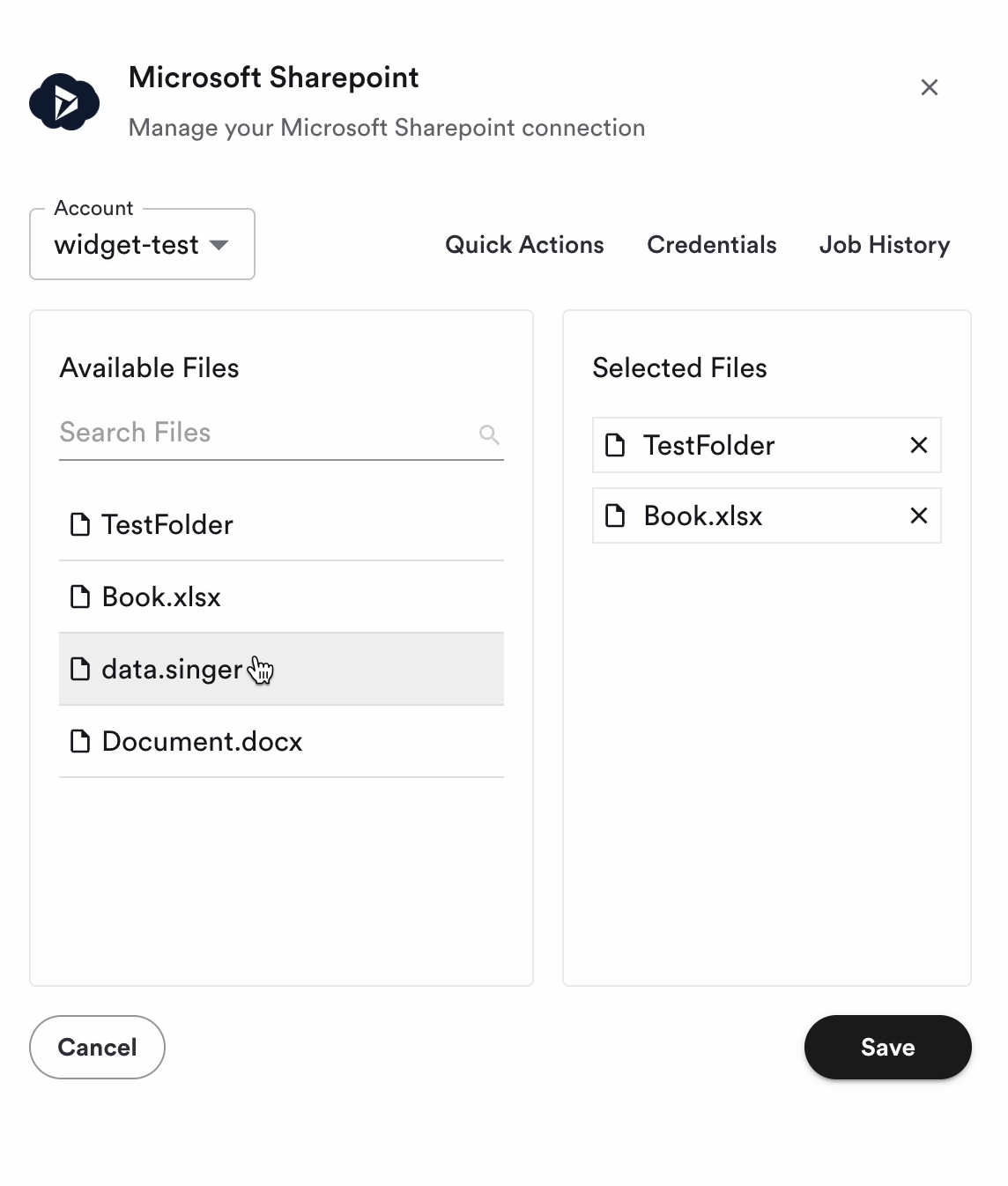
After entering this information in the widget, your tenant will have the ability to select the relevant files and folders from their SharePoint drive:
 # How tenants can link Sharepoint via the hotglue widget