> ## Documentation Index
> Fetch the complete documentation index at: https://docs.hotglue.com/llms.txt
> Use this file to discover all available pages before exploring further.
# Running taps
> Learn how to run custom taps using the Singer SDK
# Background
A tap reads and processes data from an API or Database. This involves two separate processes:
1. **Discovery**: Generating a catalog of the available streams (aka tables), including metadata such as primary keys and available fields
2. **Syncing**: Reading data from streams and writing the resulting records according to the [**Singer spec**](https://www.singer.io/)
# Setting up a local tap environment
## Virtual Environments
Dependencies can differ from tap to tap, so it is best to use a virtual environment to isolate the tap's Python dependencies.
You can create a virtual environment named `.venv` in your tap workspace with:
```bash theme={null}
python -m venv .venv
```
You can then enter the virtual environment with:
```bash theme={null}
source .venv/bin/activate
```
Finally, you can install the tap's dependencies depending on how they are specified:
| Dependency File | Command |
| :----------------: | :-------------------------------: |
| `requirements.txt` | `pip install -r requirements.txt` |
| `setup.py` | `pip install -e .` |
| `pyproject.toml` | `pip install -e .` |
## Config
Both the **Discover** and **Sync** processes require a valid config, which will include fields like API keys, OAuth credentials, and configuration flags.
For example:
```json theme={null}
{
"client_id": "...",
"client_secret": "...",
"refresh_token": "...",
"access_token": "...",
"start_date": "2025-01-25T00:00:00Z",
}
```
Most taps will include information about the required config values in their README's.
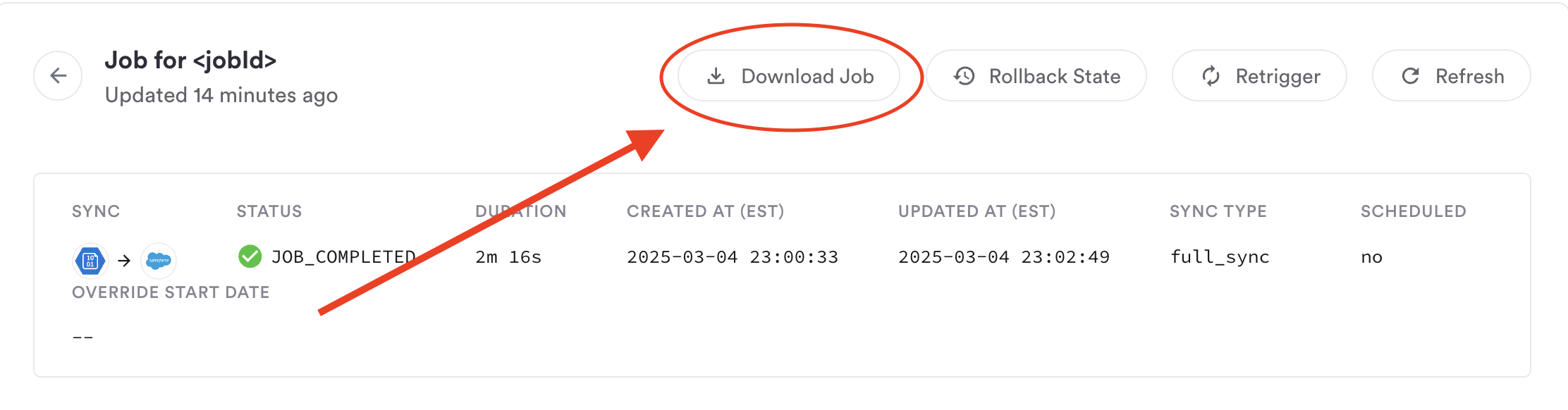
If you want to try to reproduce the sync output of a particular [Hotglue job](/key-concepts/jobs/sync-jobs), you can download the job folder on your Hotglue job page:
 > 💡 To keep your workspace clean, create a `.secrets` folder to store your `config.json`. Run all tap commands out of this folder to make sure your catalogs and output data stay separate from relevant code.
## Using the Hotglue Access Token Endpoint
For OAuth connectors, you can have the tap use the [access token endpoint](https://docs.hotglue.com/api-reference/access-tokens/retrieve-access-token) instead of refreshing the token locally by:
**1. Adding this flag to your `config.json`:**
```json theme={null}
{
"_refresh_token_via_hg_api": true,
...
}
```
**2. Setting the following environment variables:**
| Variable | Description |
| :-------: | :------------------------ |
| `TENANT` | Your tenant ID |
| `API_KEY` | Your Hotglue API key |
| `FLOW` | The flow ID |
| `ENV_ID` | The environment ID |
| `TAP` | The tap ID (e.g. `exact`) |
```bash theme={null}
TENANT=""
API_KEY=""
FLOW=""
ENV_ID=""
TAP=""
```
# Running a Discover
Within your virtual environment, you can invoke the tap from your command line.
For example, if your tap was called `tap-Salesforce`, you could run a discover with:
```bash theme={null}
tap-salesforce --config PATH_TO_CONFIG/config.json --discover > catalog.json
```
If the discover runs successfully, this will generate a file called `catalog.json` with information about the available streams and fields:
```json theme={null}
{
"streams": [
{
"tap_stream_id": "...",
"replication_key": "LastModifiedDate",
"replication_method": "INCREMENTAL",
"key_properties": [
"ID"
],
"schema": {
....
}
}
...
]
}
```
If you prefer to work with [VSCode's Debugger](https://code.visualstudio.com/docs/editor/debugging), you can run a discover with the following configuration:
```json theme={null}
{
"name": "tap discover",
"type": "python",
"request": "launch",
"program": ".../PATH_TO_ENTRY_SCRIPT", // e.g., .../tap_salesforce/tap.py
"cwd": "ABSOLUTE_PATH_TO_DIRECTORY_TO_RUN_COMMAND_FROM",
"args": [
"--config",
"config.json",
"--discover",
">",
"catalog.json"
],
"justMyCode": false,
"python": "ABSOLUTE_PATH_TO_TAP_DIRECTORY/.venv/bin/python",
"console": "integratedTerminal"
}
```
# Selecting Streams and Fields
The next step of the syncing process is to select which streams and fields you want to sync.
We recommend doing this with the [Singer-Discover Command Line Utility](https://github.com/hotgluexyz/singer-discover).
```bash theme={null}
pip install https://github.com/hotgluexyz/singer-discover/archive/master.zip
```
Once installed, you can generate a `catalog-selected.json` with:
```bash theme={null}
singer-discover --input catalog.json --output catalog-selected.json
```
You will then be prompted to select your streams
> 💡 To keep your workspace clean, create a `.secrets` folder to store your `config.json`. Run all tap commands out of this folder to make sure your catalogs and output data stay separate from relevant code.
## Using the Hotglue Access Token Endpoint
For OAuth connectors, you can have the tap use the [access token endpoint](https://docs.hotglue.com/api-reference/access-tokens/retrieve-access-token) instead of refreshing the token locally by:
**1. Adding this flag to your `config.json`:**
```json theme={null}
{
"_refresh_token_via_hg_api": true,
...
}
```
**2. Setting the following environment variables:**
| Variable | Description |
| :-------: | :------------------------ |
| `TENANT` | Your tenant ID |
| `API_KEY` | Your Hotglue API key |
| `FLOW` | The flow ID |
| `ENV_ID` | The environment ID |
| `TAP` | The tap ID (e.g. `exact`) |
```bash theme={null}
TENANT=""
API_KEY=""
FLOW=""
ENV_ID=""
TAP=""
```
# Running a Discover
Within your virtual environment, you can invoke the tap from your command line.
For example, if your tap was called `tap-Salesforce`, you could run a discover with:
```bash theme={null}
tap-salesforce --config PATH_TO_CONFIG/config.json --discover > catalog.json
```
If the discover runs successfully, this will generate a file called `catalog.json` with information about the available streams and fields:
```json theme={null}
{
"streams": [
{
"tap_stream_id": "...",
"replication_key": "LastModifiedDate",
"replication_method": "INCREMENTAL",
"key_properties": [
"ID"
],
"schema": {
....
}
}
...
]
}
```
If you prefer to work with [VSCode's Debugger](https://code.visualstudio.com/docs/editor/debugging), you can run a discover with the following configuration:
```json theme={null}
{
"name": "tap discover",
"type": "python",
"request": "launch",
"program": ".../PATH_TO_ENTRY_SCRIPT", // e.g., .../tap_salesforce/tap.py
"cwd": "ABSOLUTE_PATH_TO_DIRECTORY_TO_RUN_COMMAND_FROM",
"args": [
"--config",
"config.json",
"--discover",
">",
"catalog.json"
],
"justMyCode": false,
"python": "ABSOLUTE_PATH_TO_TAP_DIRECTORY/.venv/bin/python",
"console": "integratedTerminal"
}
```
# Selecting Streams and Fields
The next step of the syncing process is to select which streams and fields you want to sync.
We recommend doing this with the [Singer-Discover Command Line Utility](https://github.com/hotgluexyz/singer-discover).
```bash theme={null}
pip install https://github.com/hotgluexyz/singer-discover/archive/master.zip
```
Once installed, you can generate a `catalog-selected.json` with:
```bash theme={null}
singer-discover --input catalog.json --output catalog-selected.json
```
You will then be prompted to select your streams
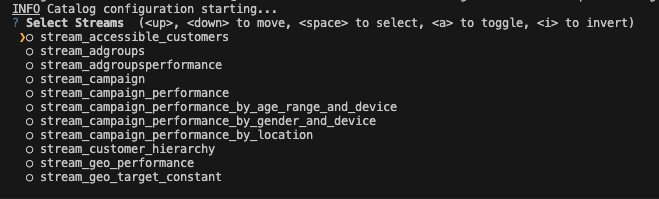 This will generate a new catalog called `catalog-selected.json` that includes your selection metadata.
# Running a Sync
You can now sync the streams selected in your `catalog-selected.json`. If your tap is named `tap-Salesforce`, you could run a sync with:
```
tap-salesforce --config config.json --catalog catalog-selected.json > data.singer
```
This will write the streams to a `data.singer` file according to the [**Singer spec**](https://www.singer.io/).
If you prefer to work with [VSCode's Debugger](https://code.visualstudio.com/docs/editor/debugging), you can run a sync with the following configuration:
```json theme={null}
{
"name": "tap sync",
"type": "python",
"request": "launch",
"program": ".../PATH_TO_ENTRY_SCRIPT", // e.g., .../tap_salesforce/tap.py
"cwd": "ABSOLUTE_PATH_TO_DIRECTORY_TO_RUN_COMMAND_FROM",
"args": [
"--config",
"config.json",
"--catalog",
"catalog-selected.json",
">",
"data.singer"
],
"justMyCode": false,
"python": "ABSOLUTE_PATH_TO_TAP_DIRECTORY/.venv/bin/python",
"console": "integratedTerminal"
}
```
This will generate a new catalog called `catalog-selected.json` that includes your selection metadata.
# Running a Sync
You can now sync the streams selected in your `catalog-selected.json`. If your tap is named `tap-Salesforce`, you could run a sync with:
```
tap-salesforce --config config.json --catalog catalog-selected.json > data.singer
```
This will write the streams to a `data.singer` file according to the [**Singer spec**](https://www.singer.io/).
If you prefer to work with [VSCode's Debugger](https://code.visualstudio.com/docs/editor/debugging), you can run a sync with the following configuration:
```json theme={null}
{
"name": "tap sync",
"type": "python",
"request": "launch",
"program": ".../PATH_TO_ENTRY_SCRIPT", // e.g., .../tap_salesforce/tap.py
"cwd": "ABSOLUTE_PATH_TO_DIRECTORY_TO_RUN_COMMAND_FROM",
"args": [
"--config",
"config.json",
"--catalog",
"catalog-selected.json",
">",
"data.singer"
],
"justMyCode": false,
"python": "ABSOLUTE_PATH_TO_TAP_DIRECTORY/.venv/bin/python",
"console": "integratedTerminal"
}
```