> ## Documentation Index
> Fetch the complete documentation index at: https://docs.hotglue.com/llms.txt
> Use this file to discover all available pages before exploring further.
# Flows
> What are flows?
## What is a flow?
In hotglue, each "type" of integration you want to offer users is grouped into a **flow.**
For example, you may want your users to import data from **Development** tools, like GitHub and GitLab, and **E-Commerce** shops, like Shopify and WooCommerce. When your users first open the hotglue widget they'll see something like the following:
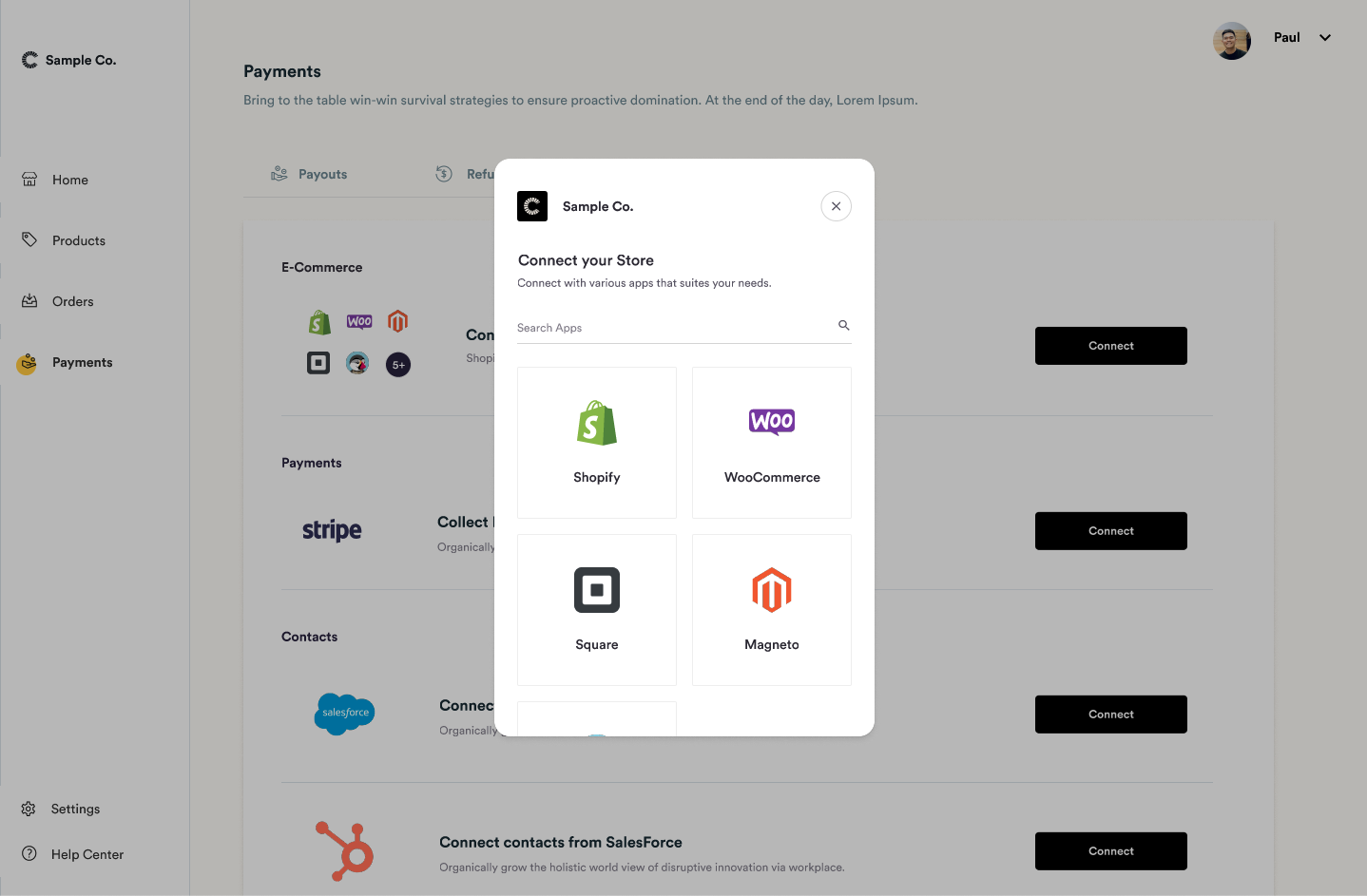
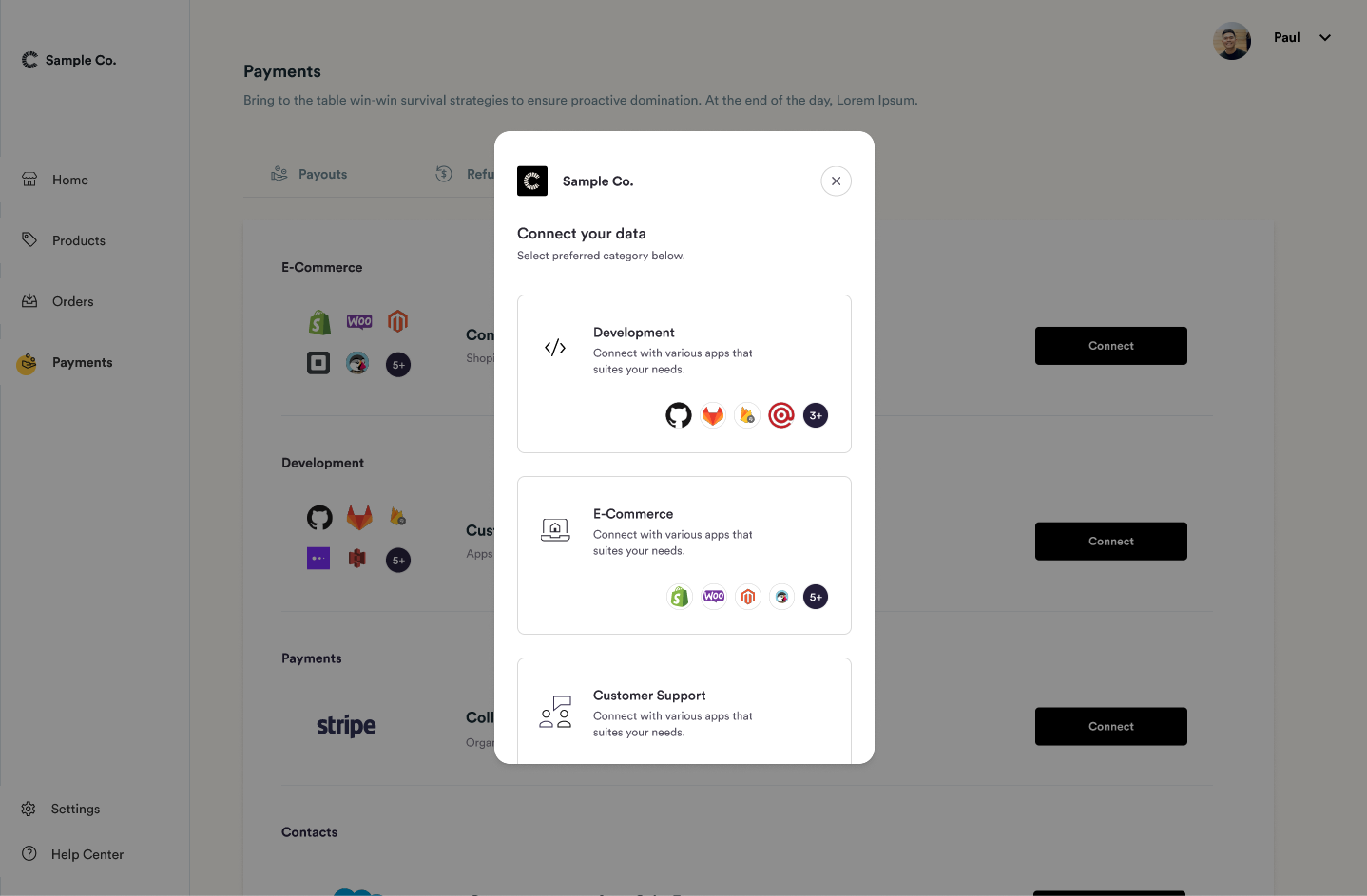 This allows your user to select what they wish to import, and more importantly **where they want to import it from.** For example, if your user wanted to import **E-Commerce** data they may be able to import it from sources like Shopify, WooCommerce, and Magento. In the hotglue widget, this would look something like below:
 ## How do flows help me?
Flows serve two main purposes:
1. Flows let you define **what types of integrations you want to support.** For example, for a **Development** flow you may want to support importing data from GitHub or GitLab - but that doesn't make much sense for an **E-Commerce** flow.
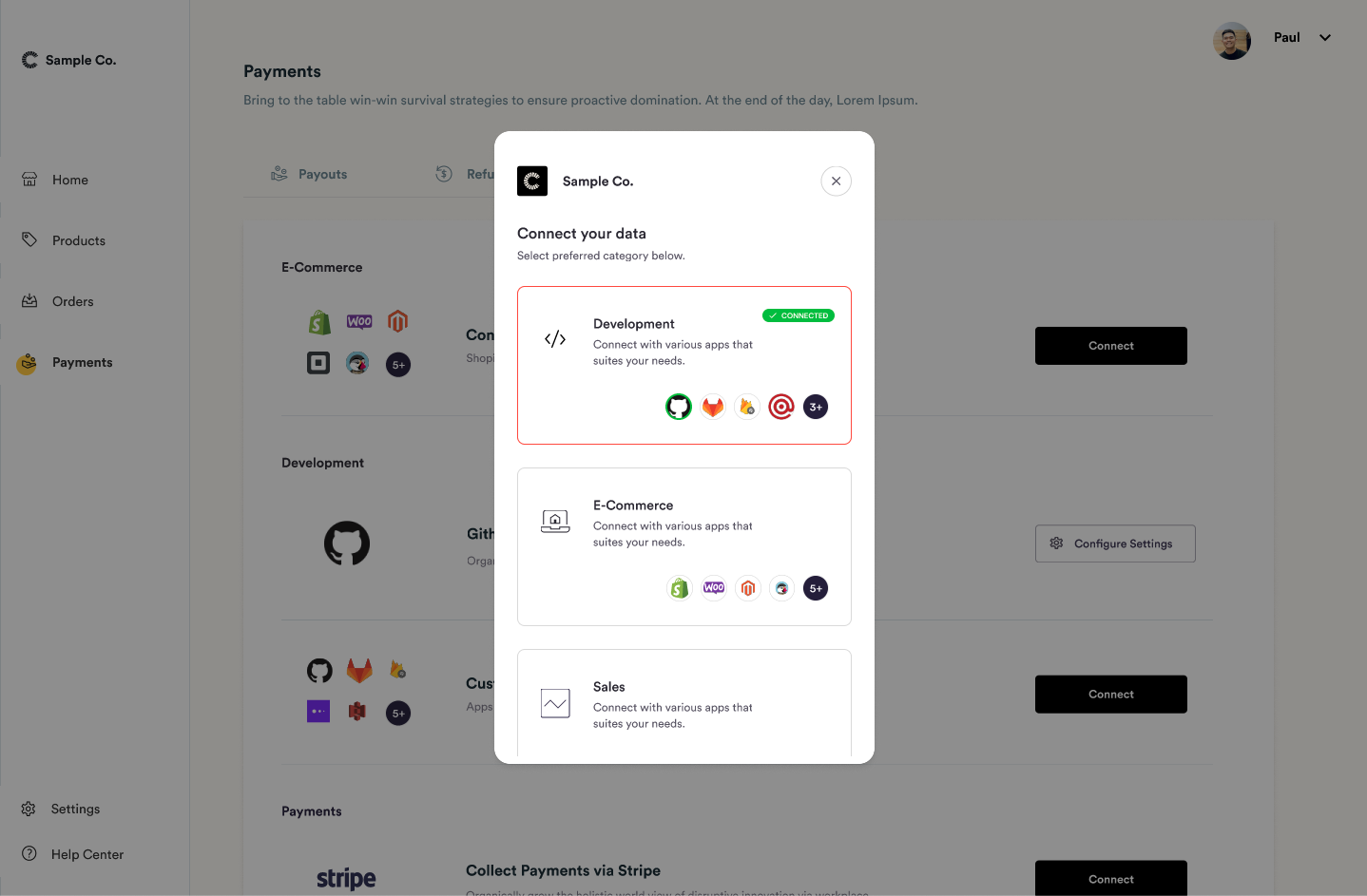
2. Flows make it easy for your users to keep track of their data. Users can clearly see what kinds of data your application needs, and what platforms they can connect.
## How do flows help me?
Flows serve two main purposes:
1. Flows let you define **what types of integrations you want to support.** For example, for a **Development** flow you may want to support importing data from GitHub or GitLab - but that doesn't make much sense for an **E-Commerce** flow.
2. Flows make it easy for your users to keep track of their data. Users can clearly see what kinds of data your application needs, and what platforms they can connect.
 ## Flow types
There are three types of flows that you can enable in hotglue:
## V1 - One-way flows
#### Source flow
This is the simplest way to use hotglue, and the default flow type when you toggle off **bidirectional flows**. With a source flow, your customer connects the `source` or `tap`, and you read data in from those linked sources into your own default target.
#### Target flow
This can be enabled in the **General** tab of a V1 flow. This is the inverse of a source flow, where your customer links an integration that you write data out to, but cannot read data in from.
### V2 - Bidirectional flows
If you need to read and write data to the same integration, you can use a bidirectional flow to use the same connection for both.
## Flow types
There are three types of flows that you can enable in hotglue:
## V1 - One-way flows
#### Source flow
This is the simplest way to use hotglue, and the default flow type when you toggle off **bidirectional flows**. With a source flow, your customer connects the `source` or `tap`, and you read data in from those linked sources into your own default target.
#### Target flow
This can be enabled in the **General** tab of a V1 flow. This is the inverse of a source flow, where your customer links an integration that you write data out to, but cannot read data in from.
### V2 - Bidirectional flows
If you need to read and write data to the same integration, you can use a bidirectional flow to use the same connection for both.