> ## Documentation Index
> Fetch the complete documentation index at: https://docs.hotglue.com/llms.txt
> Use this file to discover all available pages before exploring further.
# Custom Filters
> Filter which records get synced per stream using custom filter conditions
## Overview
Custom Filters let you control exactly which records get synced for a given stream. Instead of syncing all records, you can define conditions, such as filtering bills by status or vendor, so that only matching records are returned when a job runs.
Custom Filters is a **beta feature** currently supported on **Coupa** and **NetSuite** connectors on select streams only. To enable custom filters for other connectors or streams, contact [hotglue support](mailto:hello@hotglue.xyz).
## Prerequisites
To enable custom filters for a connector, add **`"capabilities": ["customFilters"]`** to the connector's root-level configuration in the available entity's JSON.
```json theme={null}
{
"tap": "netsuite",
"label": "NetSuite",
"capabilities": [
"customFilters"
]
}
```
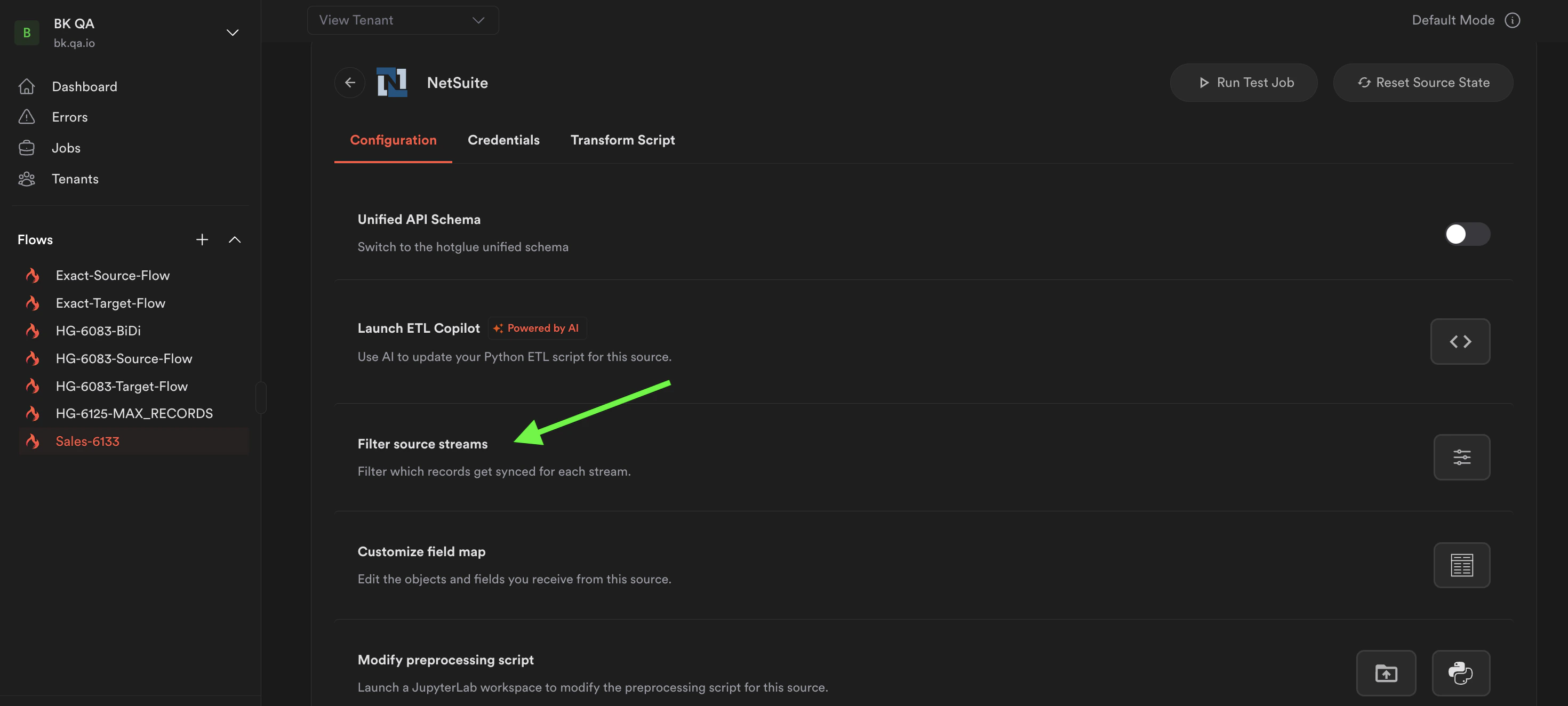
Once this is done, the **Filter source streams** option becomes visible in the Configuration tab.
 This field must be added at the root level of the connector configuration, not inside `options` or `config`.
## Setting up custom filters
### Step 1: Link NetSuite
Create a flow and link NetSuite as your source connector. Once linked, navigate to the **Configuration** tab of the NetSuite source.
This field must be added at the root level of the connector configuration, not inside `options` or `config`.
## Setting up custom filters
### Step 1: Link NetSuite
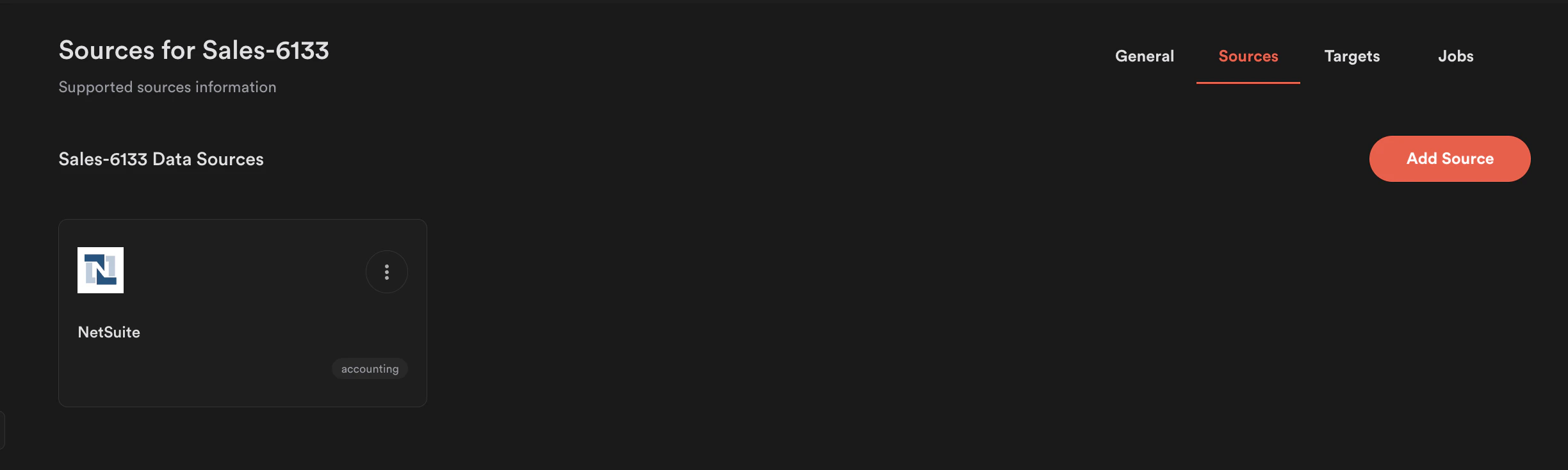
Create a flow and link NetSuite as your source connector. Once linked, navigate to the **Configuration** tab of the NetSuite source.
 ### Step 2: Select one or more streams
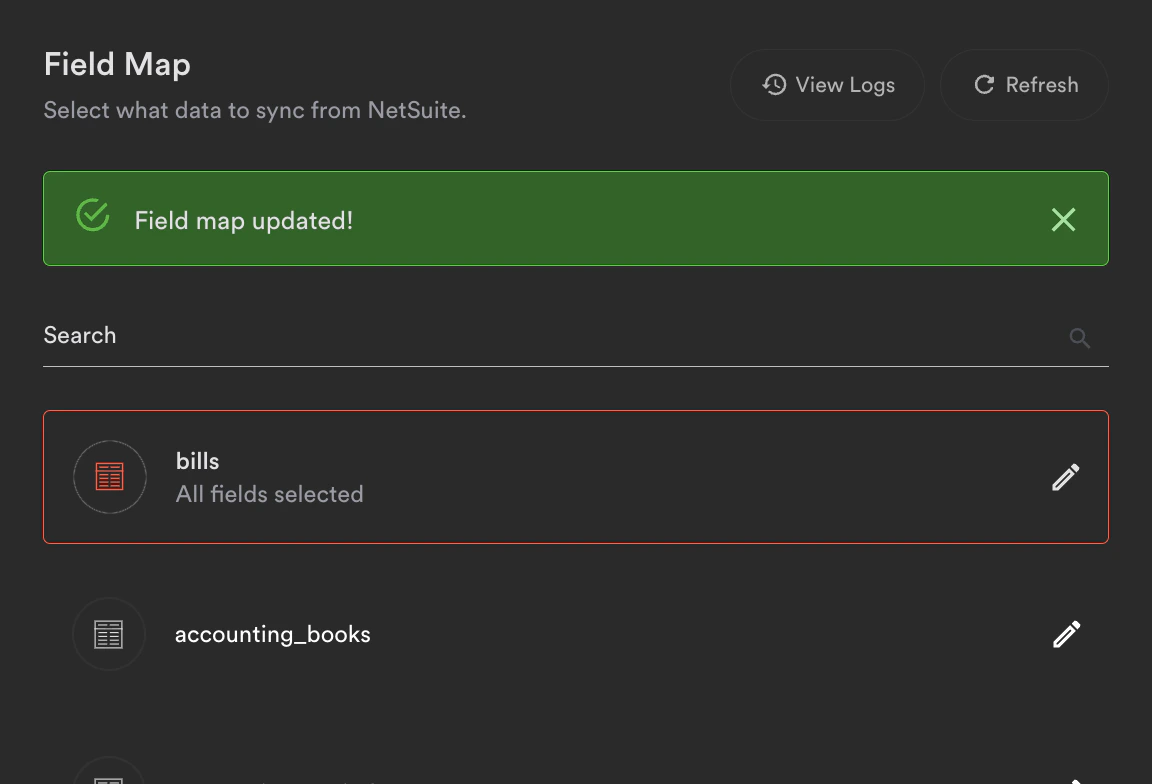
Click **Customize field map** and select the streams you want to sync e.g., **Bills**. Save your selection before proceeding.
### Step 2: Select one or more streams
Click **Customize field map** and select the streams you want to sync e.g., **Bills**. Save your selection before proceeding.
 ### Step 3: Open Filter Source Streams
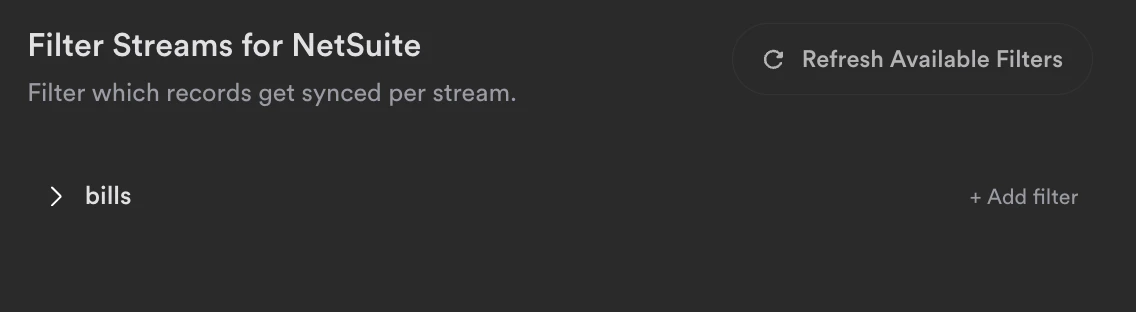
Once streams are selected and saved, click **Filter source streams** to open the filter panel.
You will see the stream or a list of the streams. Only streams that have been selected in your field map will appear here.
### Step 3: Open Filter Source Streams
Once streams are selected and saved, click **Filter source streams** to open the filter panel.
You will see the stream or a list of the streams. Only streams that have been selected in your field map will appear here.
 ### Step 4: Build and Apply a filter
Click on a stream e.g., **bills**, to open the filter builder.
### Step 4: Build and Apply a filter
Click on a stream e.g., **bills**, to open the filter builder.
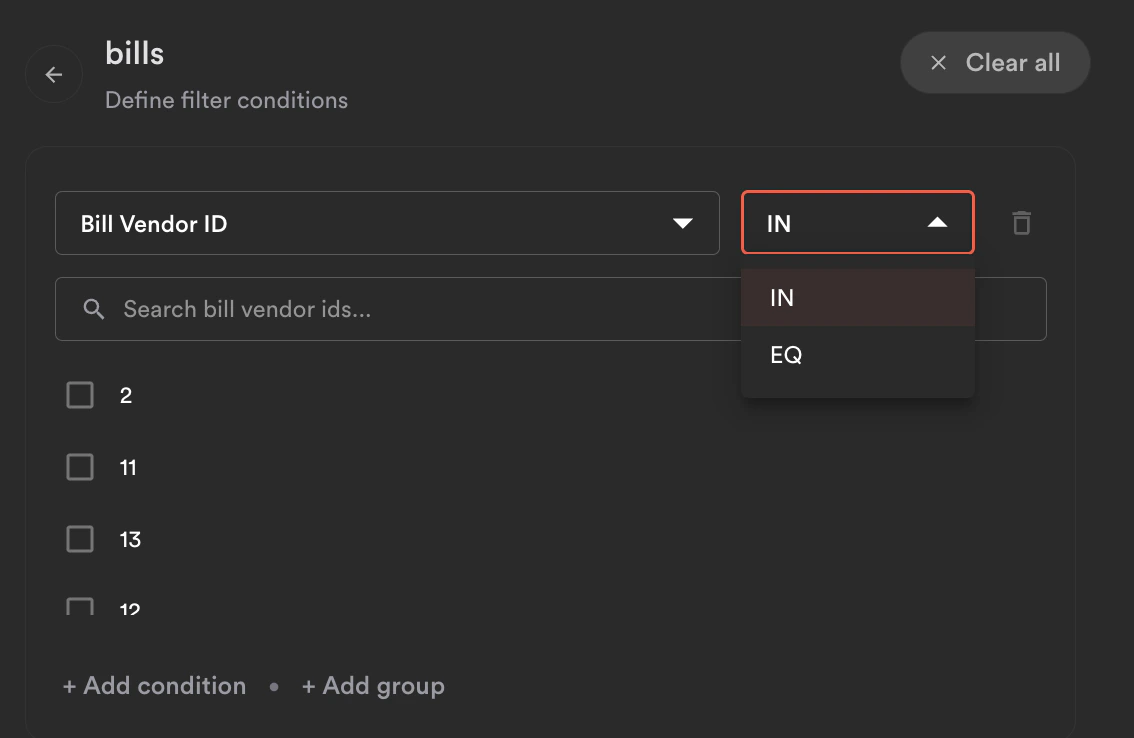 In the filter builder, you can define one or more filter conditions:
* **Field**: The property to filter on (e.g., Bill Vendor ID, Bill Vendor Name)
* **Operator**: How to match the value:
* `IN`: matches any value in a list
* `EQ`: equals a single value
* **Value**: The value(s) to match against
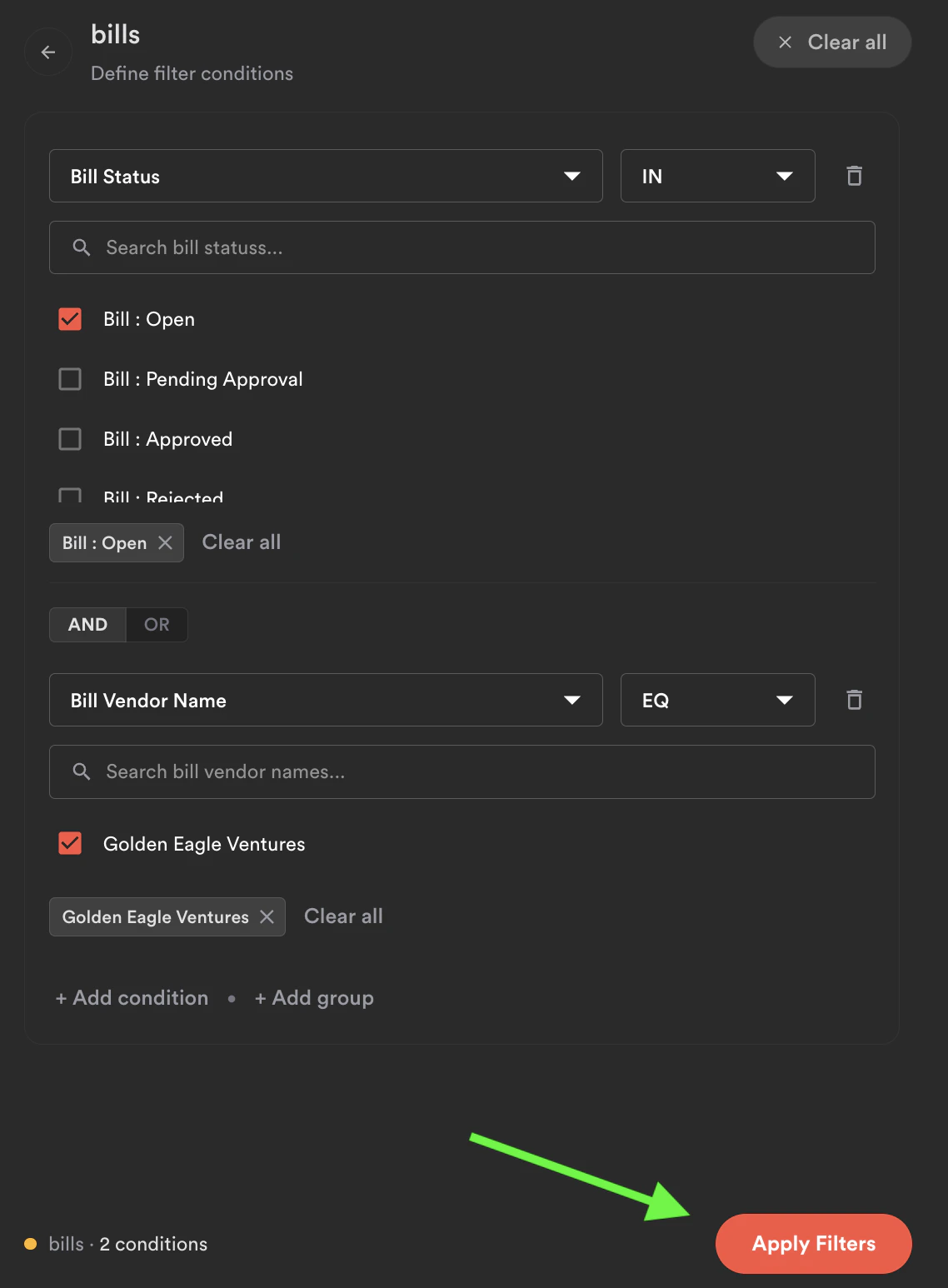
To add multiple conditions, click **+ Add condition**. Use the **AND / OR** toggle between conditions to control how they combine:
* **AND**: Both conditions must be true (narrows results)
* **OR**: Either condition can be true (broadens results)
For more complex logic, use **+ Add group** to nest conditions together.
The filters below returns only bills that are Open **and** belong to vendor Golden Eagle Ventures. Once your conditions are defined, click **Apply Filters**.
In the filter builder, you can define one or more filter conditions:
* **Field**: The property to filter on (e.g., Bill Vendor ID, Bill Vendor Name)
* **Operator**: How to match the value:
* `IN`: matches any value in a list
* `EQ`: equals a single value
* **Value**: The value(s) to match against
To add multiple conditions, click **+ Add condition**. Use the **AND / OR** toggle between conditions to control how they combine:
* **AND**: Both conditions must be true (narrows results)
* **OR**: Either condition can be true (broadens results)
For more complex logic, use **+ Add group** to nest conditions together.
The filters below returns only bills that are Open **and** belong to vendor Golden Eagle Ventures. Once your conditions are defined, click **Apply Filters**.
 ### Step 5: Save the filter
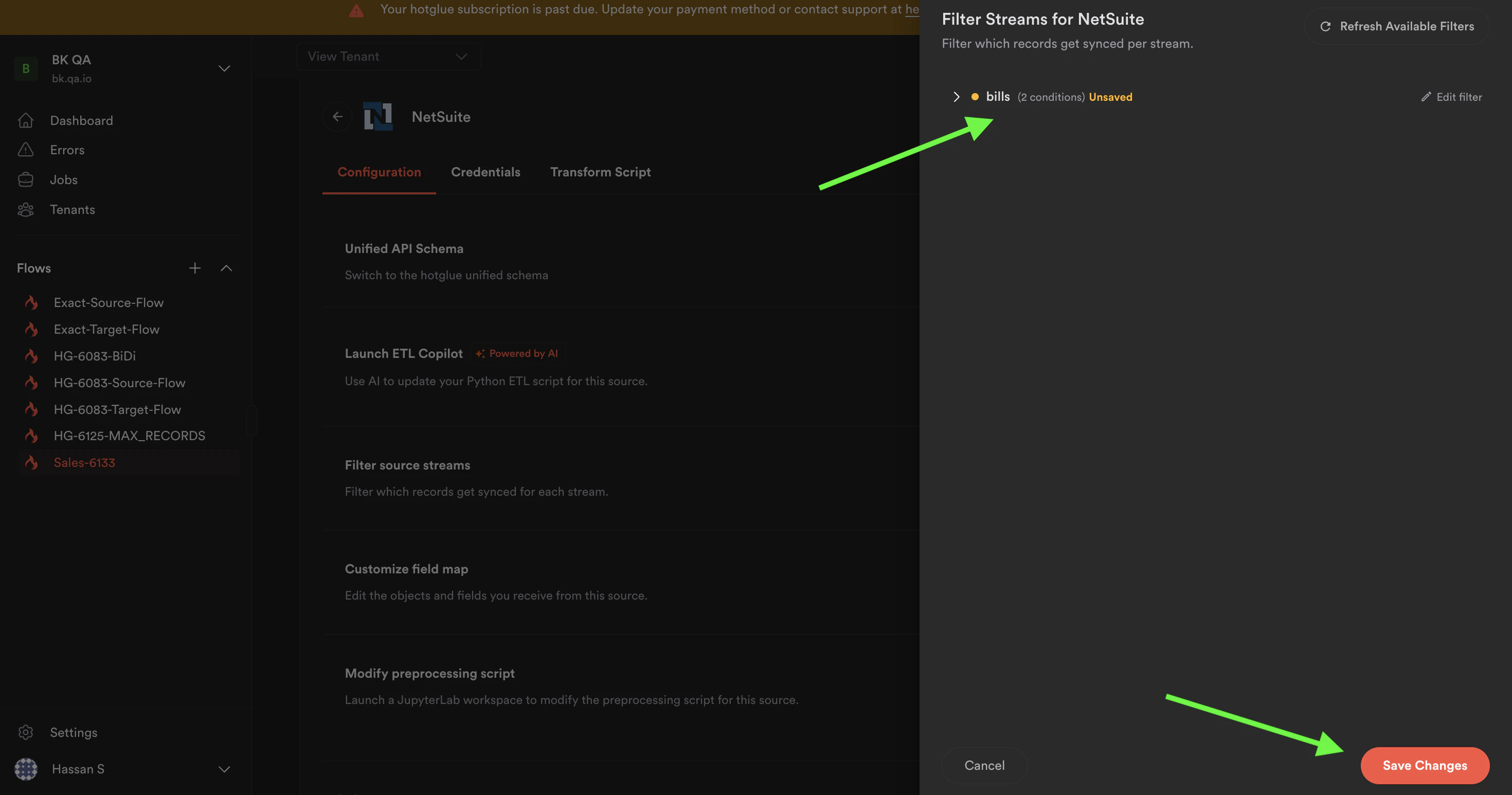
You will be taken back to the stream list, which will now show the number of active conditions next to the stream name (e.g., bills · 2 conditions).
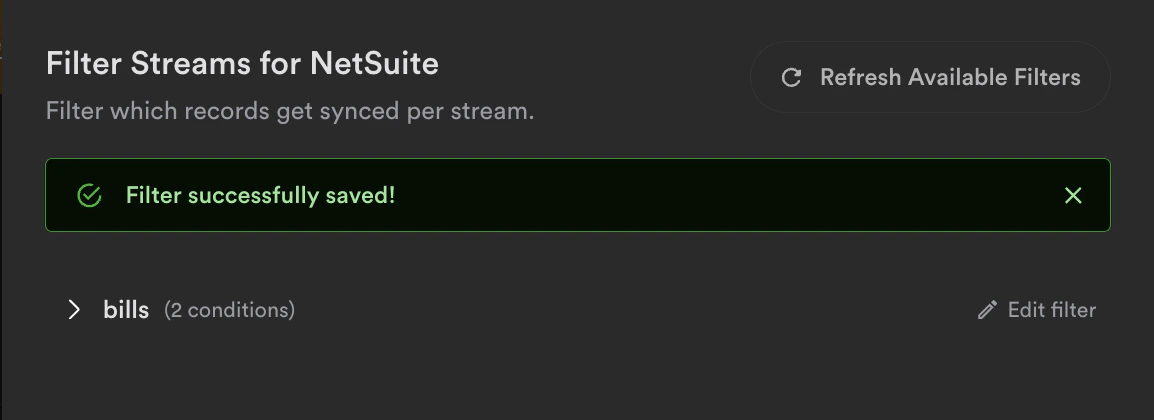
Click **Save Changes** and wait for the confirmation message before proceeding.
### Step 5: Save the filter
You will be taken back to the stream list, which will now show the number of active conditions next to the stream name (e.g., bills · 2 conditions).
Click **Save Changes** and wait for the confirmation message before proceeding.
 The confirmation message will show up for the saved filters.
 ### Step 6: Run a job
Navigate to the **Jobs** tab and run a new job with NetSuite as the source.
### Step 6: Run a job
Navigate to the **Jobs** tab and run a new job with NetSuite as the source.
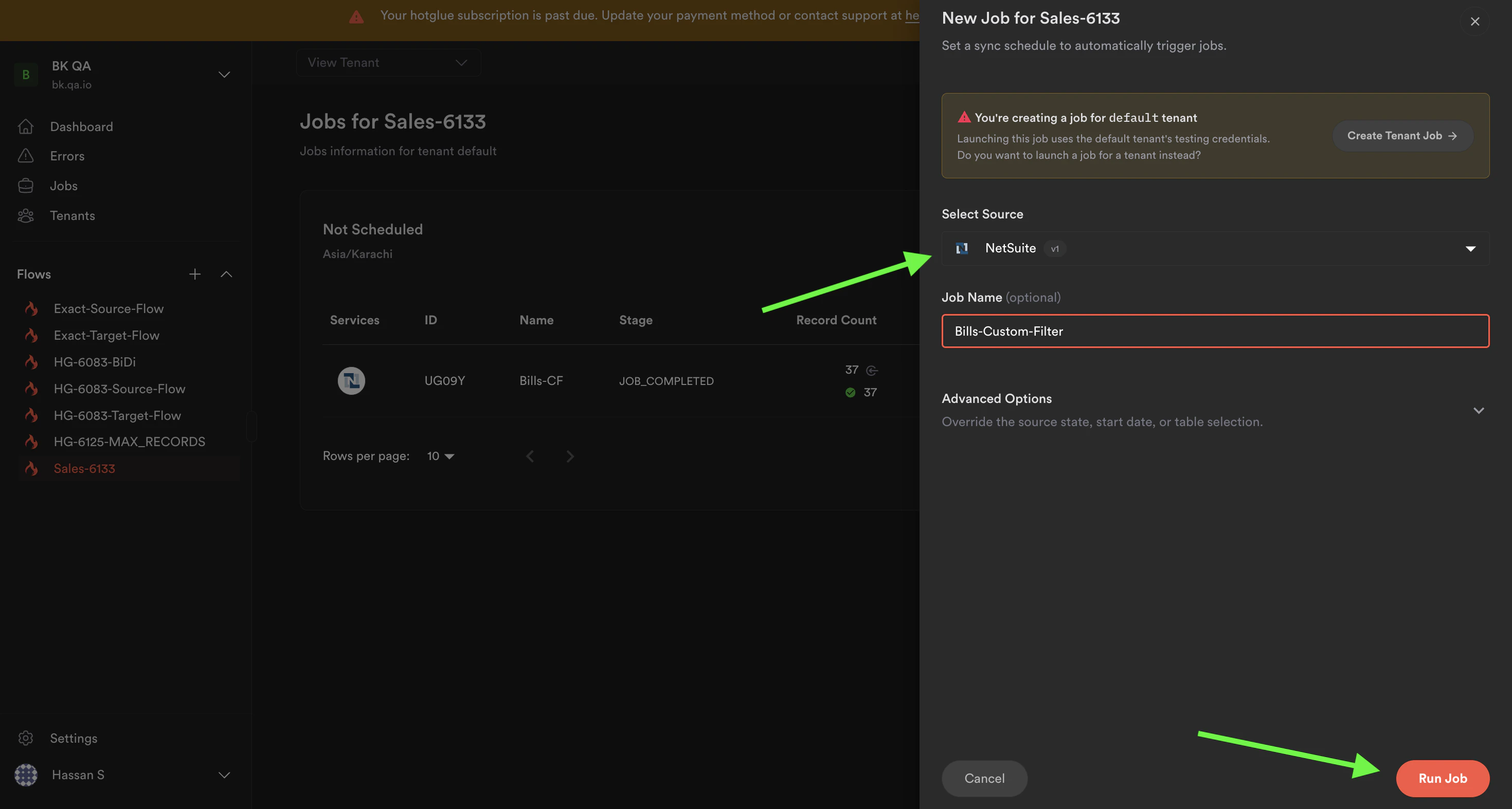 Once the job completes, the output will contain only the records that match your filter conditions.
## Notes
* Filters are saved **per stream** and persist across future job runs until changed or removed.
* Filters only apply to streams that have been selected in the field map. If a stream is not selected, it will not appear in the filter panel.
* To clear all filters for a stream, open the filter builder and click **Clear all**.
Once the job completes, the output will contain only the records that match your filter conditions.
## Notes
* Filters are saved **per stream** and persist across future job runs until changed or removed.
* Filters only apply to streams that have been selected in the field map. If a stream is not selected, it will not appear in the filter panel.
* To clear all filters for a stream, open the filter builder and click **Clear all**.