> ## Documentation Index
> Fetch the complete documentation index at: https://docs.hotglue.com/llms.txt
> Use this file to discover all available pages before exploring further.
# Scheduling
> Learn to schedule jobs in hotglue
# Job Scheduling
hotglue runs data syncs using asynchronous jobs. To automate these jobs, you can configure a **sync schedule** in the UI so jobs run automatically without manual intervention.
Scheduling is powered by **UNIX-style CRON expressions**, which determine when asynchronous jobs are triggered. CRON expressions can be configured directly through the UI. For example, the following expression would trigger every day at 12:00am UTC:
```
cron(0 0 * * *)
```
# How to configure the sync schedule
## Customizing schedules for Default tenant
Sync schedules are configured from the Jobs section in the flow by selecting **Edit Schedule**.
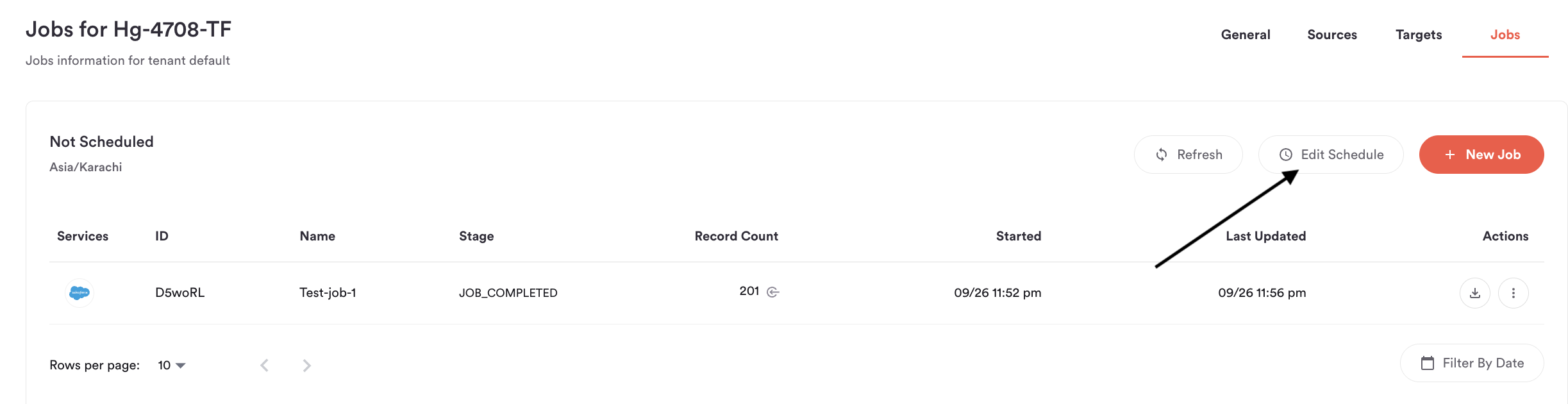 Then click the arrow to navigate to the **Select Schedule Type** page.
.png?fit=max&auto=format&n=Rs0SFILdHeRed2XO&q=85&s=3a7e549ae234ac77290cc0b44a00b23e) From here, you can choose how often jobs should run and how the schedule is defined. hotglue supports three schedule types in the UI: **Fixed**, **Interval**, and **CRON**.
From here, you can choose how often jobs should run and how the schedule is defined. hotglue supports three schedule types in the UI: **Fixed**, **Interval**, and **CRON**.
.png?fit=max&auto=format&n=Rs0SFILdHeRed2XO&q=85&s=34ac708cee3f2e7281c99d44a84803c5) ***Fixed schedule***
A Fixed schedule triggers jobs at a specific time on a recurring basis. You can configure jobs to run hourly, daily, weekly, or monthly. For schedules that require a time, jobs will always run at the selected time.
***Fixed schedule***
A Fixed schedule triggers jobs at a specific time on a recurring basis. You can configure jobs to run hourly, daily, weekly, or monthly. For schedules that require a time, jobs will always run at the selected time.
.png?fit=max&auto=format&n=Rs0SFILdHeRed2XO&q=85&s=dd2392c229c7fc3bc96725d8c8c32a9e) ***Interval schedule***
An Interval schedule triggers jobs after a defined amount of time has passed. Jobs can be set to run every specified number of minutes or hours. Each run is scheduled relative to the previous run.
***Interval schedule***
An Interval schedule triggers jobs after a defined amount of time has passed. Jobs can be set to run every specified number of minutes or hours. Each run is scheduled relative to the previous run.
.png?fit=max&auto=format&n=Rs0SFILdHeRed2XO&q=85&s=ed5d83485765c87ad393bd2235bd7330) ***CRON expression***
A CRON expression schedule allows you to define a custom schedule using a UNIX-style CRON expression entered directly in the UI. This option is evaluated in UTC and is intended for advanced scheduling needs.
***CRON expression***
A CRON expression schedule allows you to define a custom schedule using a UNIX-style CRON expression entered directly in the UI. This option is evaluated in UTC and is intended for advanced scheduling needs.
.png?fit=max&auto=format&n=Rs0SFILdHeRed2XO&q=85&s=401cc30167c6deb9944a0e8d831a0d7e) ## Customizing schedules for tenants
To configure a sync schedule for a specific tenant, first navigate to the desired tenant.
## Customizing schedules for tenants
To configure a sync schedule for a specific tenant, first navigate to the desired tenant.
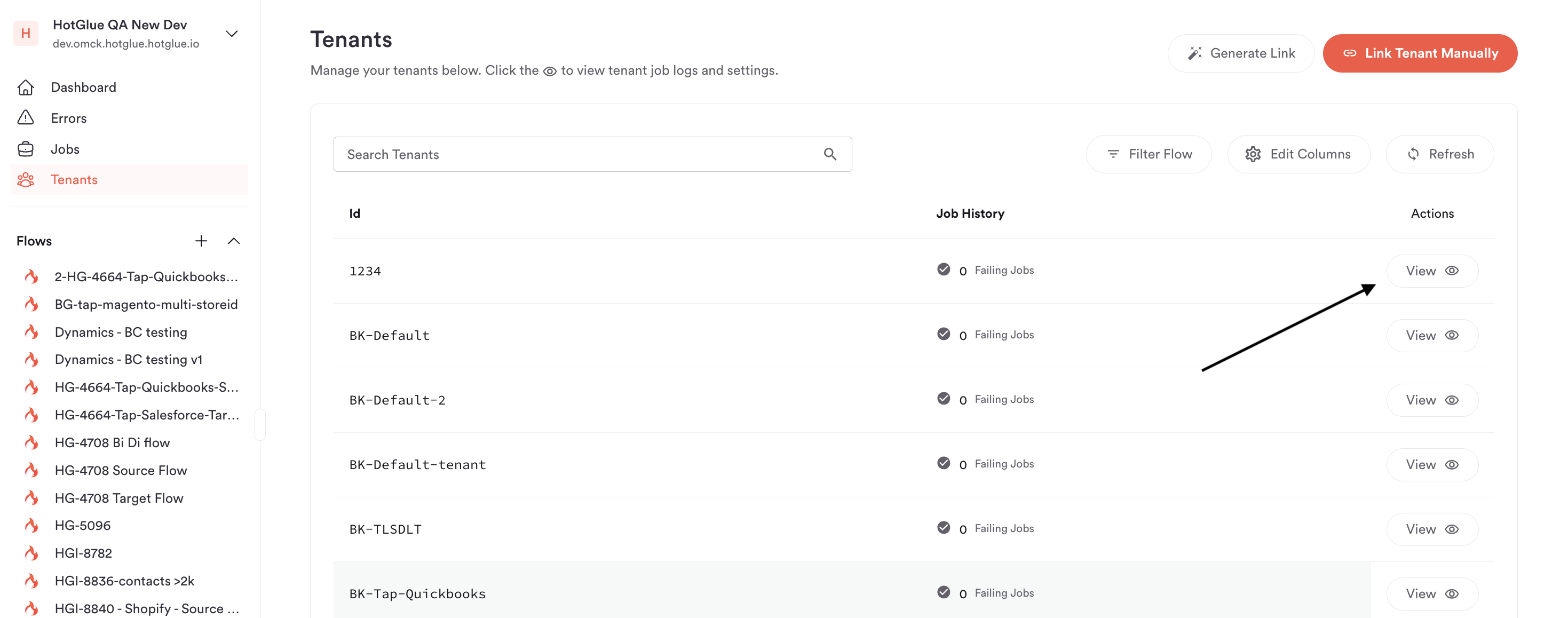 From here, open the relevant flow and click **Edit Schedule** in the Jobs section.
.png?fit=max&auto=format&n=Rs0SFILdHeRed2XO&q=85&s=d5b5b6bb207c9dabdbe2da240dca4ac6) Then click the arrow to navigate to the **Select Schedule Type** page and you can choose the desired **Schedule Type** for the tenant.
# API
To configure a sync schedule via the API, head to the [schedule endpoint docs](https://docs.hotglue.com/reference/jobs-schedule).
## Granular sync schedules
[](https://docs.hotglue.com/docs/jobs-scheduling#granular-sync-schedules)
You can use the API to configure any cron expression as a sync schedule. This is often helpful if you need jobs more frequent than hourly.
You can use this to create a schedule for **default** tenant or any individual tenant.
## Schedule jitter
Default schedules can include `schedule_jitter_minutes` to spread inherited tenant schedules across a random offset. Set an integer from `1` to `720`; use `null` to clear it.
Jitter only applies when tenants inherit the **default** schedule. It does not change schedules created directly for individual tenants.
## Ignoring default credentials
[](https://docs.hotglue.com/docs/jobs-scheduling#ignoring-default-credentials)
If you want to **avoid running scheduled jobs for your default credentials**, but are using your default sync schedule to cascade to new tenants, you can use the API to create a sync schedule for your **default** tenant and set `"state" = "disabled"`
This will continue to apply your sync schedule to new tenants but will avoid running scheduled jobs with your default credentials.
Then click the arrow to navigate to the **Select Schedule Type** page and you can choose the desired **Schedule Type** for the tenant.
# API
To configure a sync schedule via the API, head to the [schedule endpoint docs](https://docs.hotglue.com/reference/jobs-schedule).
## Granular sync schedules
[](https://docs.hotglue.com/docs/jobs-scheduling#granular-sync-schedules)
You can use the API to configure any cron expression as a sync schedule. This is often helpful if you need jobs more frequent than hourly.
You can use this to create a schedule for **default** tenant or any individual tenant.
## Schedule jitter
Default schedules can include `schedule_jitter_minutes` to spread inherited tenant schedules across a random offset. Set an integer from `1` to `720`; use `null` to clear it.
Jitter only applies when tenants inherit the **default** schedule. It does not change schedules created directly for individual tenants.
## Ignoring default credentials
[](https://docs.hotglue.com/docs/jobs-scheduling#ignoring-default-credentials)
If you want to **avoid running scheduled jobs for your default credentials**, but are using your default sync schedule to cascade to new tenants, you can use the API to create a sync schedule for your **default** tenant and set `"state" = "disabled"`
This will continue to apply your sync schedule to new tenants but will avoid running scheduled jobs with your default credentials.