> ## Documentation Index
> Fetch the complete documentation index at: https://docs.hotglue.com/llms.txt
> Use this file to discover all available pages before exploring further.
# Write Jobs
> How do write jobs work?
## What is a write job?
A write job is a job where hotglue is writing data ***from*** your product ***to*** an integration. This is often referred to as **reverse ETL**.
For example, if you wanted to write **Contacts** from your product to a tenant's Salesforce account, that would be an example of a write job in hotglue.
## How do you configure a flow to support write jobs?
There are two types of flows that support write jobs:
* v2 (bidirectional)
* v1 (write)
This option is presented when you first create a flow, as shown below:
 We generally recommend using v2 flows whenever possible as they simplify the process of configuring bidirectional integrations (cases where you want to both read and write data to a connector).
## Trigger a write job via API
In some cases you may want to pass the data you want to write via API instead of using a source. This is particularly useful if there is an action a tenant does in
your product that should immediately send data to an integration. There are two ways to do this:
### Using the hotglue API source
You can configure your flow to have the hotglue API as the source. This enables you to trigger a job using the `POST /jobs` endpoint
with a `state` object containing the data you wish to write. This will queue a write job to asynchronously write the data. The request is slightly
different depending on whether you're using a v2 flow or v1 write flow.
```bash v2 flow theme={null}
curl --request POST \
--url https://api.hotglue.com/v2/{env_id}/{flow_id}/{tenant}/jobs \
--header 'Content-Type: application/json' \
--header 'x-api-key: ' \
--data '{
"connector_id": "",
"job_type": "write",
"state": {
"Contact": [
{
"name": "Sam Altman",
"email": "sam@openai.com",
"type": "contact",
"company_name": "OpenAI",
"first_name": "Sam",
"last_name": "Altman",
"title": "CEO"
}
]
}
}'
```
```bash v1 write flow theme={null}
curl --request POST \
--url https://api.hotglue.com/{env_id}/{flow_id}/{tenant}/jobs \
--header 'Content-Type: application/json' \
--header 'x-api-key: ' \
--data '{
"state": {
"Contact": [
{
"name": "Sam Altman",
"email": "sam@openai.com",
"type": "contact",
"company_name": "OpenAI",
"first_name": "Sam",
"last_name": "Altman",
"title": "CEO"
}
]
},
"tap": "api"
}'
```
### Using the real-time write endpoint
Alternatively, you can use the [real-time write endpoint](/api-reference/real-time/write), which sends the data synchronously. See demo below:
```bash sample request theme={null}
curl --request POST \
--url https://api.hotglue.com/{env_id}/{flow_id}/{tenant}/connectors/{connector_id}/{stream} \
--header 'Content-Type: application/json' \
--header 'x-api-key: ' \
--data '{
"data": {
"externalId": "222316",
"firstname": "Tay",
"lastname": "Kolma",
"email": "tay.kolma@starwars.com"
}
}'
```
## Viewing Write Job Results
### Record-by-record results in the dashboard
After running a write job, you can view detailed results for each record in the hotglue dashboard. Navigate to your flow and select the specific job to see the **Export Details** page, which provides a comprehensive breakdown of your write operation:
We generally recommend using v2 flows whenever possible as they simplify the process of configuring bidirectional integrations (cases where you want to both read and write data to a connector).
## Trigger a write job via API
In some cases you may want to pass the data you want to write via API instead of using a source. This is particularly useful if there is an action a tenant does in
your product that should immediately send data to an integration. There are two ways to do this:
### Using the hotglue API source
You can configure your flow to have the hotglue API as the source. This enables you to trigger a job using the `POST /jobs` endpoint
with a `state` object containing the data you wish to write. This will queue a write job to asynchronously write the data. The request is slightly
different depending on whether you're using a v2 flow or v1 write flow.
```bash v2 flow theme={null}
curl --request POST \
--url https://api.hotglue.com/v2/{env_id}/{flow_id}/{tenant}/jobs \
--header 'Content-Type: application/json' \
--header 'x-api-key: ' \
--data '{
"connector_id": "",
"job_type": "write",
"state": {
"Contact": [
{
"name": "Sam Altman",
"email": "sam@openai.com",
"type": "contact",
"company_name": "OpenAI",
"first_name": "Sam",
"last_name": "Altman",
"title": "CEO"
}
]
}
}'
```
```bash v1 write flow theme={null}
curl --request POST \
--url https://api.hotglue.com/{env_id}/{flow_id}/{tenant}/jobs \
--header 'Content-Type: application/json' \
--header 'x-api-key: ' \
--data '{
"state": {
"Contact": [
{
"name": "Sam Altman",
"email": "sam@openai.com",
"type": "contact",
"company_name": "OpenAI",
"first_name": "Sam",
"last_name": "Altman",
"title": "CEO"
}
]
},
"tap": "api"
}'
```
### Using the real-time write endpoint
Alternatively, you can use the [real-time write endpoint](/api-reference/real-time/write), which sends the data synchronously. See demo below:
```bash sample request theme={null}
curl --request POST \
--url https://api.hotglue.com/{env_id}/{flow_id}/{tenant}/connectors/{connector_id}/{stream} \
--header 'Content-Type: application/json' \
--header 'x-api-key: ' \
--data '{
"data": {
"externalId": "222316",
"firstname": "Tay",
"lastname": "Kolma",
"email": "tay.kolma@starwars.com"
}
}'
```
## Viewing Write Job Results
### Record-by-record results in the dashboard
After running a write job, you can view detailed results for each record in the hotglue dashboard. Navigate to your flow and select the specific job to see the **Export Details** page, which provides a comprehensive breakdown of your write operation:
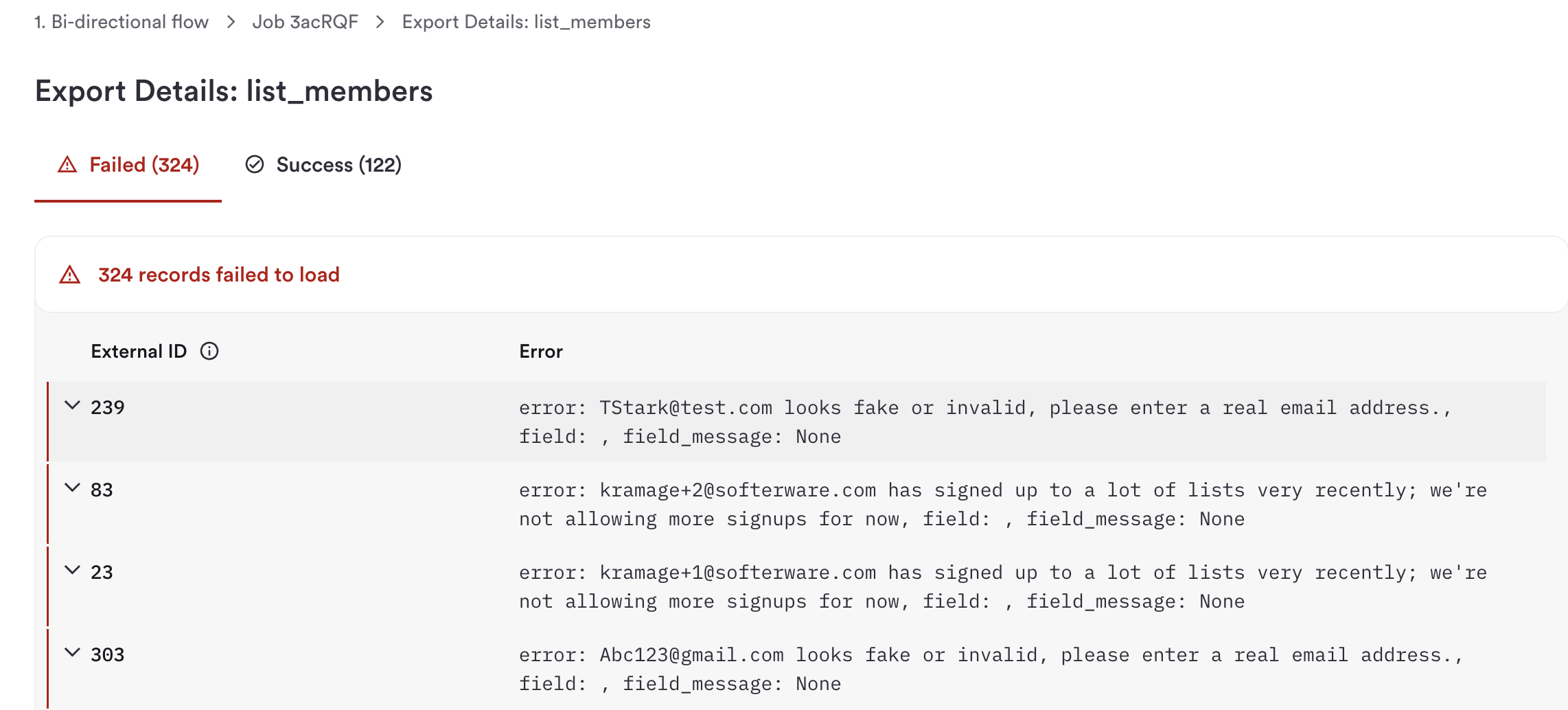 * **Success Count**: Number of records successfully written to the integration
* **Failed Count**: Number of records that failed to load
For these records, the dashboard displays:
* **External ID**: Your unique identifier for each record
* **Error Message for failed records**: Detailed error information explaining why the record failed to load
This allows you to quickly identify and troubleshoot issues with specific records, such as validation errors, invalid data, or rate limiting issues from the target system.
## Features
hotglue has several out of the box features that make working with writes significantly easier. Read more about them below.
### External Id
When writing data to a connector there are many cases where you may want to later *update* that same record again.
A handful of systems (such as Salesforce and NetSuite) natively support the concept of an **external id** – this essentially allows you to use your own ID to reference an object rather than having to store the internal id of that system.
hotglue supports external id upserts natively in our [target-hotglue-sdk](https://gitlab.com/hotglue/target-hotglue-sdk) – this means that even systems that **do not** natively support external ids can support external ids via hotglue.
Check out the demo below with HubSpot:
The other advantage of using an **external id** is that it makes it easy to parse the result of a write job, as the external id is returned back to you.
See the sample below where we are writing `contacts` to the HubSpot connector:
```json input theme={null}
{
"data": {
"externalId": "222316",
"firstname": "Tay",
"lastname": "Kolma",
"email": "tay.kolma@starwars.com"
}
}
```
```json result theme={null}
{
"jobId": "83r3Vh",
"taskId": "d27046ba-50d8-46b5-8290-ffc6b2efcb77",
"state": {
"bookmarks": {
"contacts": [
{
"hash": "a7c3c19f2bae3dcbe627b89a5bcd1d6453ab73a95369fe79726544169c25a075",
"success": true,
"id": "289784955095",
"externalId": "222316"
}
]
},
"summary": {
"contacts": {
"success": 1,
"fail": 0,
"existing": 0,
"updated": 0
}
}
}
}
```
### Saving Record IDs in Snapshots
For write jobs, hotglue can automatically save the mapping between your external IDs and the remote system's IDs in [snapshots](/transformation/snapshots). This is particularly useful for maintaining a persistent record of which records have been written and their corresponding IDs in the target system.
To enable this feature, simply toggle on **"Save records IDs in snapshots folder"** in your job settings. When enabled, hotglue will automatically create snapshot files containing:
* **Success Count**: Number of records successfully written to the integration
* **Failed Count**: Number of records that failed to load
For these records, the dashboard displays:
* **External ID**: Your unique identifier for each record
* **Error Message for failed records**: Detailed error information explaining why the record failed to load
This allows you to quickly identify and troubleshoot issues with specific records, such as validation errors, invalid data, or rate limiting issues from the target system.
## Features
hotglue has several out of the box features that make working with writes significantly easier. Read more about them below.
### External Id
When writing data to a connector there are many cases where you may want to later *update* that same record again.
A handful of systems (such as Salesforce and NetSuite) natively support the concept of an **external id** – this essentially allows you to use your own ID to reference an object rather than having to store the internal id of that system.
hotglue supports external id upserts natively in our [target-hotglue-sdk](https://gitlab.com/hotglue/target-hotglue-sdk) – this means that even systems that **do not** natively support external ids can support external ids via hotglue.
Check out the demo below with HubSpot:
The other advantage of using an **external id** is that it makes it easy to parse the result of a write job, as the external id is returned back to you.
See the sample below where we are writing `contacts` to the HubSpot connector:
```json input theme={null}
{
"data": {
"externalId": "222316",
"firstname": "Tay",
"lastname": "Kolma",
"email": "tay.kolma@starwars.com"
}
}
```
```json result theme={null}
{
"jobId": "83r3Vh",
"taskId": "d27046ba-50d8-46b5-8290-ffc6b2efcb77",
"state": {
"bookmarks": {
"contacts": [
{
"hash": "a7c3c19f2bae3dcbe627b89a5bcd1d6453ab73a95369fe79726544169c25a075",
"success": true,
"id": "289784955095",
"externalId": "222316"
}
]
},
"summary": {
"contacts": {
"success": 1,
"fail": 0,
"existing": 0,
"updated": 0
}
}
}
}
```
### Saving Record IDs in Snapshots
For write jobs, hotglue can automatically save the mapping between your external IDs and the remote system's IDs in [snapshots](/transformation/snapshots). This is particularly useful for maintaining a persistent record of which records have been written and their corresponding IDs in the target system.
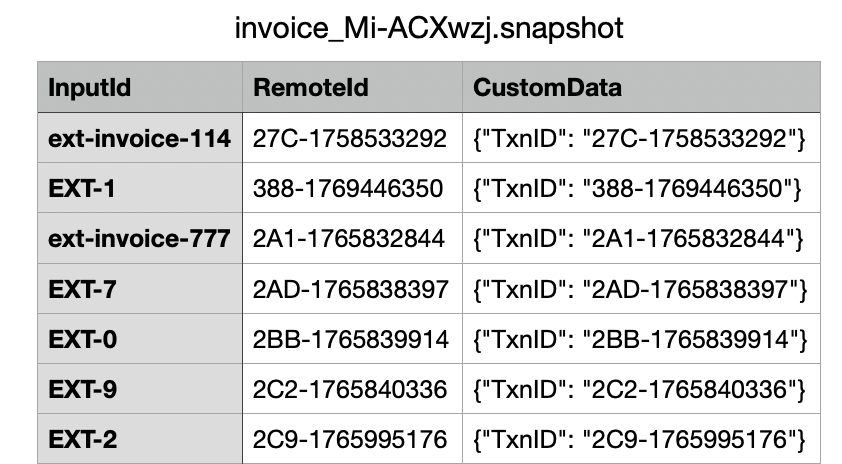
To enable this feature, simply toggle on **"Save records IDs in snapshots folder"** in your job settings. When enabled, hotglue will automatically create snapshot files containing:
 * **InputId**: Your external ID or unique identifier
* **RemoteId**: The ID assigned by the target integration (e.g., Salesforce record ID, HubSpot contact ID)
* **CustomData**: Additional metadata including transaction IDs for tracking
These snapshot files are accessible from the **Snapshots Manager** tab in your tenant page.
* **InputId**: Your external ID or unique identifier
* **RemoteId**: The ID assigned by the target integration (e.g., Salesforce record ID, HubSpot contact ID)
* **CustomData**: Additional metadata including transaction IDs for tracking
These snapshot files are accessible from the **Snapshots Manager** tab in your tenant page.
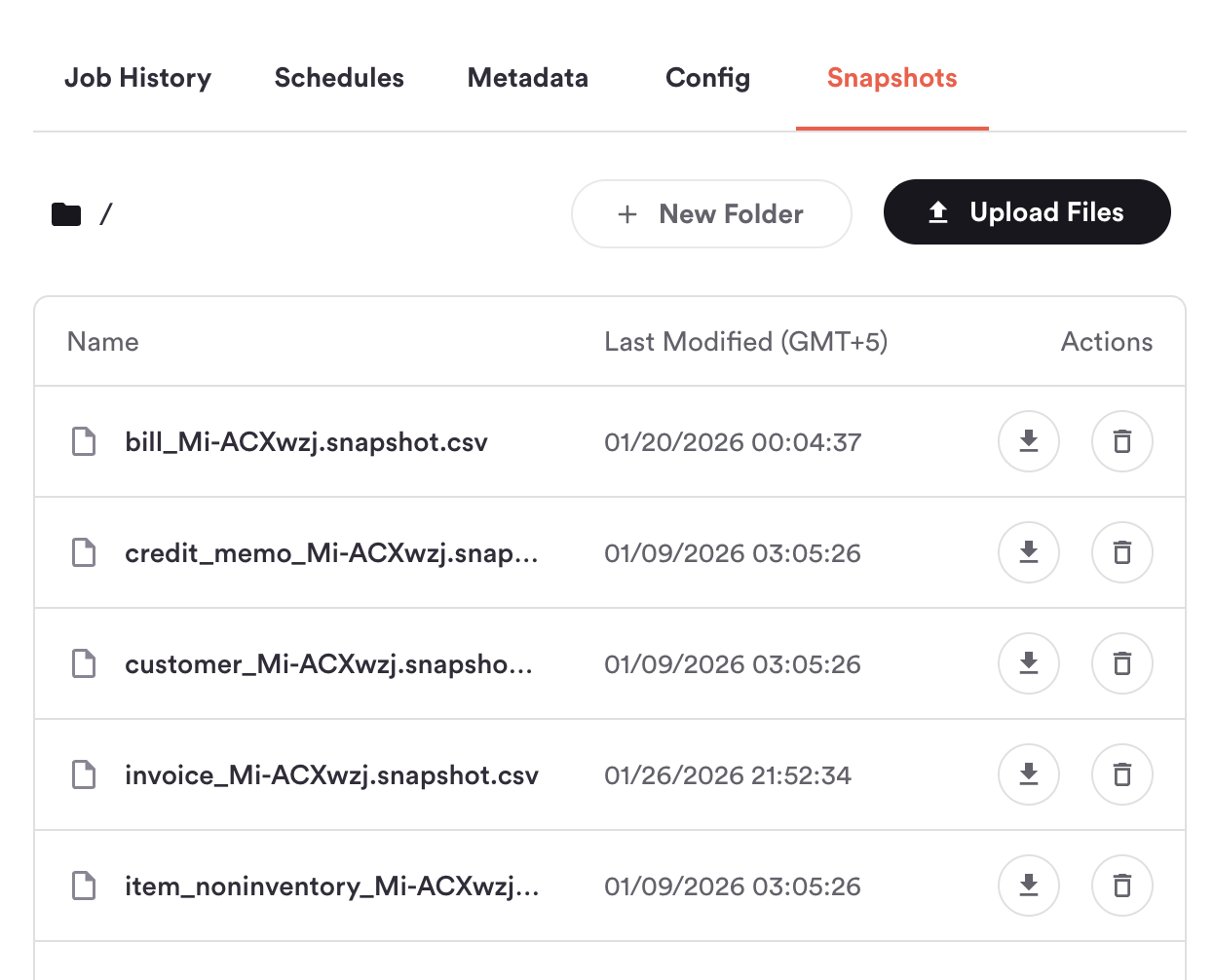 This is an example of snapshot created by Hotglue
 Learn more about snapshots and how to use them programmatically in transformation scripts in the [Snapshots documentation](/transformation/snapshots).