> ## Documentation Index
> Fetch the complete documentation index at: https://docs.hotglue.com/llms.txt
> Use this file to discover all available pages before exploring further.
# Debugging a script
> This guide teaches you how to debug a python transformation script
## Before you start
This guide assumes you have already launched a JupyterLab workspace, as described in the [Transformations Overview](/transformation/python-scripts#start-the-jupyterlab-workspace).
## Access prior job logs and data
If you're debugging a job failure, you can learn more about the cause of failure by reading the logs.
To start, navigate to the job that failed (this could be under a specific tenant):
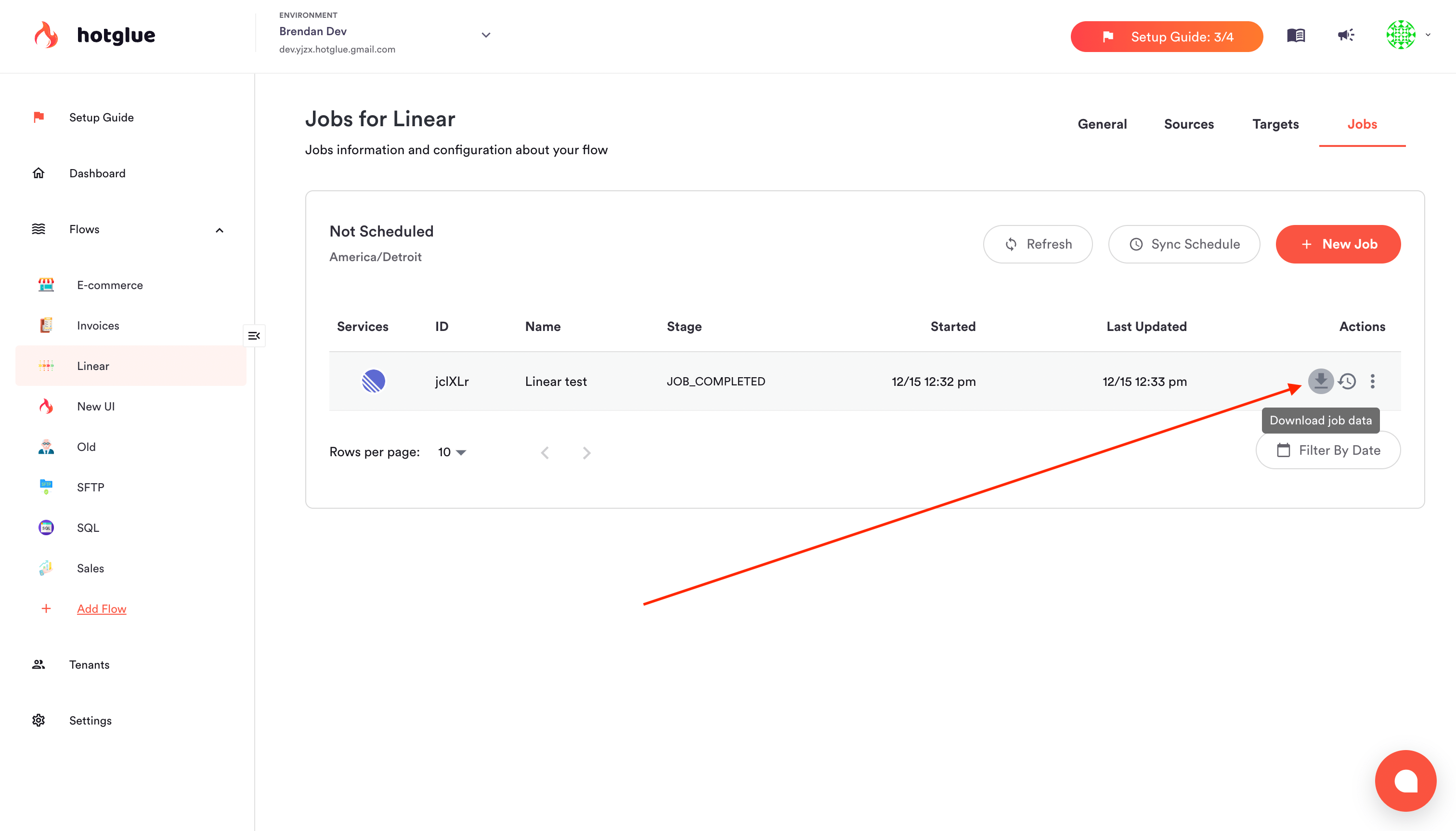
Click on the download icon next to the job. A zip file will be generated containing the raw data that was was generated during that job. The directory structure is exactly the same as described on [the transformation script docs](https://docs.hotglue.com/docs/writing-a-basic-script#standard-directories).
By clicking the job name, you can access the logs and understand any errors that may have occurred:
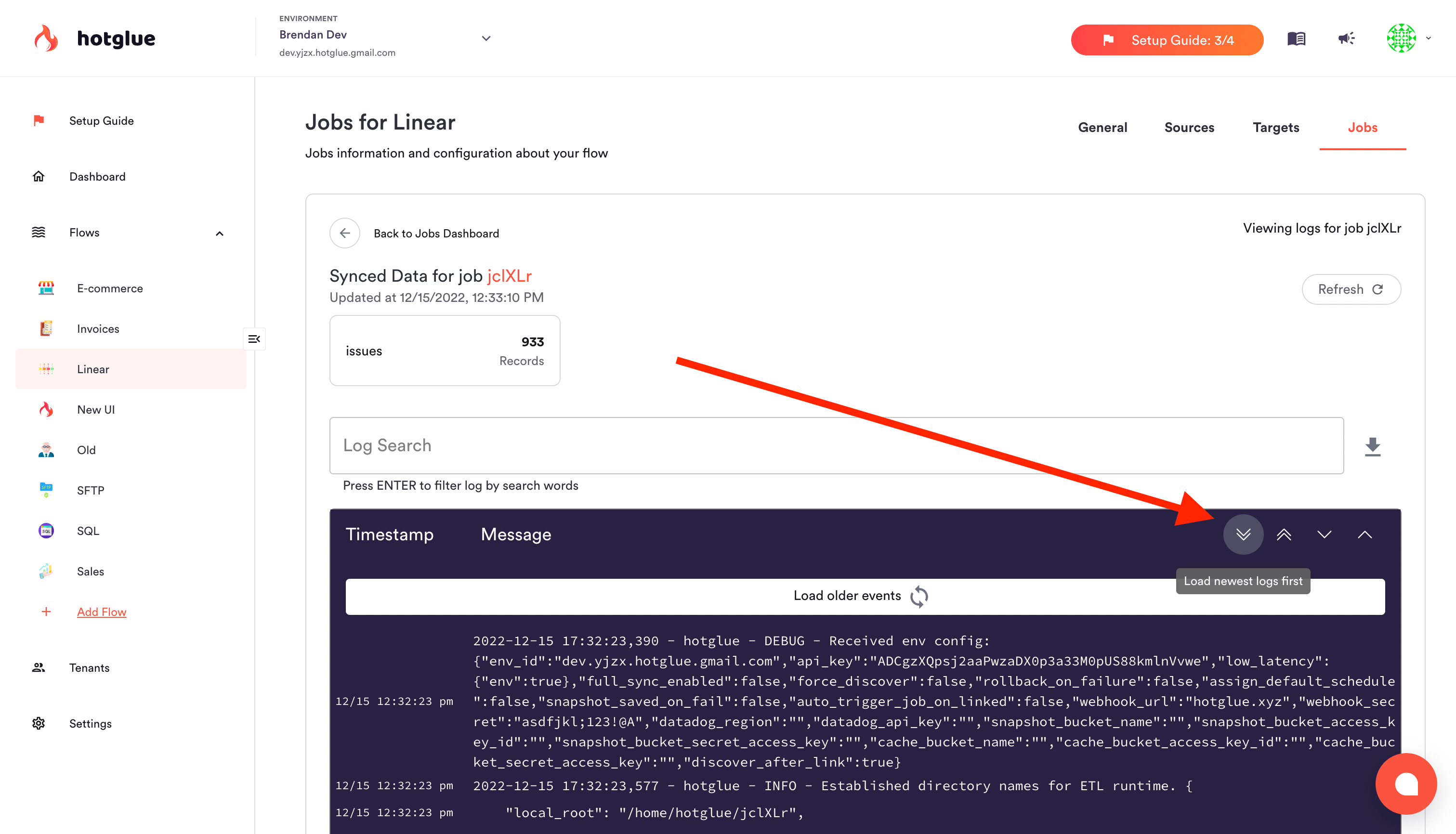
### **Find errors quickly**
To speed up debugging, click the down arrow to quickly scan to the most recent logs.
## Clone a job
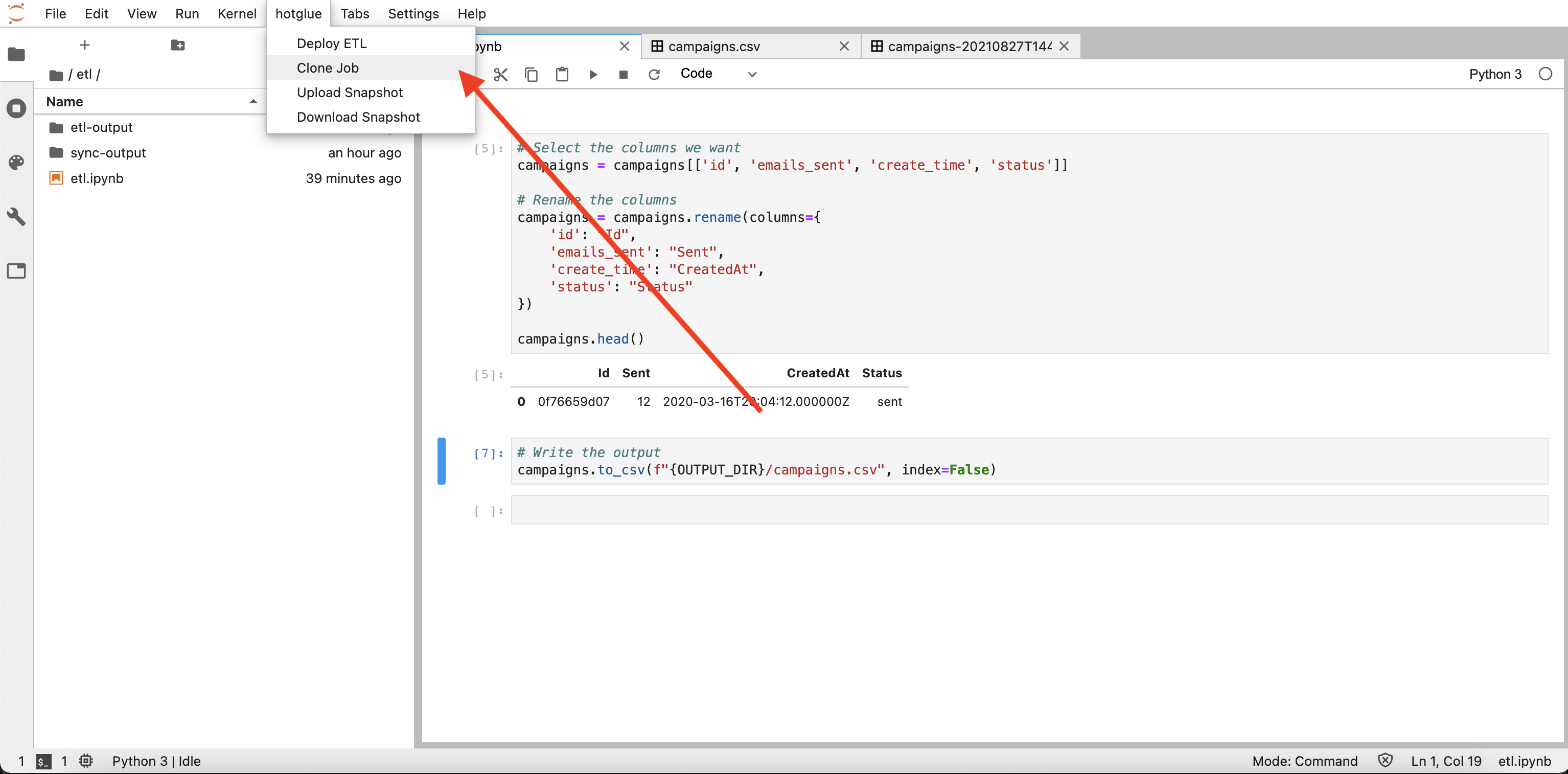
While in a JupyterLab workspace, you can **clone** the data from a prior job. This is especially useful if you're debugging a specific job that failed, or you need some testing data to develop a script.
Inside of Jupyter, select the hotglue tab and press clone job.
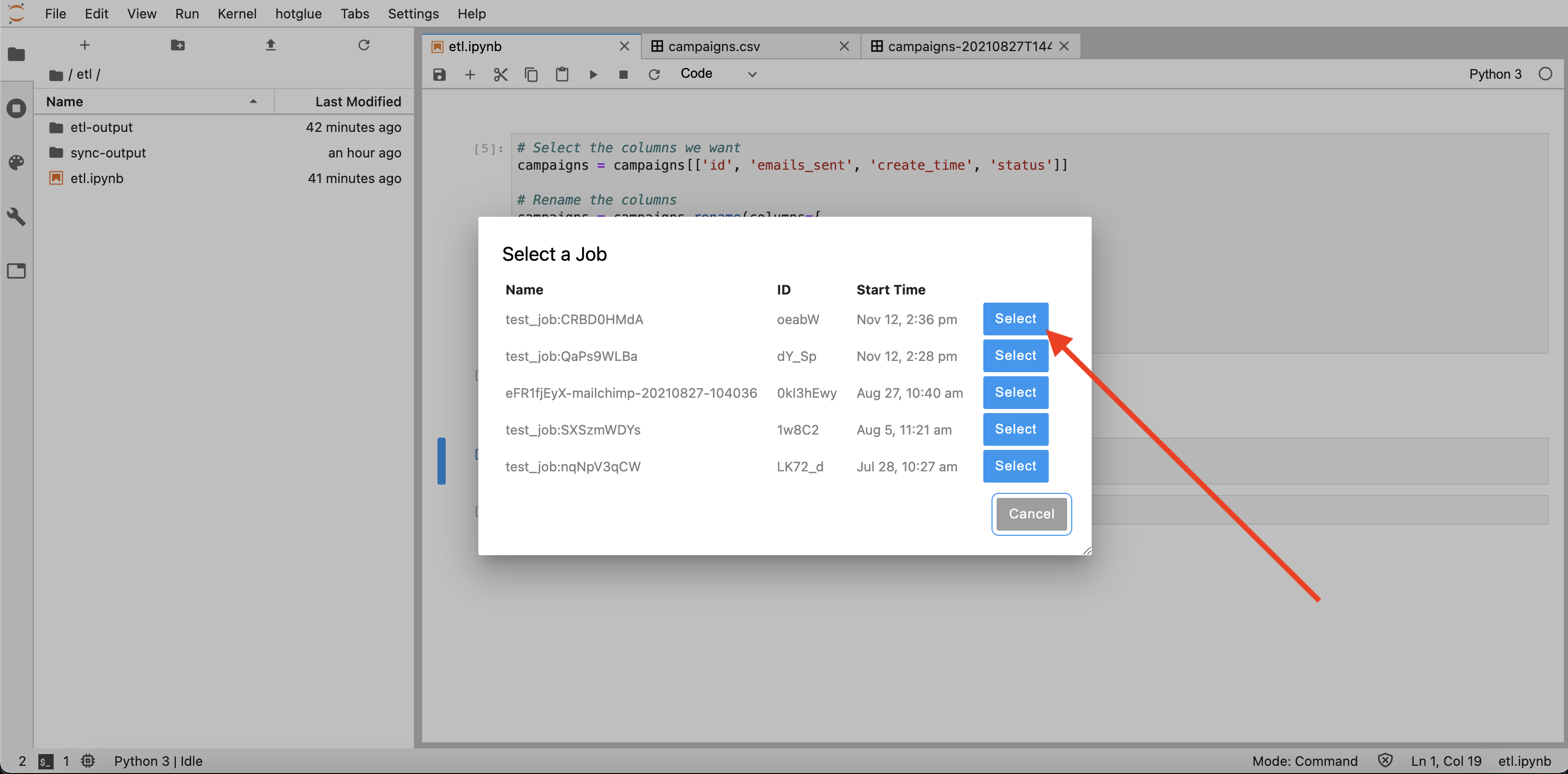
Jupyter will present you with a list of the most recent jobs. Press select on the one you would like to clone.
Once the data is cloned, you'll see a success message as below, and the data will be populated in the `sync-output` folder.

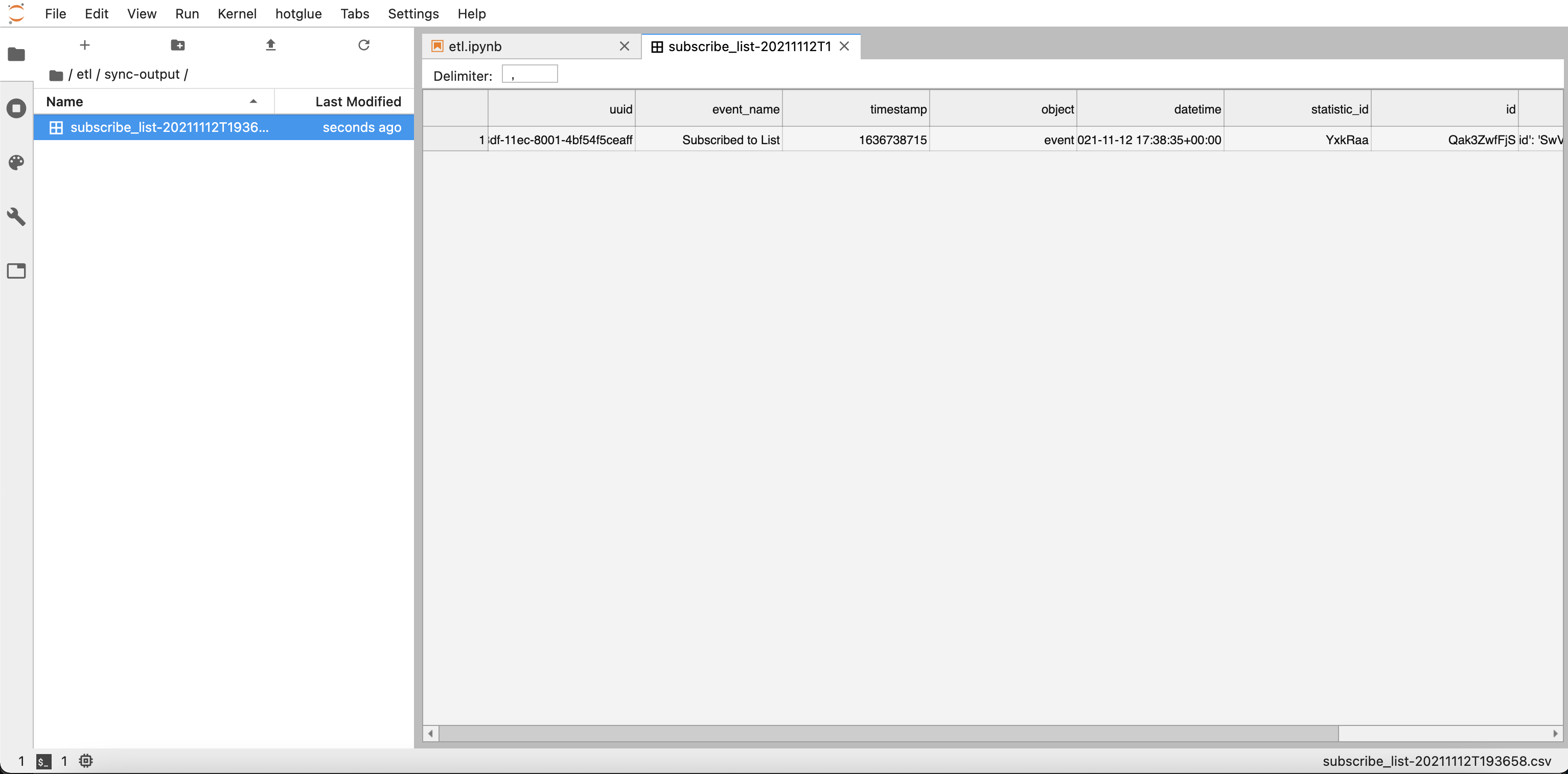
You can preview the data that was cloned in JupyterLab by opening the `sync-output` folder. As you can see, my `subscribe_list` data was cloned:
## Test the script
Now that your data is cloned, you can run your transform script normally and it should pick up the data automatically.
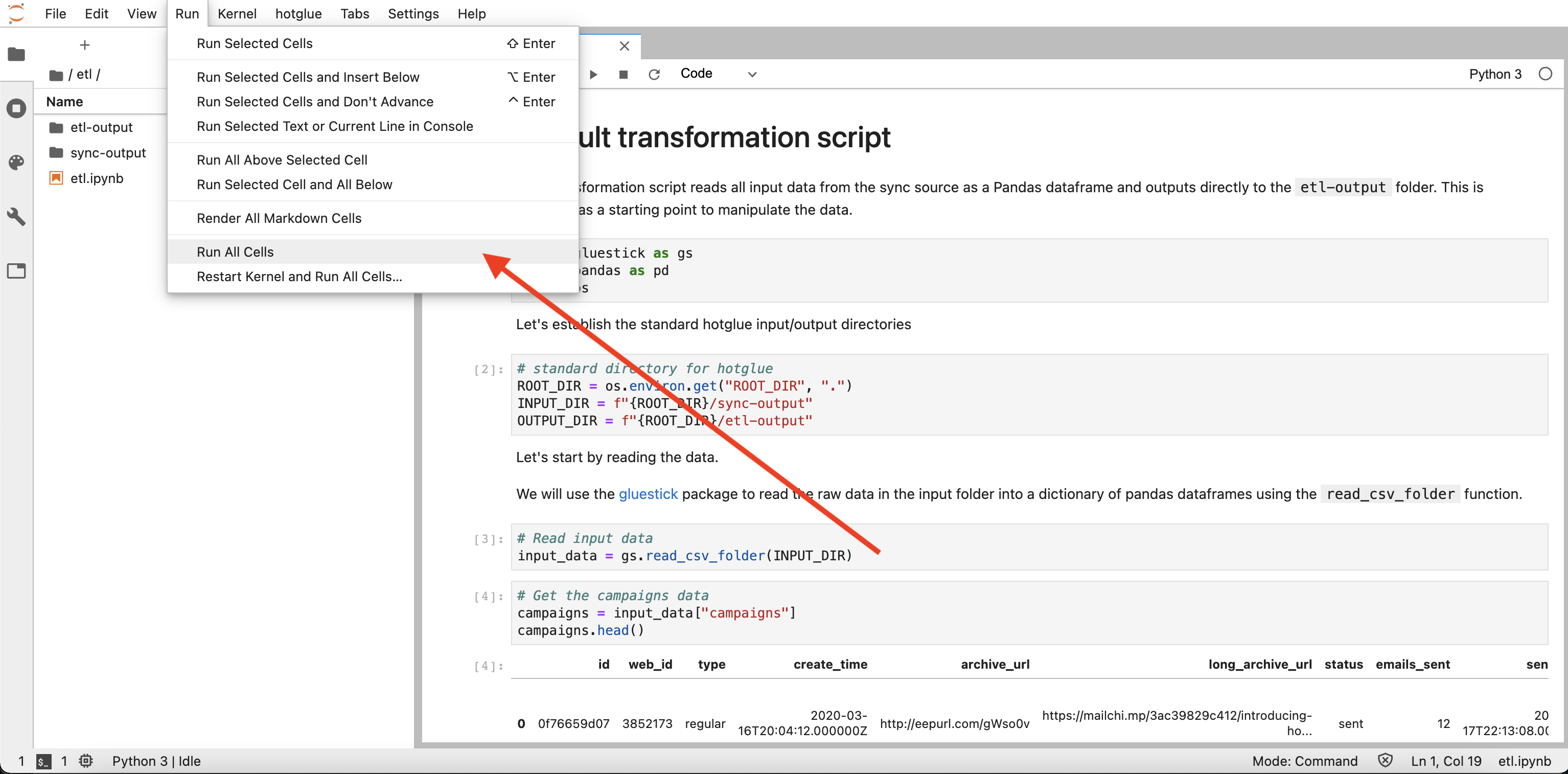
If your script fails, you will see the error in the notebook (`etl.ipynb`). From there, you can change your script and run against the data again.
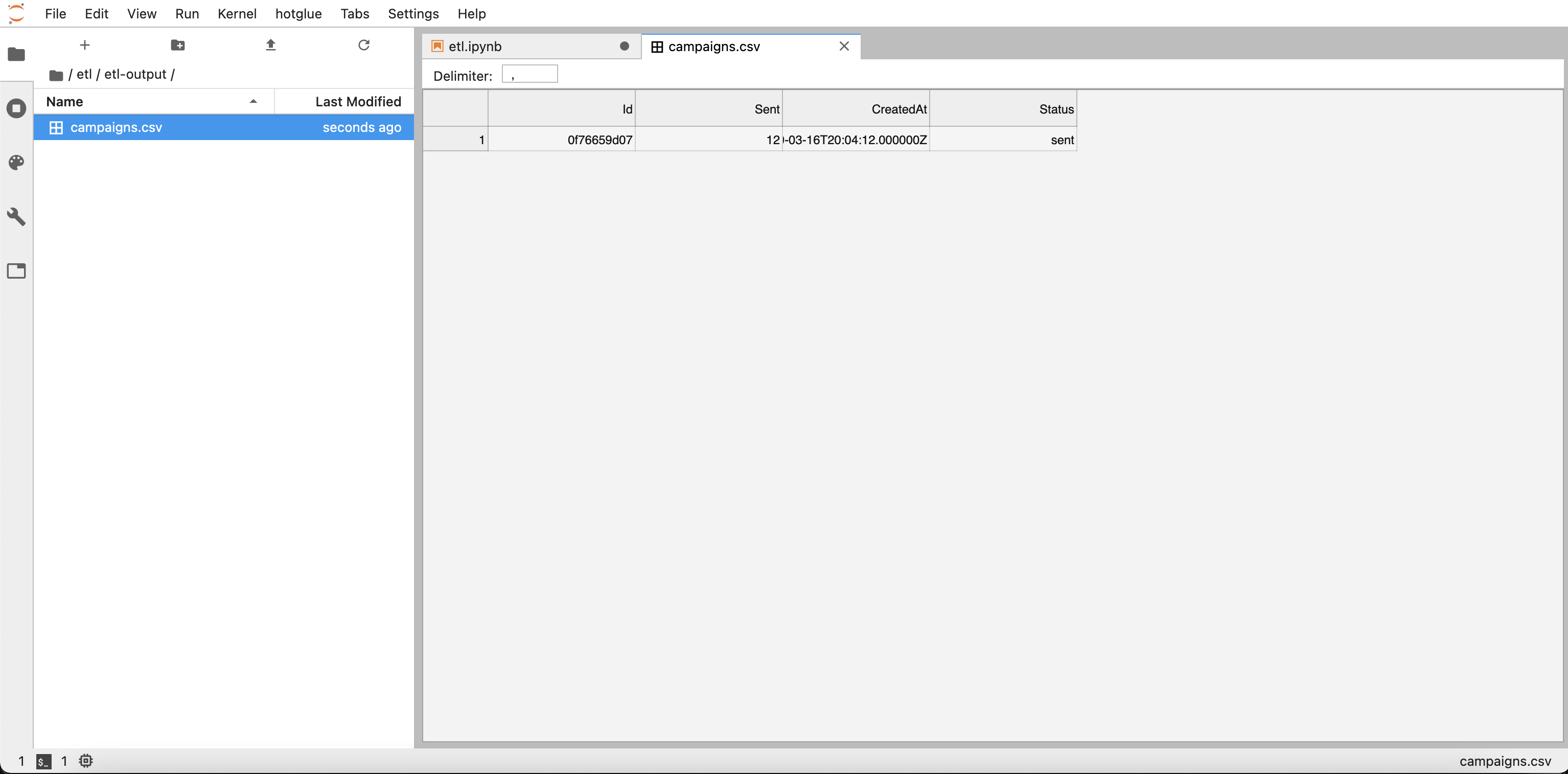
When your script works correctly, you should see the output files in the `etl-output` folder:
That's all there is to testing your script in hotglue!