> ## Documentation Index
> Fetch the complete documentation index at: https://docs.hotglue.com/llms.txt
> Use this file to discover all available pages before exploring further.
# Python Transformation Scripts
hotglue jobs will work with either a `etl.py` file or a `etl.ipynb`.
If you are developing your transformation script as a JupyterLab script, you can develop this script directly in the hotglue UI:
## Start the JupyterLab workspace
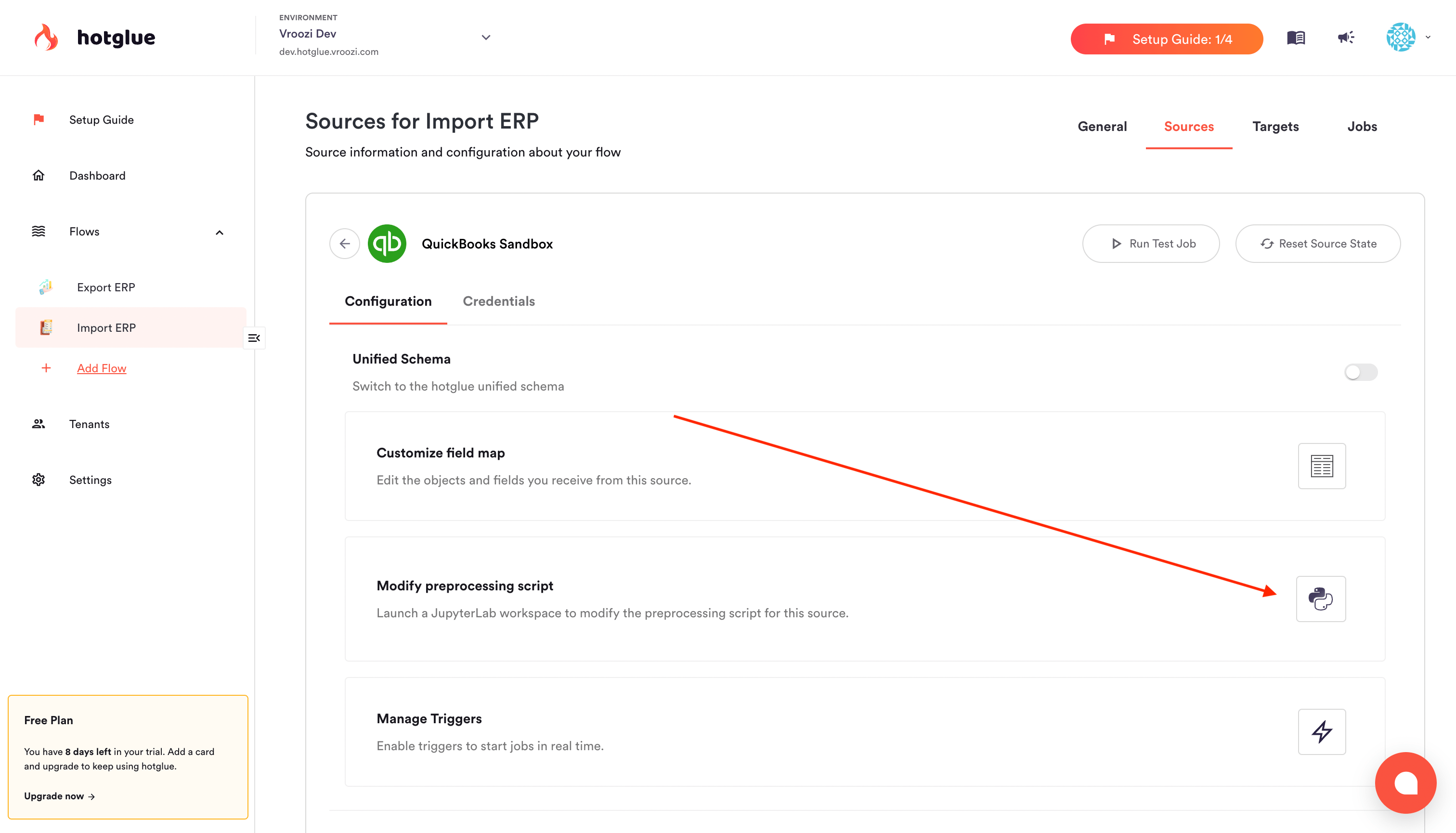
To edit the transformation script for a connector, you can start a JupyterLab workspace directly from hotglue.
Start by opening the settings for the connector you'd like to update. From here, launch the JupyterLab workspace by selecting the Python icon:
Generally, when updating the transformation script you should launch the JupyterLab workspace from the admin view – **not** the tenant view. Launching JupyterLab as a tenant create a custom forked script for that tenant.
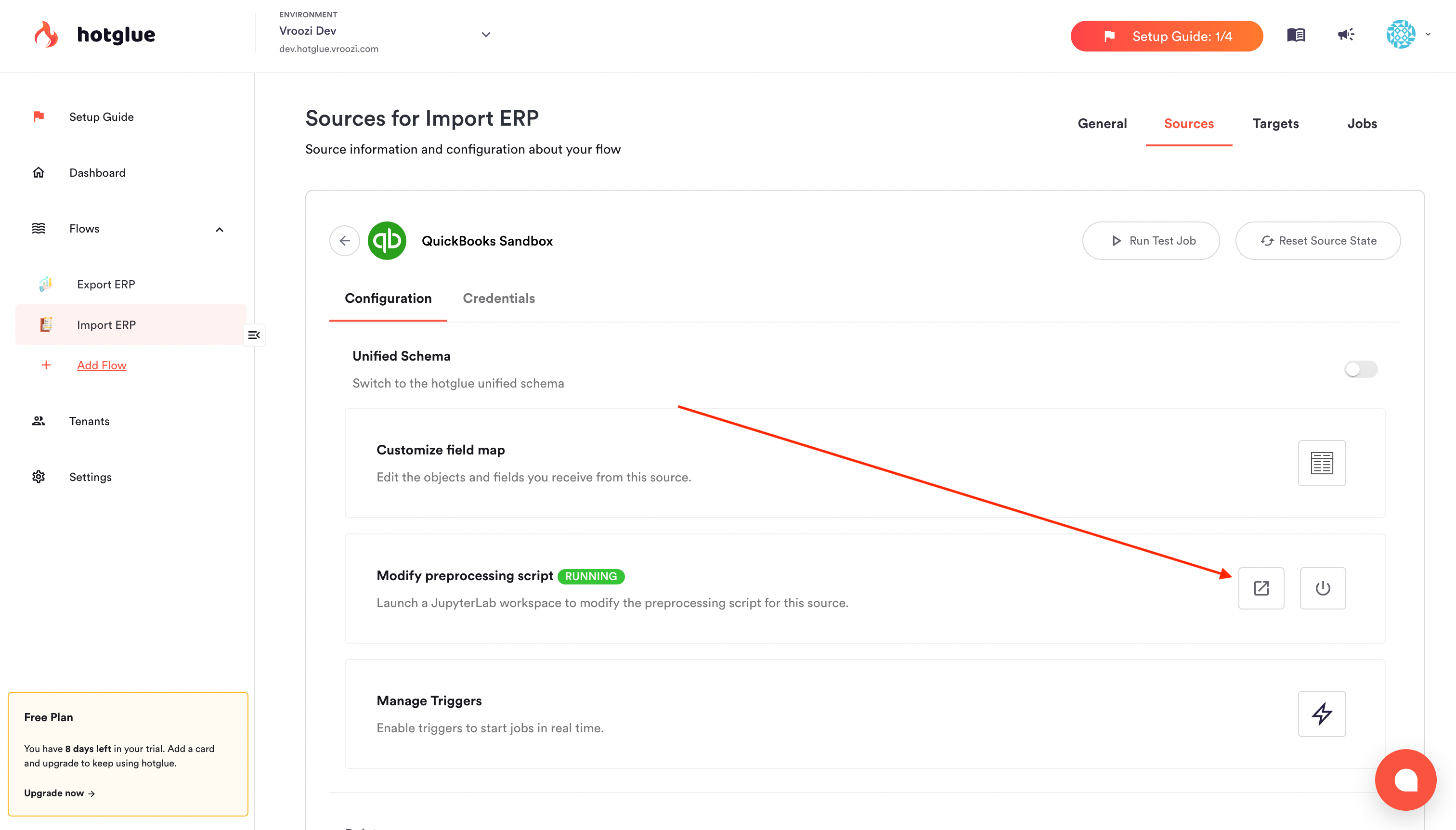
hotglue will provision a hosted JupyterLab workspace for you to connect to – this may take a few minutes. Once the JupyterLab workspace is provisioned, click the launch button to open your workspace.
You've launched JupyterLab and should see something like the below! 🎉
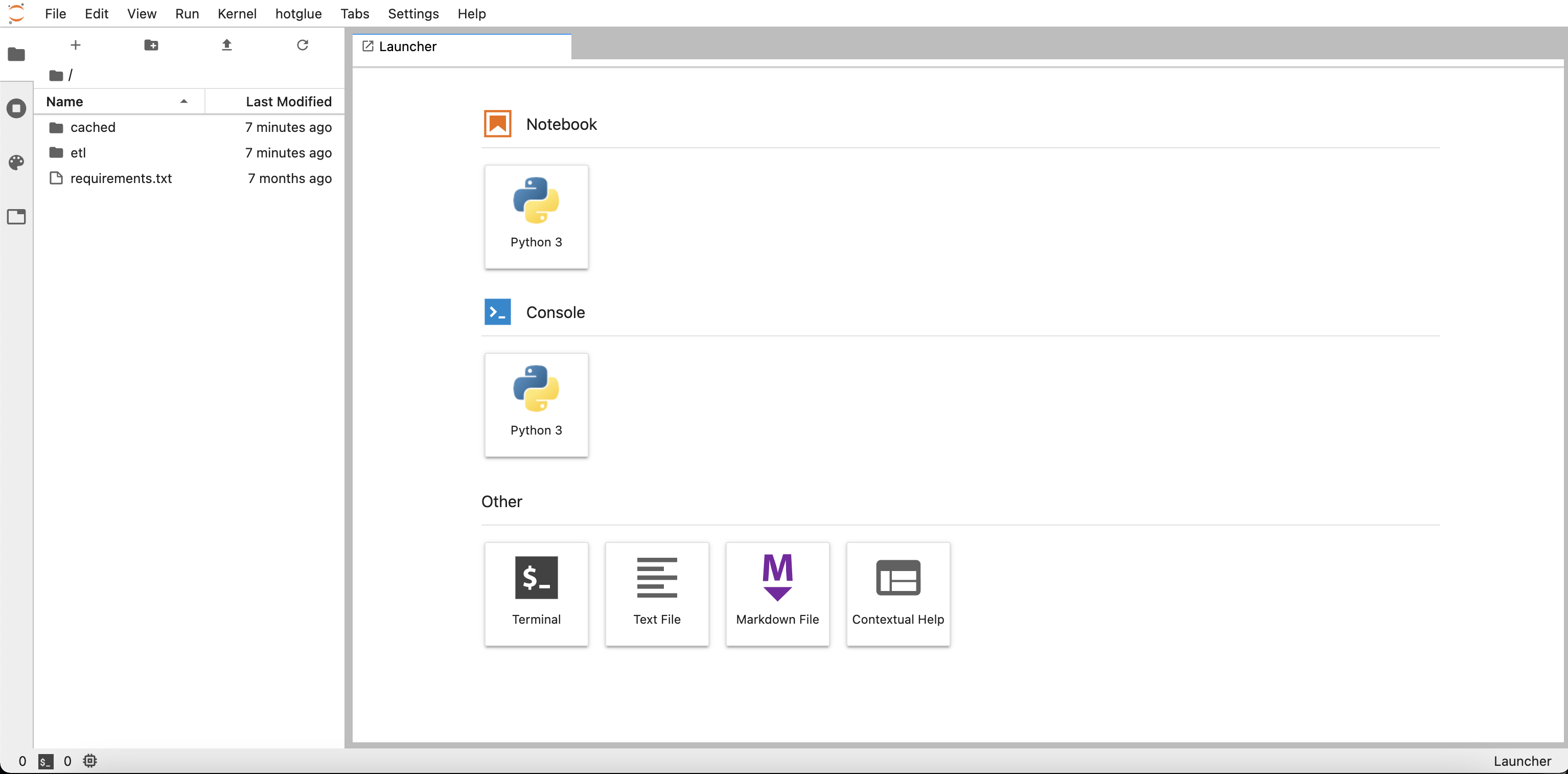
Note that JupyterLab workspaces will timeout after 30 minutes of inactivity, at which point you'll need to start a new workspace. When your session times out, your script is autosaved.
## Define dependencies
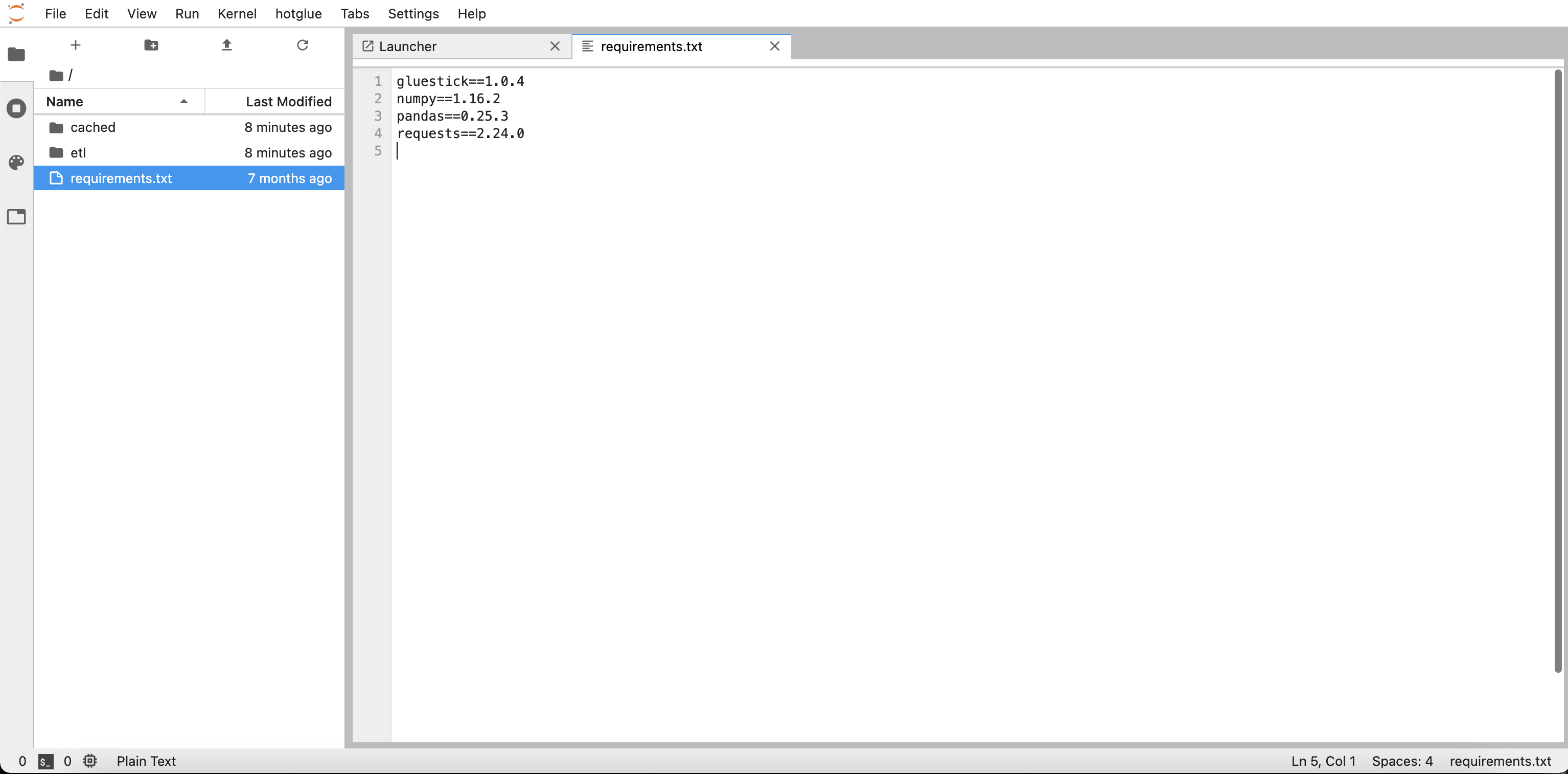
The `requirements.txt` file in the root directory is where you can specify any Python modules you wish to use as dependencies. In this example, my `requirements.txt` contains the following:
```shell requirements.txt theme={null}
gluestick==1.0.4
numpy==1.16.2
pandas==0.25.3
requests==2.24.0
```
As mentioned above the [gluestick](https://github.com/hotgluexyz/gluestick) package is developed by the hotglue team and provides utility functions for reading and manipulating CSV files with pandas. Read the [wiki on GitHub](https://github.com/hotgluexyz/gluestick/wiki).
The [requests](https://docs.python-requests.org/en/latest/) package can be used to make API requests directly from your transformation script. See the testing `requirements.txt` we created in Jupyter below:
## Edit the script
[](https://docs.hotglue.com/docs/transformations-overview#edit-the-script)
Inside the `etl` folder, you will find a file titled `etl.ipynb` containing a [default transformation script](https://github.com/hotgluexyz/recipes/blob/master/src/default.ipynb)
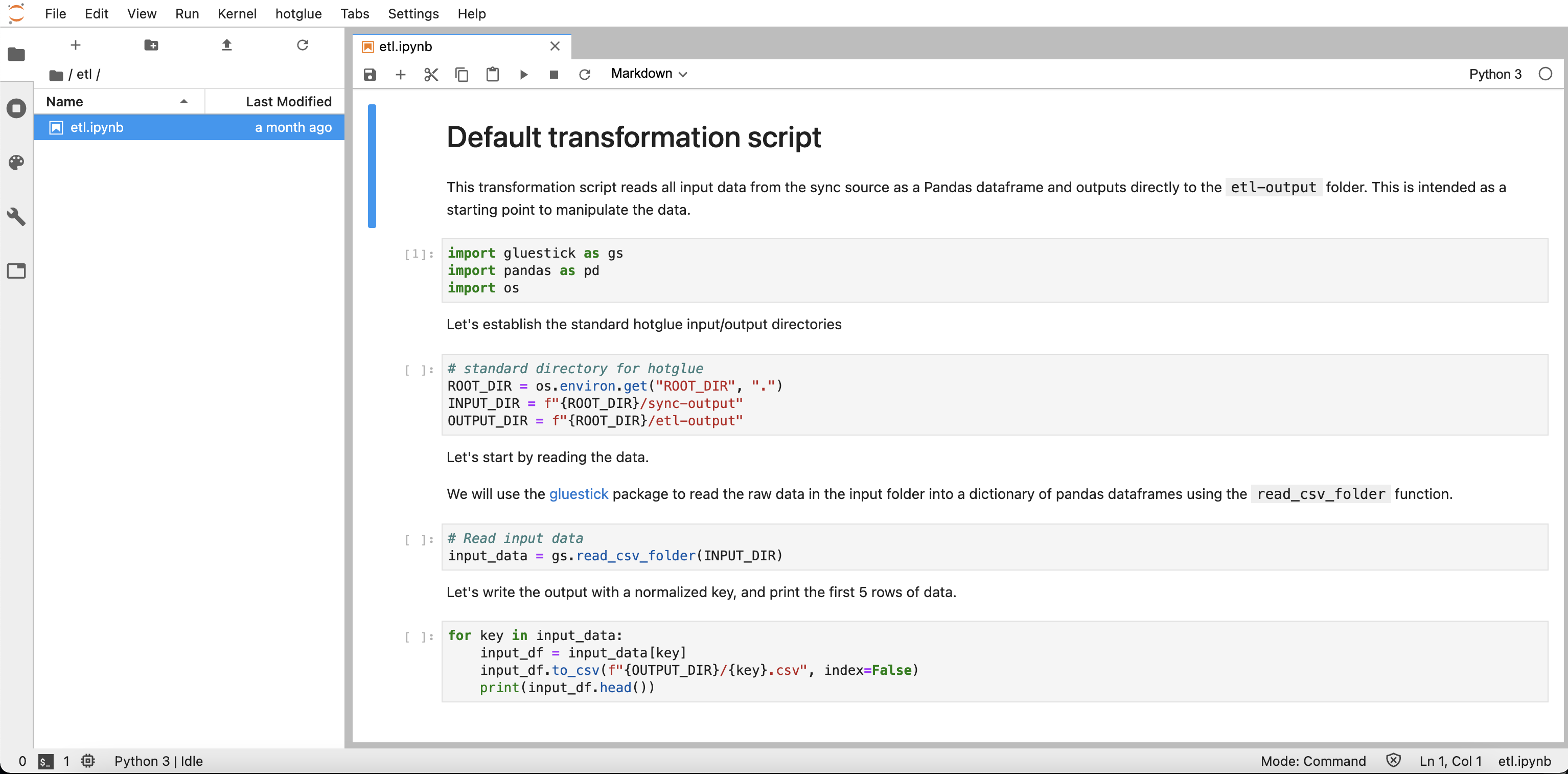
You can use this as a base to understand how to read data with the `gluestick` package and manipulate it using `pandas`. You can also find more [sample scripts available on GitHub](https://github.com/hotgluexyz/recipes/tree/master/src).
## Deploy the script
[](https://docs.hotglue.com/docs/transformations-overview#deploy-the-script)
Once you have written your transformation script, you must deploy it using the hotglue tab in Jupyter.
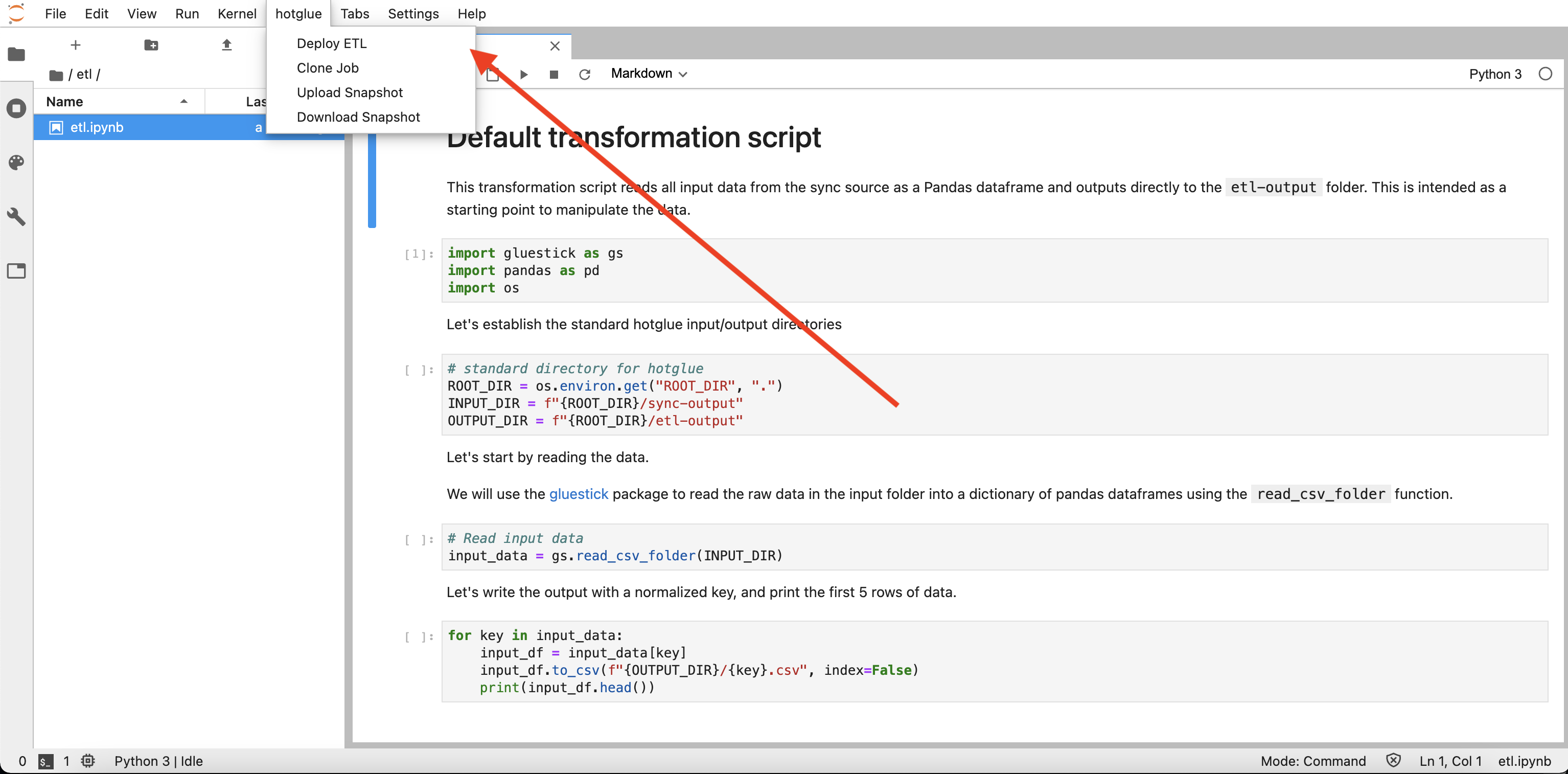
Jupyter will prompt you to confirm the deployment as pictured below:
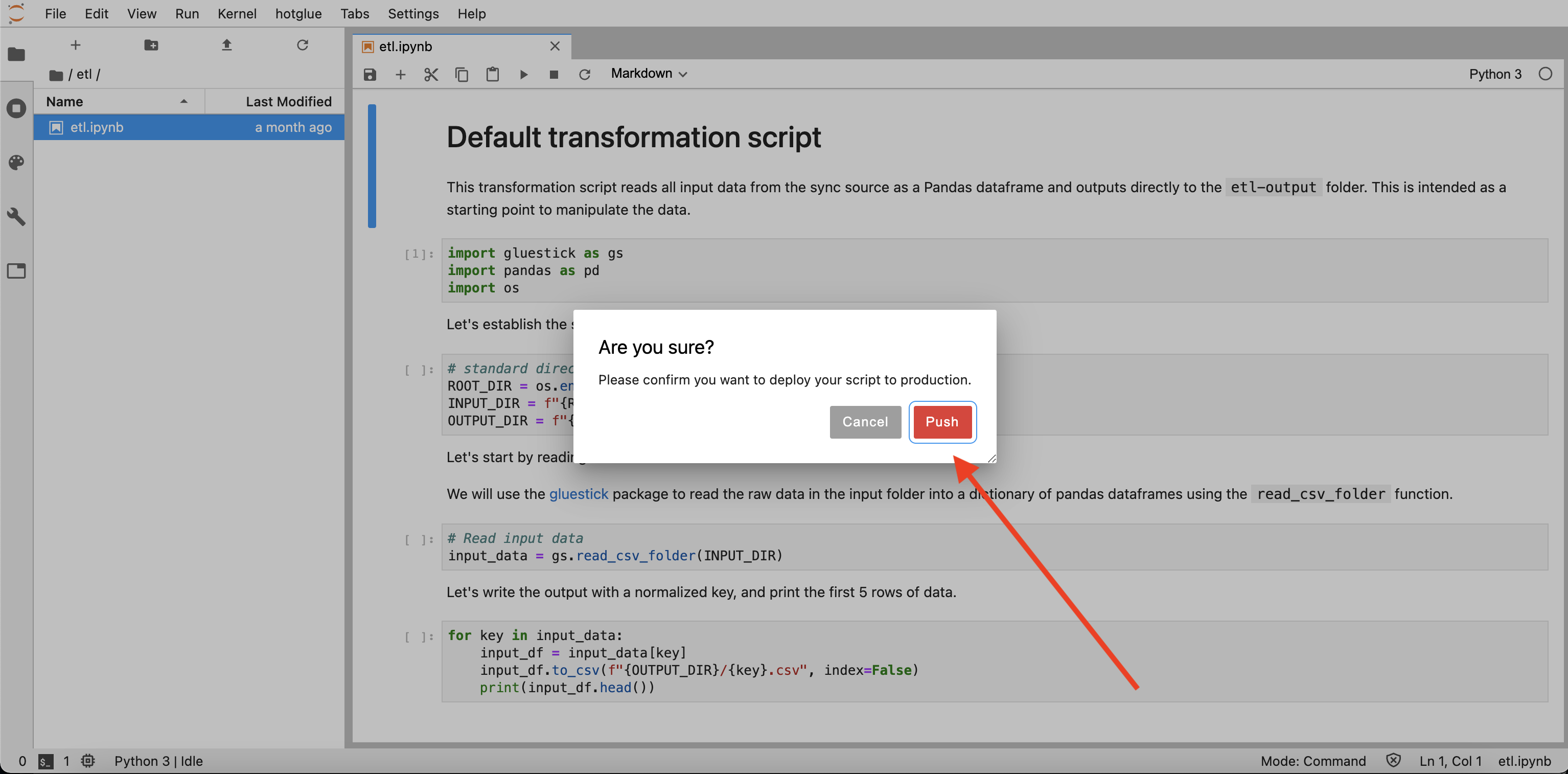
If you do not deploy your script, your changes will be autosaved but will **not** be used. Autosaved transformation scripts can be found in the `cached` folder.
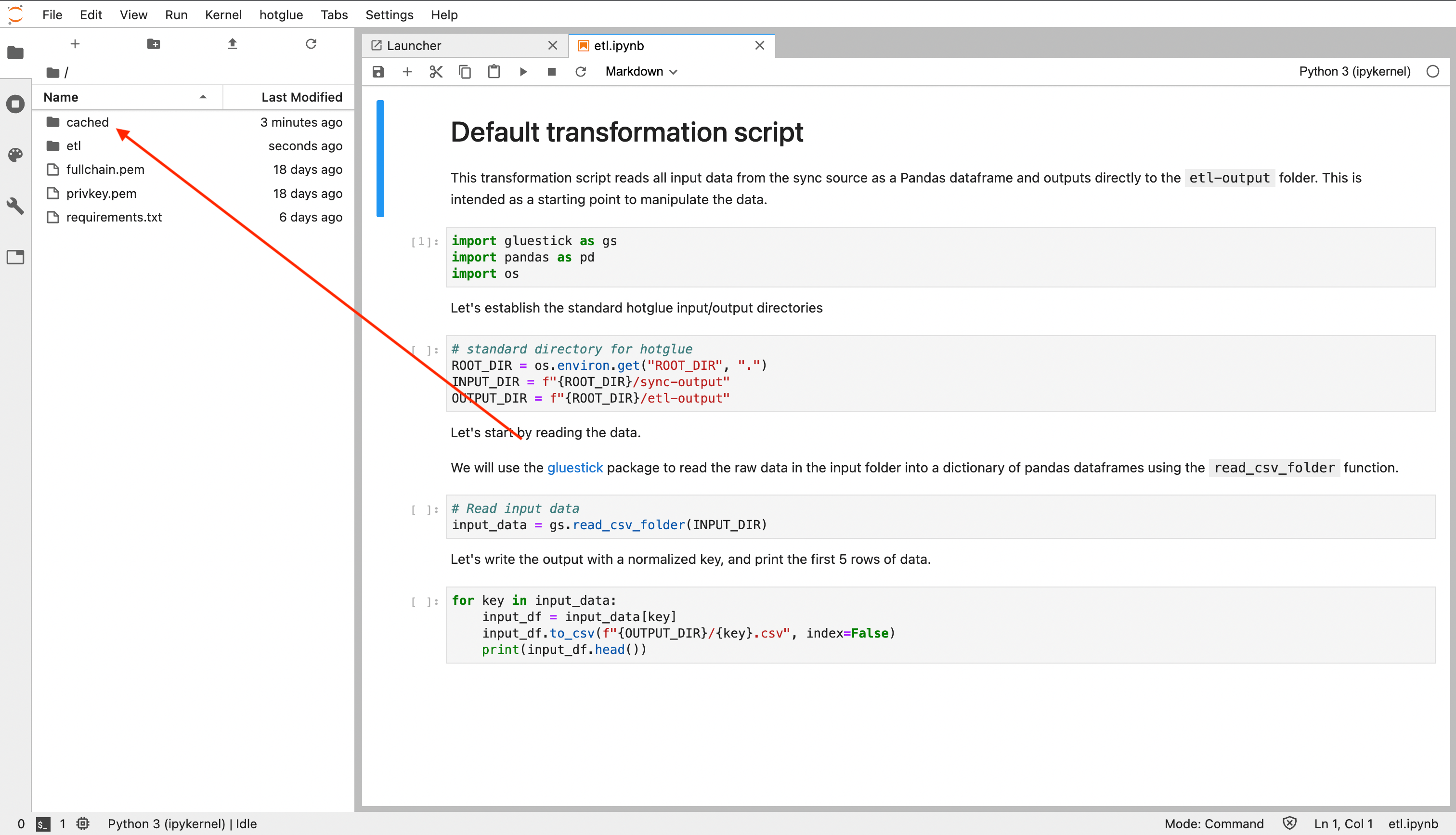
Note that the CLI only downloads the deployed version of the script. If you have a script that is not deployed, you will need to load a Jupyter notebook to deploy your cached edits