> ## Documentation Index
> Fetch the complete documentation index at: https://docs.hotglue.com/llms.txt
> Use this file to discover all available pages before exploring further.
# Custom Params
> How to add custom parameters to the hotglue widget
# What are Custom Params?
hotglue allows you to specify custom parameters that will be collected before a tenant links an integration in the hotglue widget.
These parameters are then made available to your transformation script during execution. The screenshot below shows a sample of custom parameters applied to a QuickBooks integration:
# Enabling custom params
## Start a JupyterLab workspace
To enable custom params, you should first [launch a JupyterLab workspace](https://docs.hotglue.com/docs/transformations-overview#start-the-jupyterlab-workspace).
## Configure the custom params
Once inside, you will create an `availableSources.json` which specifies an override for the source you wish to specify custom parameters for. A sample is given below:
```json JSON theme={null}
[
{
"tap": "quickbooks",
"domain": "quickbooks.intuit.com",
"label": "QuickBooks",
"connect_ui_params": {
"invoice_equals_contract": {
"label": "Invoice Equals Contract",
"description": "RevRec would auto infer the sales order based on invoice if this parameter is True.",
"type": "boolean",
"required": false
},
"use_customer_name_mapping": {
"label": "Use Customer Name Mapping",
"description": "Use customer name mapping to establish the [Customer Id] from invoices that get loaded to RevRec. This file will be generated by the [Sales] flow.",
"type": "boolean",
"required": false
},
"ignore_items": {
"label": "Ignore Items",
"description": "Ignore these items from invoices when creating invoices in RevRec",
"type": "text",
"required": false
},
"date_format": {
"label": "Date Format",
"description": "Date format for the dates in item description",
"type": "text",
"required": false
}
}
}
]
```
As you can see above, all parameters are listed under the `connect_ui_params` key and have the following options:
| Name | Description |
| ------------- | ------------------------------------------------------------------------------------------------ |
| `label` | The label shown in the hotglue widget for this parameter |
| `description` | The description shown in the hotglue widget for this parameter |
| `type` | The type of the parameter. Valid values are: `text`, `password`, `boolean`, `select`, and `list` |
| `required` | Whether this parameter is required for connection `true` or `false`, defaults to `false` |
## Deploy the custom params
Once you've specified the parameters, you must deploy them to hotglue. To start, verify your `availableSources.json` is in the root directory as shown below:
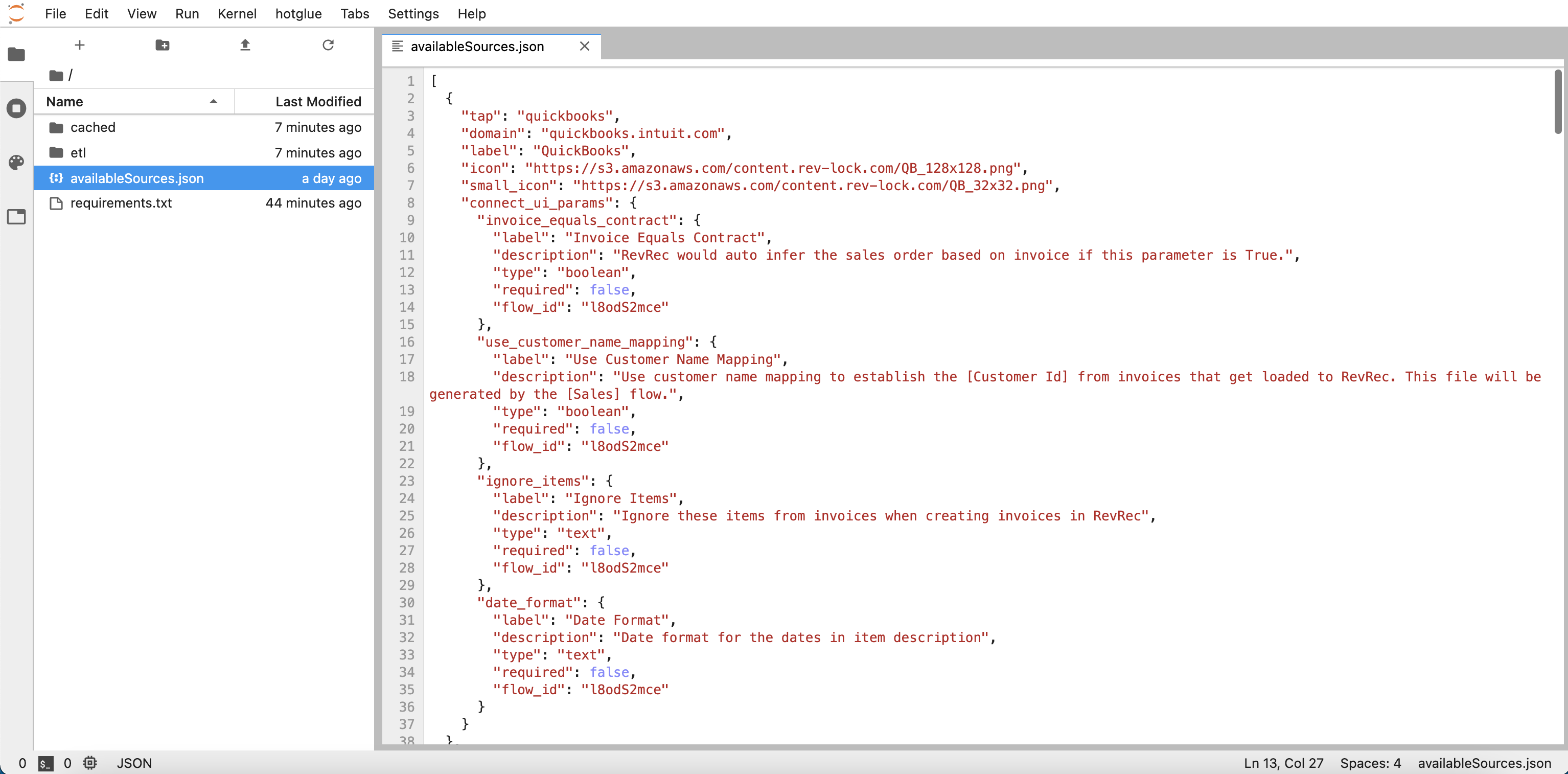
Now select the hotglue tab in the toolbar and select **Deploy ETL**

That's all! Now if you open the hotglue widget, you should see your custom parameters visible there.
# How to access the custom params?
[](https://docs.hotglue.com/docs/custom-params#how-to-access-the-custom-params)
Now that your custom params are configured, you can access the values tenants set in your transformation script. The data will be available in the `config.json` file, here's a sample script:
```python Python theme={null}
import os
import json
# Establish standard directories
ROOT_DIR = os.environ.get("ROOT_DIR", ".")
INPUT_DIR = f"{ROOT_DIR}/sync-output"
OUTPUT_DIR = f"{ROOT_DIR}/etl-output"
SNAPSHOT_DIR = f"{ROOT_DIR}/snapshots"
# Establish config path
config_path = f"{ROOT_DIR}/config.json"
# Load the config containing custom params values
with open(config_path) as f:
config = json.load(f)
# config contains the following:
# note how the keys here match the keys in the connect_ui_params
# {
# "invoice_equals_contract": False,
# "use_customer_name_mapping": False,
# "ignore_items": None
# }
```