> ## Documentation Index
> Fetch the complete documentation index at: https://docs.hotglue.com/llms.txt
> Use this file to discover all available pages before exploring further.
# Introduction
> Learn how the unified schema works and how to use it.
## Description
hotglue offers a common schema to help standardize your data and enable you to create integrations faster.
Instead of configuring every connector with scripts and field maps, hotglue unified schemas send and receive data in the same format, no matter the connector.
This can be helpful if you want to build many integrations quickly, or if your development resources are limited. For those who find this standardization limiting, you may want to check out [transformation scripts](https://docs.hotglue.com/docs/transformations-overview) instead.
You can find a complete list of compatible connectors in our [unified schema docs](https://hotglue.com/docs/unified).
## Usage
### 1. Turn on the unified schema
Select a [compatible connector](https://hotglue.com/docs/unified).
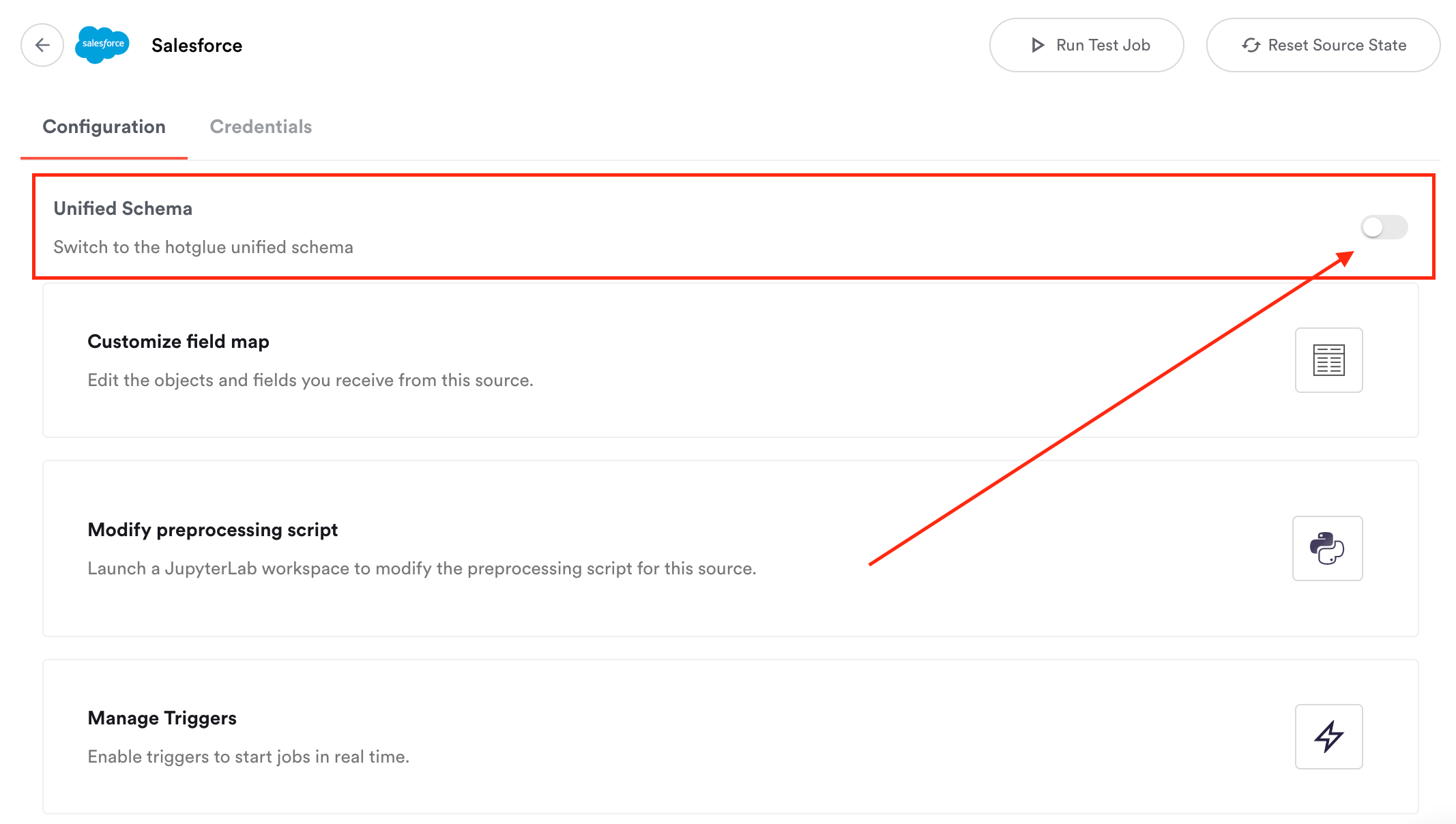
Under **configuration**, click the **unified schema toggle**.
If you don't see the unified schema toggle, make sure your selected connector is compatible.
 ### 2. Configure your schema
Click "Customize unified schema objects" to select which tables you would like to sync. Each selected table will include all of the fields as marked in the [docs](https://hotglue.com/docs/unified).
Once the unified schema is turned on, your connector configuration gets a lot simpler! You can still manage triggers, but the script and field mapping will now be done for you.
### 2. Configure your schema
Click "Customize unified schema objects" to select which tables you would like to sync. Each selected table will include all of the fields as marked in the [docs](https://hotglue.com/docs/unified).
Once the unified schema is turned on, your connector configuration gets a lot simpler! You can still manage triggers, but the script and field mapping will now be done for you.