What is a write job?
A write job is a job where hotglue is writing data from your product to an integration. This is often referred to as reverse ETL. For example, if you wanted to write Contacts from your product to a tenant’s Salesforce account, that would be an example of a write job in hotglue.How do you configure a flow to support write jobs?
There are two types of flows that support write jobs:- v2 (bidirectional)
- v1 (write)

Trigger a write job via API
In some cases you may want to pass the data you want to write via API instead of using a source. This is particularly useful if there is an action a tenant does in your product that should immediately send data to an integration. There are two ways to do this:Using the hotglue API source
You can configure your flow to have the hotglue API as the source. This enables you to trigger a job using thePOST /jobs endpoint
with a state object containing the data you wish to write. This will queue a write job to asynchronously write the data. The request is slightly
different depending on whether you’re using a v2 flow or v1 write flow.
Using the real-time write endpoint
Alternatively, you can use the real-time write endpoint, which sends the data synchronously. See demo below:Viewing Write Job Results
Record-by-record results in the dashboard
After running a write job, you can view detailed results for each record in the hotglue dashboard. Navigate to your flow and select the specific job to see the Export Details page, which provides a comprehensive breakdown of your write operation: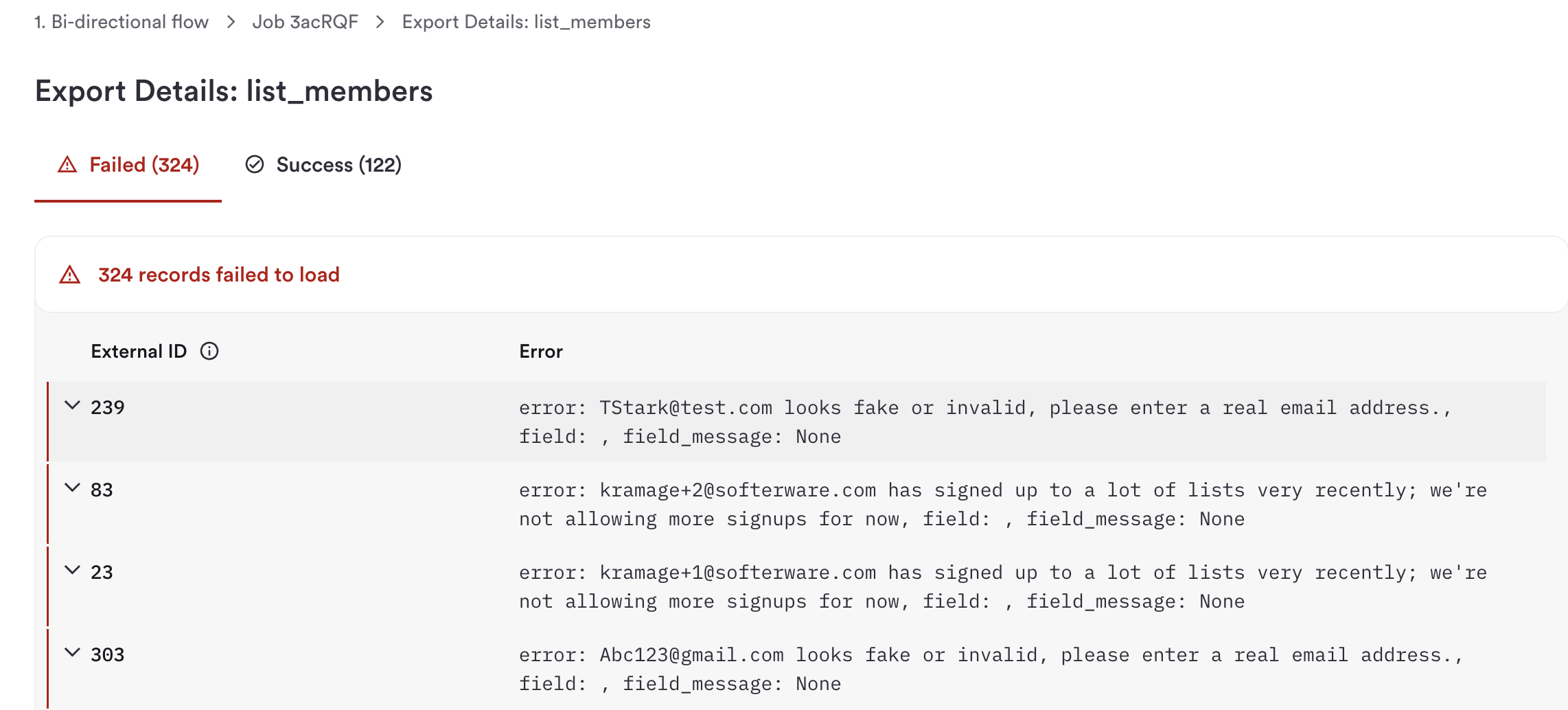
- Success Count: Number of records successfully written to the integration
- Failed Count: Number of records that failed to load
- External ID: Your unique identifier for each record
- Error Message for failed records: Detailed error information explaining why the record failed to load
Features
hotglue has several out of the box features that make working with writes significantly easier. Read more about them below.External Id
When writing data to a connector there are many cases where you may want to later update that same record again. A handful of systems (such as Salesforce and NetSuite) natively support the concept of an external id – this essentially allows you to use your own ID to reference an object rather than having to store the internal id of that system. hotglue supports external id upserts natively in our target-hotglue-sdk – this means that even systems that do not natively support external ids can support external ids via hotglue. Check out the demo below with HubSpot:
The other advantage of using an external id is that it makes it easy to parse the result of a write job, as the external id is returned back to you.
See the sample below where we are writing
contacts to the HubSpot connector:
Saving Record IDs in Snapshots
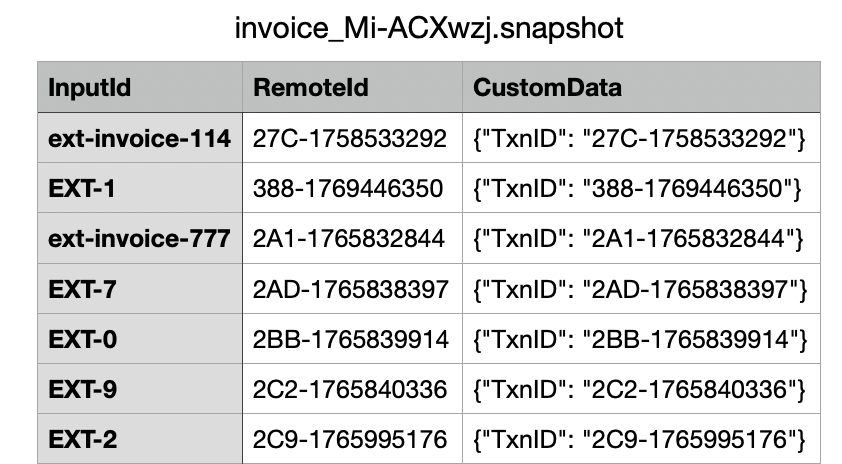
For write jobs, hotglue can automatically save the mapping between your external IDs and the remote system’s IDs in snapshots. This is particularly useful for maintaining a persistent record of which records have been written and their corresponding IDs in the target system. To enable this feature, simply toggle on “Save records IDs in snapshots folder” in your job settings. When enabled, hotglue will automatically create snapshot files containing:
- InputId: Your external ID or unique identifier
- RemoteId: The ID assigned by the target integration (e.g., Salesforce record ID, HubSpot contact ID)
- CustomData: JSON metadata per record (from the target, and from fields you choose in the ETL export)
target_state_fields and target_state_include_hash on to_singer or to_export to persist ETL column values and the target record hash in CustomData. See Target state metadata.
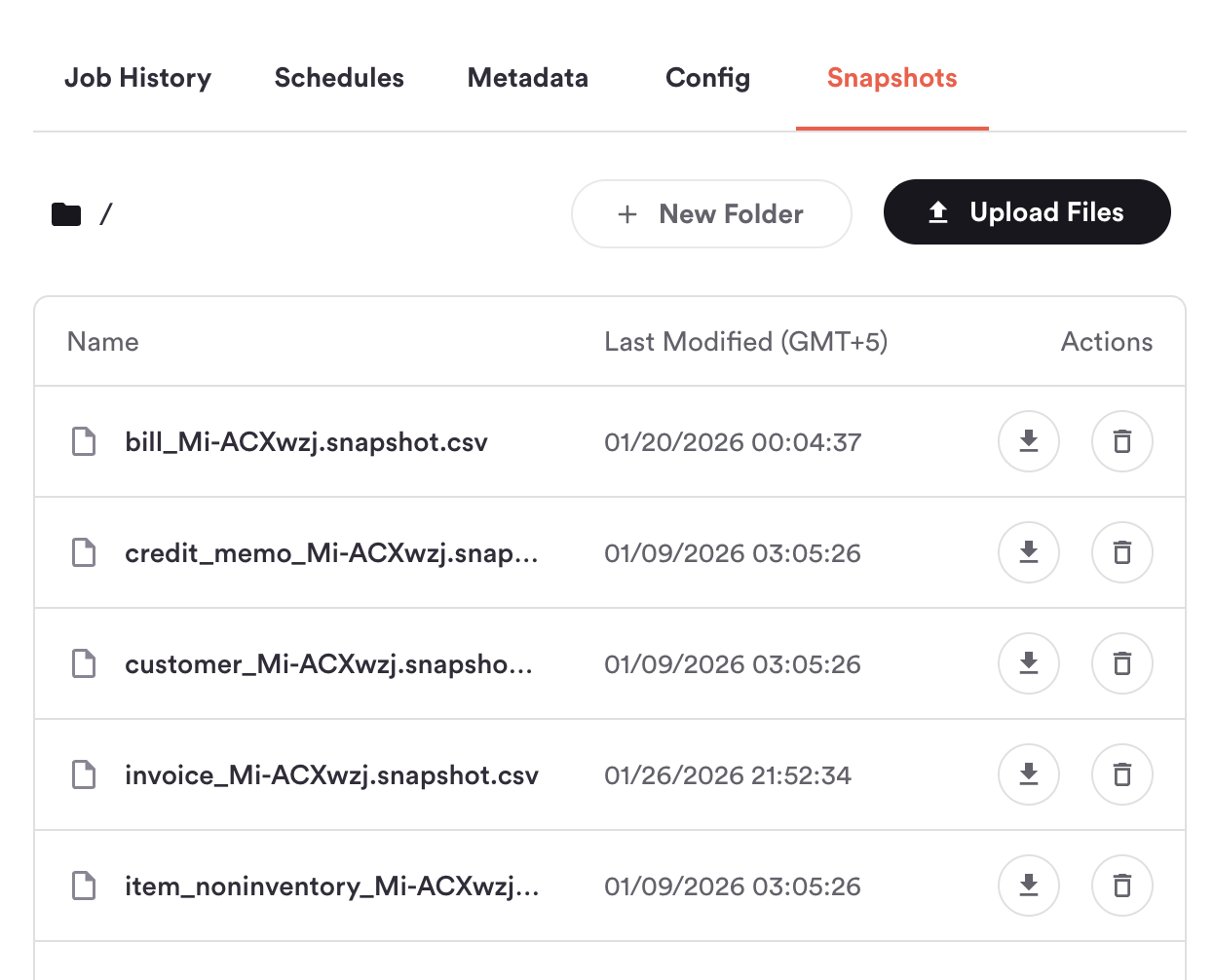
These snapshot files are accessible from the Snapshots Manager tab in your tenant page.