

Before you start
This guide assumes you have already launched a JupyterLab workspace, as described in the Transformations Overview.Environment variables
There are several environment variables that will be available when a transformation script runs in hotglue during a job:
You can also add custom env variables for used in your scripts in your environment settings. You can then reference any env variable in your script using
os.environ:
Python
Standard directories
In hotglue, there are three standard directories:The Working Directory
When hotglue executes your ETL script, it provides a structured working directory with all the necessary files and data for your transformation. You should reproduce this directory structure when developing scripts locally.Directory Structure Overview
📄 Configuration Files
The key JSON configuration files available at runtime by your ETL script are:- catalog.json - Schema catalog for the data
- source-config.json - Source system credentials and configuration
- target-config.json - Target system credentials and configuration
- target-catalog.json - Target schema catalog (V2 write jobs only)
- source-state.json - Incremental sync state and bookmarks
- state.json - Current job execution state
tenant-config.json, on the other hand, is accessed from the snapshots directory. If you need to read or modify this object, your code will look something like below:
Example: Read the data
To start, we will import pandas and the gluestick Python package, and establish the standard input/output directories above. Note:snapshots are optional, and may not be needed for your scripts.
etl.ipynb
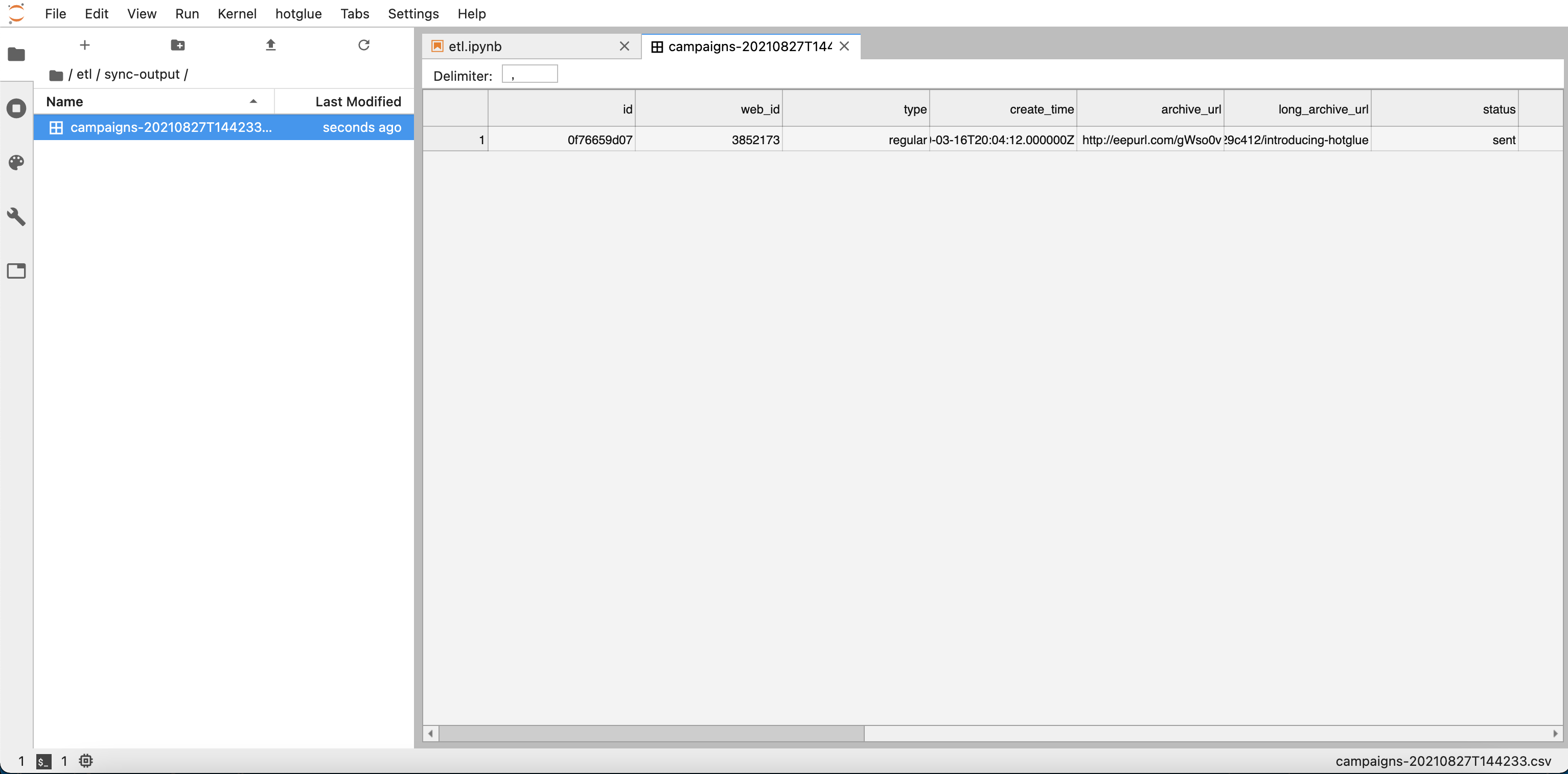
sync_output folder contains a CSV file called campaigns. Learn more how to get sample data in the Debugging a script section.
 Now we can go ahead and read the data in
 INPUT_DIR with gluestick’s reader function.
etl.ipynb
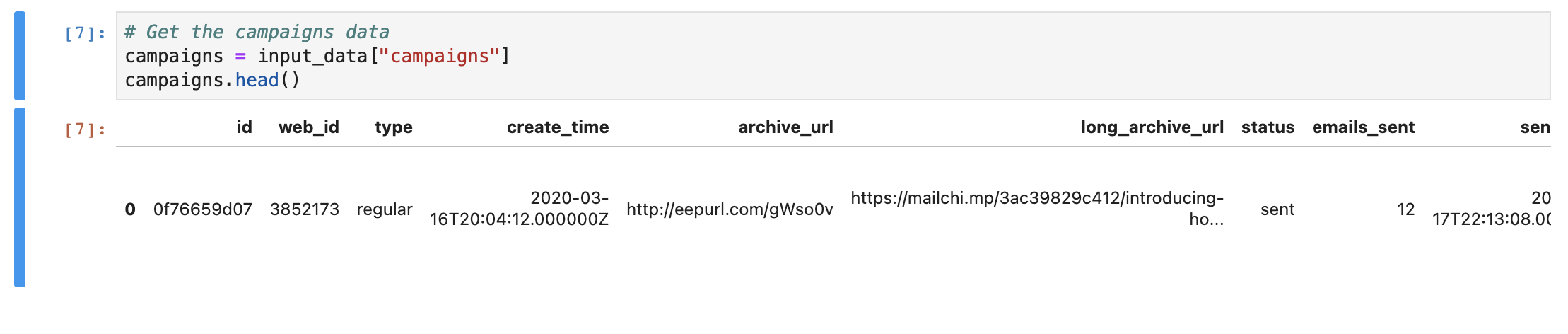
campaigns data as follows:
etl.ipynb
campaigns.head() we can preview the data
Manipulate the data
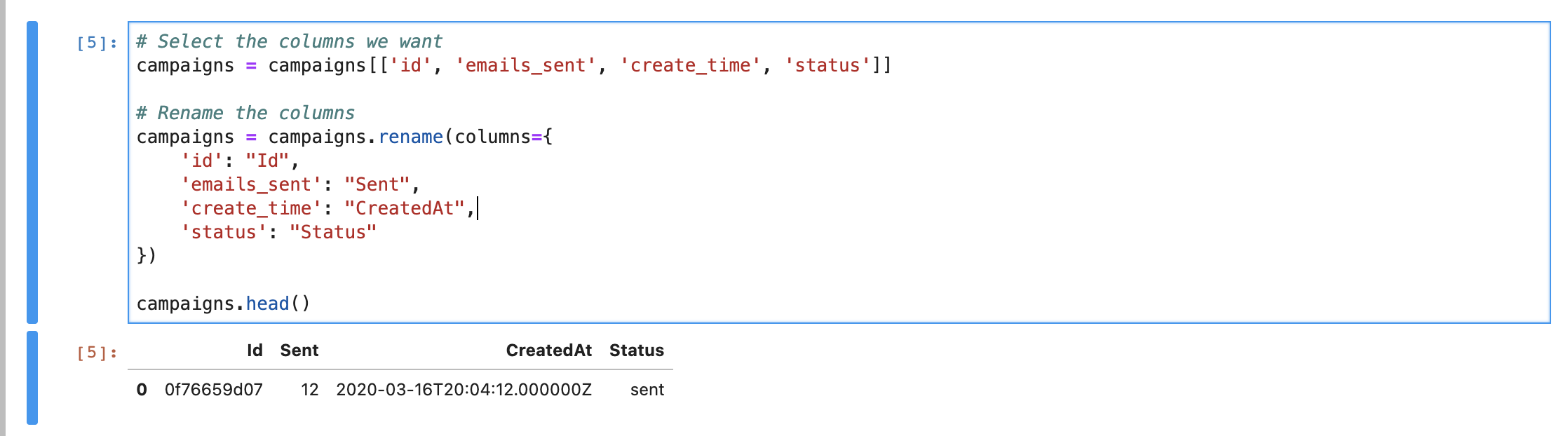
Now that you have the data as a pandas DataFrame, you can do any transformations you need to. For this example, we will select a few of the columns:id, emails_sent, create_time, and status, and then rename them.
etl.ipynb
Write the output data
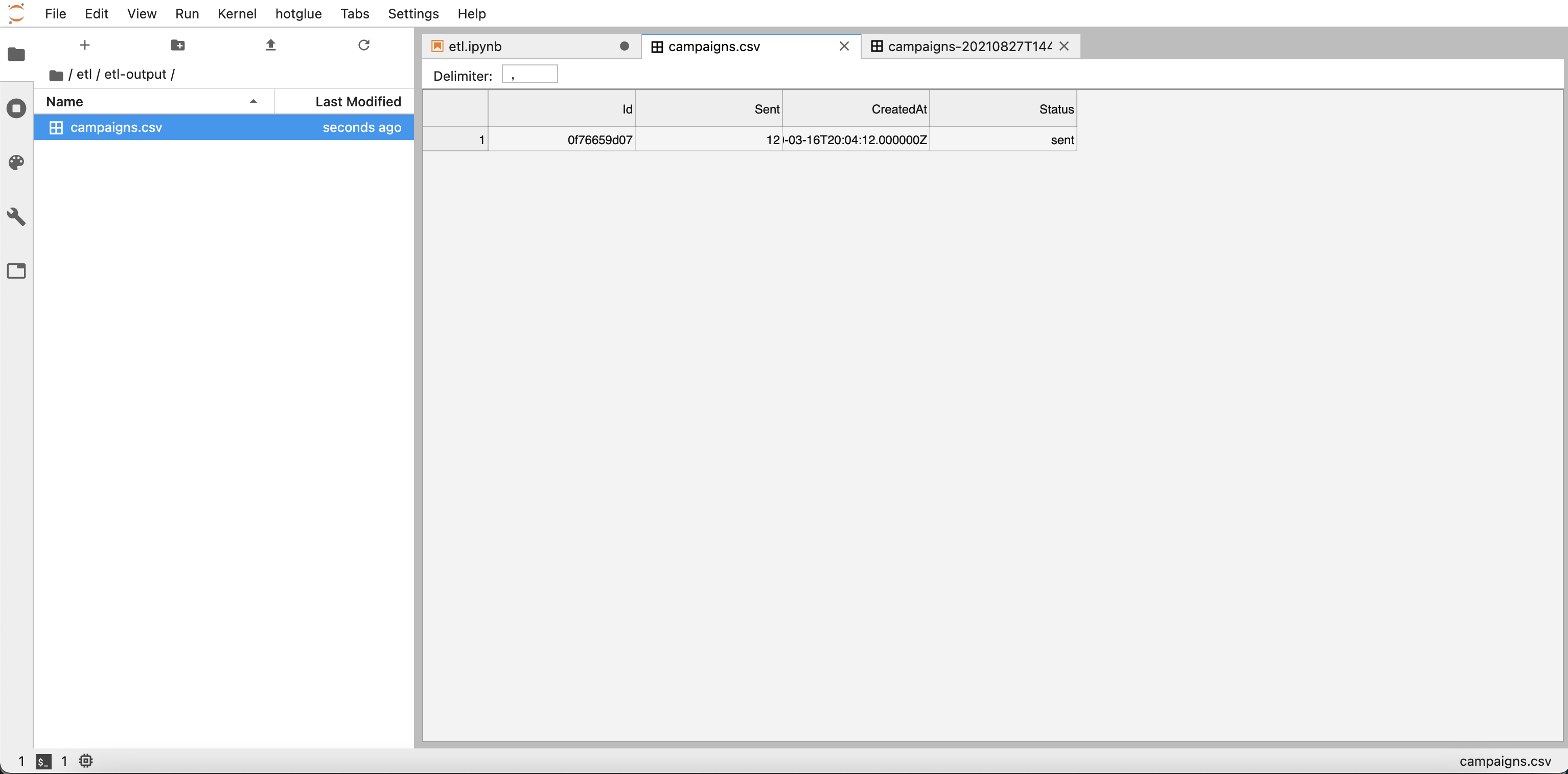
Finally, we can write the output to the standardOUTPUT_DIR using pandas to_csv function:
etl.ipynb
etl-output directory:
 If you want to write this data to a non-filestore target, such as a database, CRM, or any other standard Singer target, you can use Gluestick’s
 to_singer function in lieu of to_csv:
etl.ipynb