

What is a Connector?
Each third party integration that your users can interact with is called a Connector. Connectors are grouped together within flows. For example, an e-commerce flow may include many different Connectors, such as Shopify, Amazon Seller, and WooCommerce.Connectors vs Sources vs Targets
Connectors can contain taps, an integration to read data, and targets, an integration to write data. In V1 jobs, Connectors are managed separately depending on whether they read or write data:- Sources are Connectors that only read data
- Targets are Connectors that only write data
What is an available Connector?
An available Connector is a Connector that you can add to your hotglue flows. You can find a complete list of the default available Connectors here. You can also fork and create custom Connectors via the Hotglue CLI.What is a supported Connector?
A supported Connector is a Connector that you have configured to be available within a flow.What is a linked Connector?
A linked Connector is a instance of Connector that has been successfully connected to by a particular tenant.Connector Configuration
There are four main configuration options for Hotglue Connectors:- Credentials
- Field maps
- ETL scripts
- Triggers
Credentials
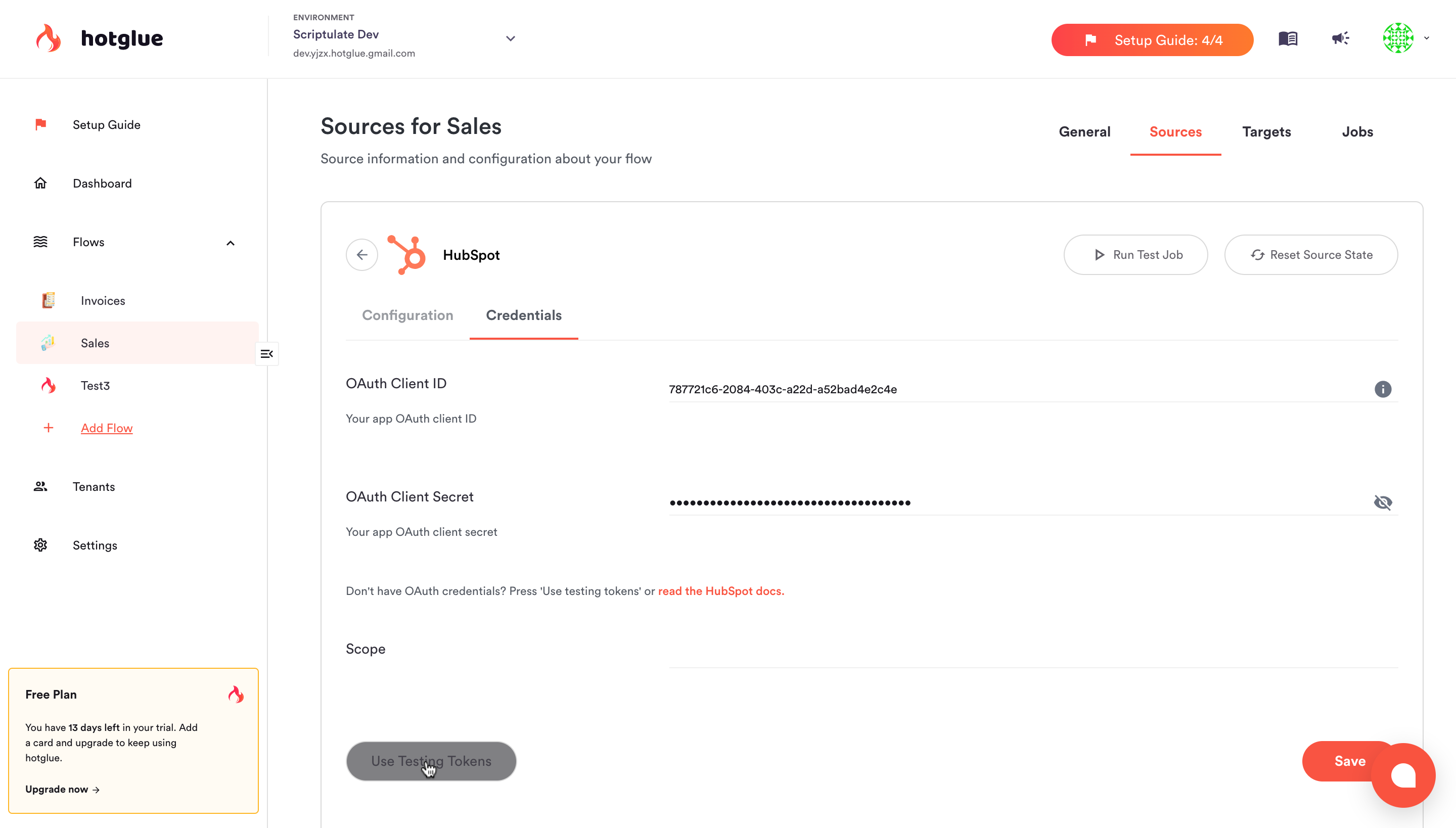
Connectors generally use one of two types of authorization: APIs and OAuth. Before enabling an OAuth Connector, you must obtain and set up OAuth credentials.- Your Client ID and Client Secret will be found in your company or developer account for that Connector.
- Scope is used for some OAuth applications to define the data you will be reading or writing. This will prompt tenants to confirm the data permissions you are requesting.
Field maps (V2 Connectors and V1 Sources only)
Field maps allow you to choose what data hotglue will pull in a sync job. The field map displays a list of tables that can be turned on or off. Within each table, the field editor displays a list of fields that can be pulled or ignored. To modify a field map for a Connector, navigate to your chosen flow, click the “Connectors” (or “Sources” on V1 jobs) tab, then select a Connector to configure it.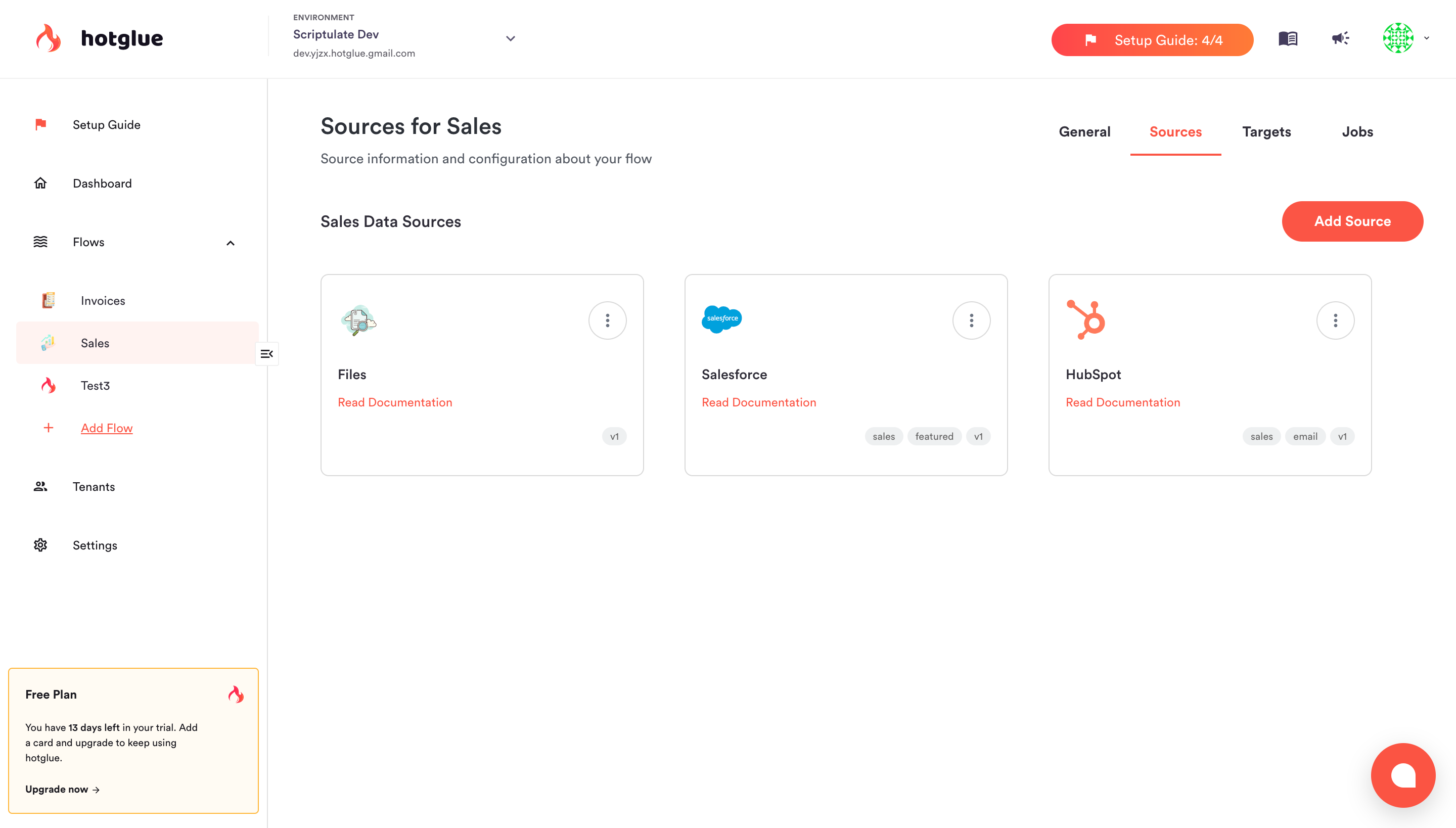 Under configuration, click “customize field map.” From here, you can toggle tables on or off by clicking them.
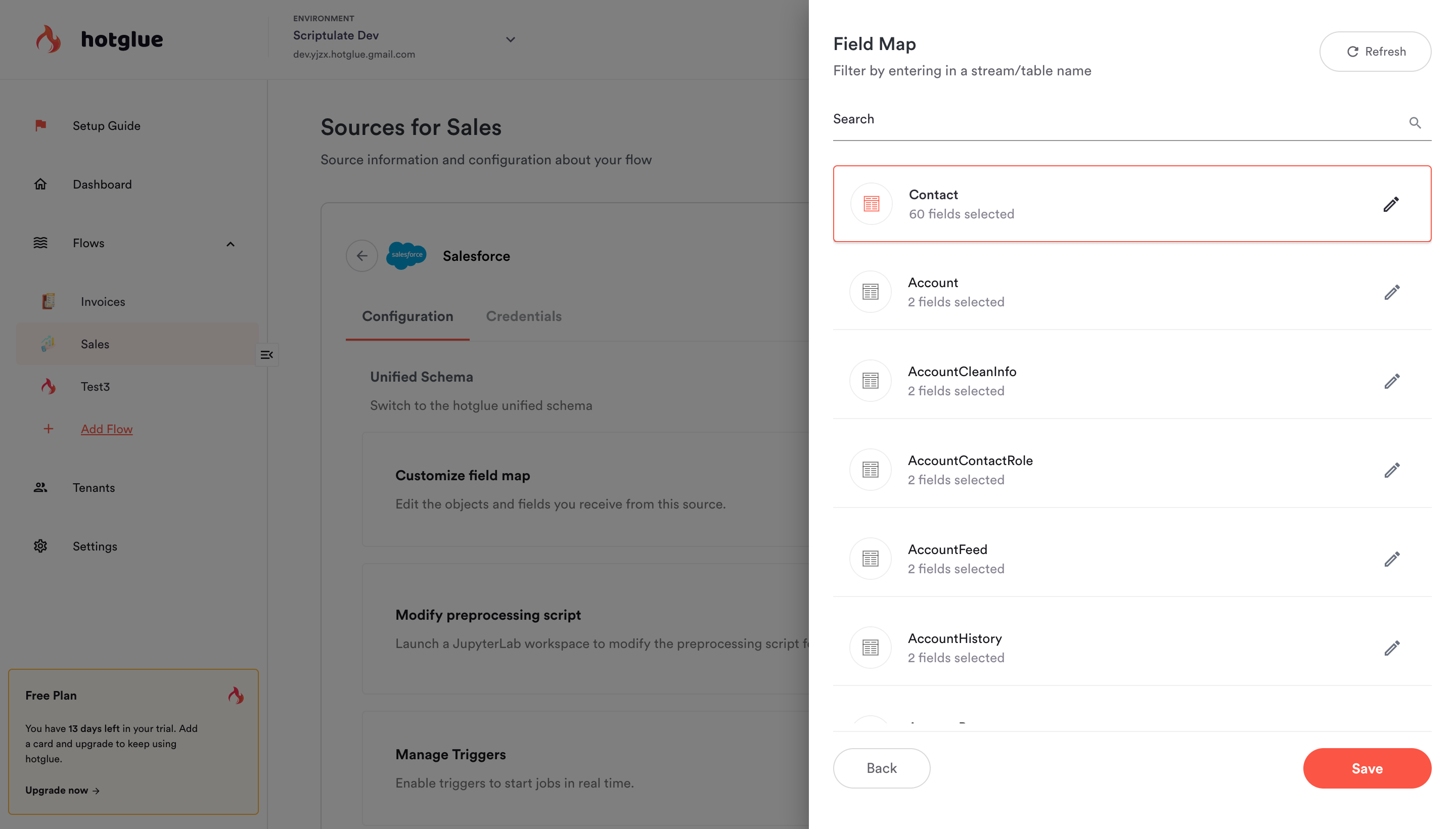 Click the “edit” pencil button on a given table to add or remove fields.