

Connector Details
Credentials Setup
The AWS Redshift connector uses the following 12 connection parameters:1. Host
This is the Redshift endpoint hostname.
Where to get it:
- Sign in to the AWS Console.
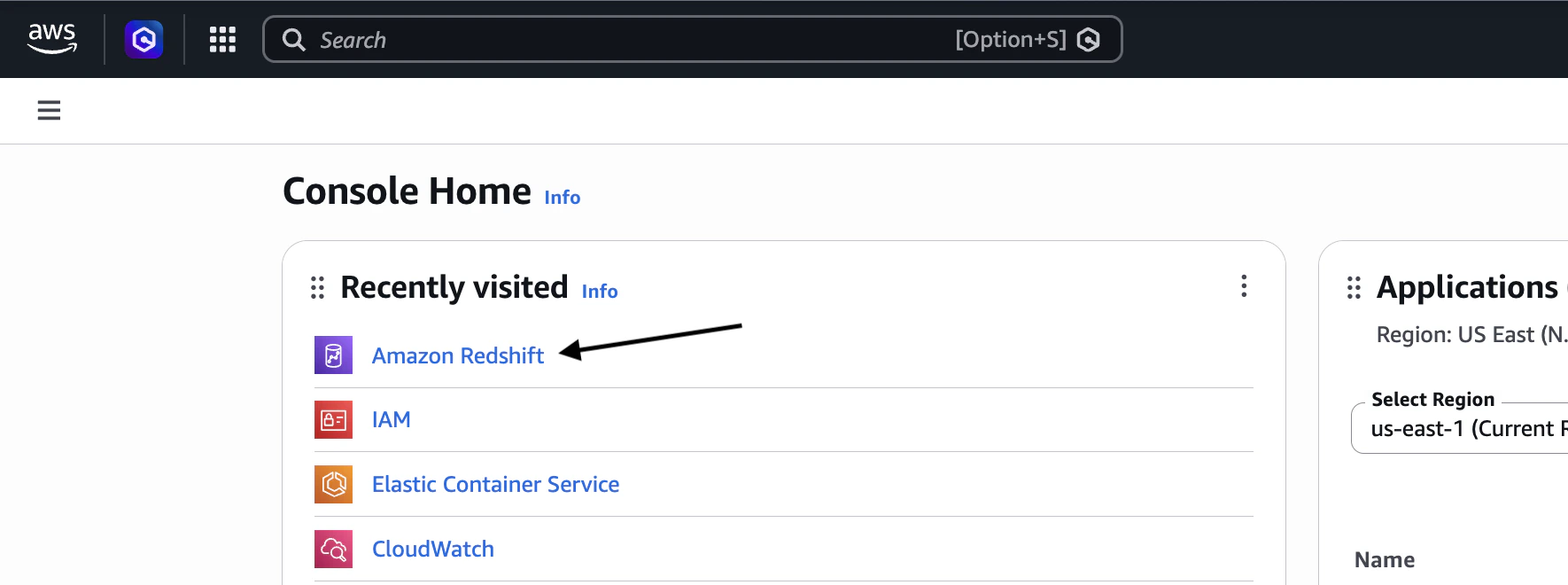
- Open Amazon Redshift.
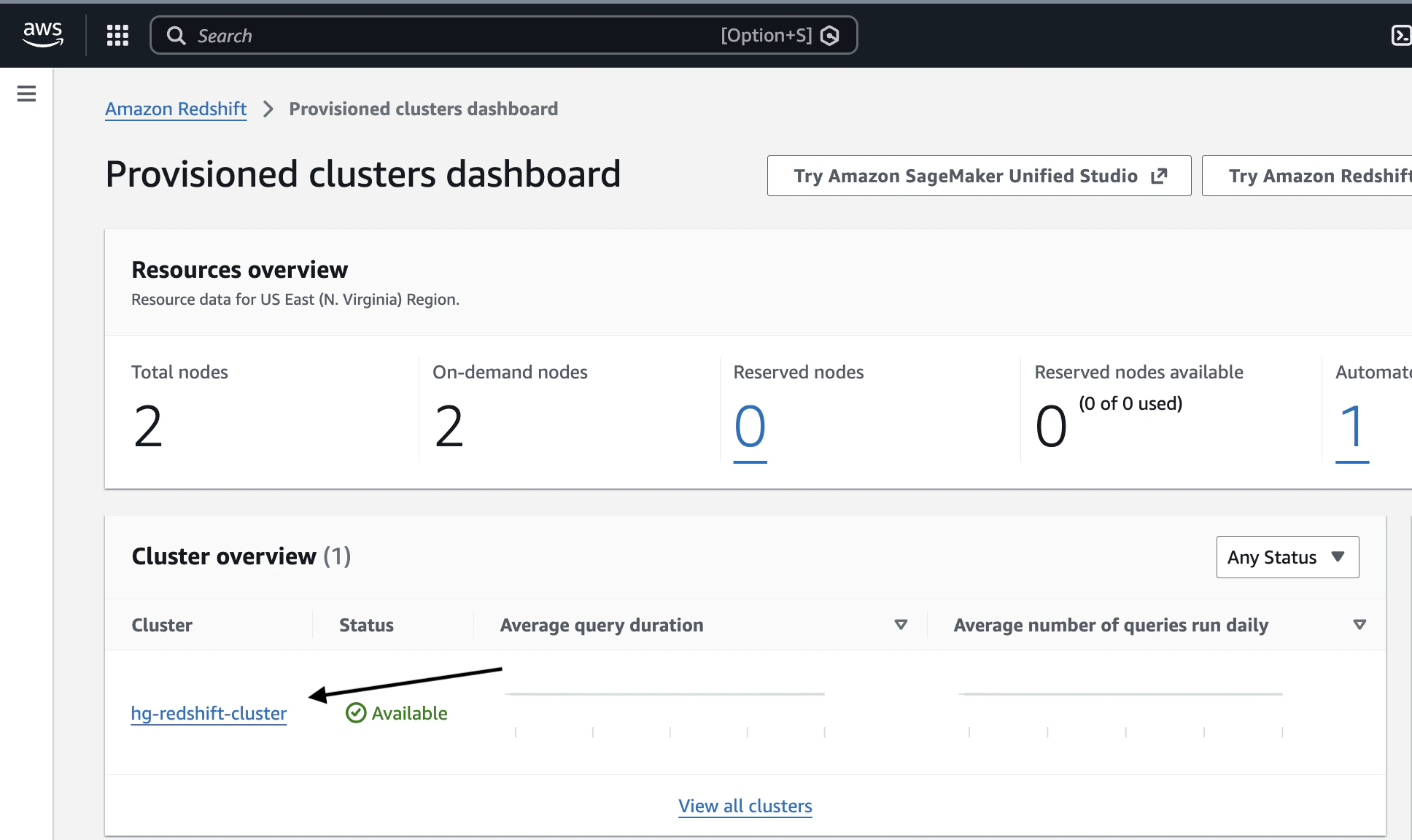
- Go to Clusters and select your Redshift cluster.
- In the cluster details, find the Endpoint.
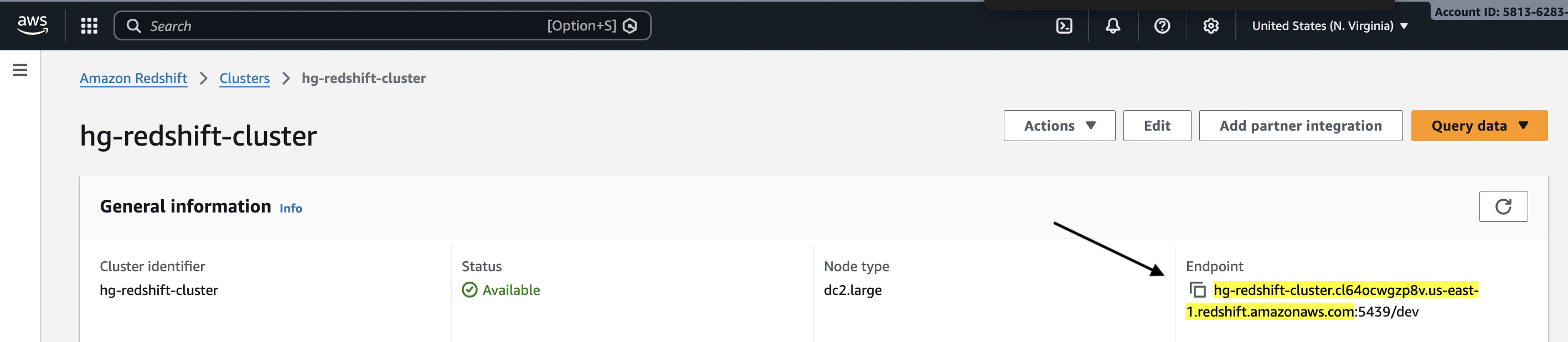
:), for example:
2. Port
The port Redshift listens on.
Where to get it:
Follow steps 1, 2, 3 and 4 for getting Host credentials. Then follow these steps:
- In the cluster details, find the Endpoint.
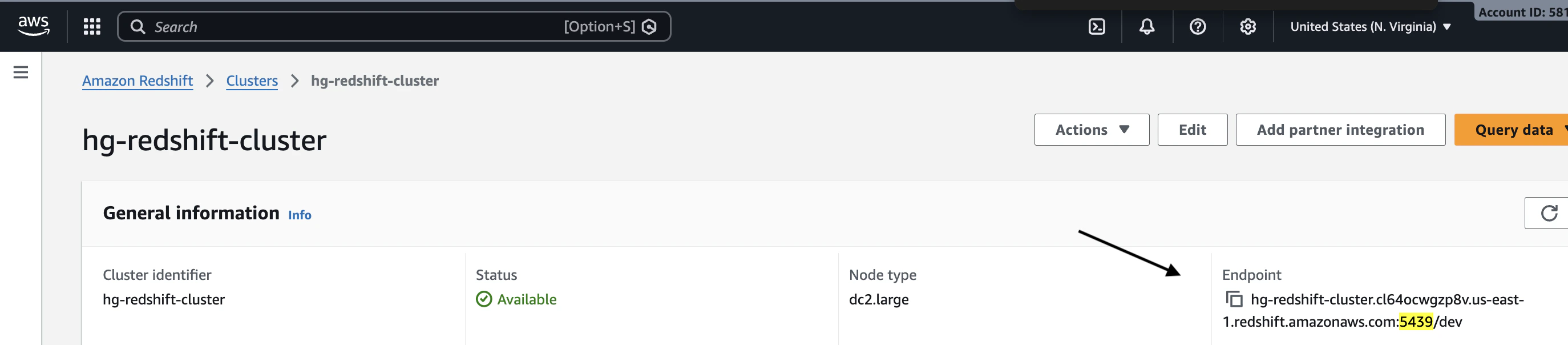
: and before the slash /).
3. User
The Redshift user is created inside the Redshift database.
Where to get it:
Follow steps 1, 2 and 3 for getting Host credentials. Then follow these steps:
- Click the Properties tab.

- Scroll down to Database configurations.
- Locate Admin user name.
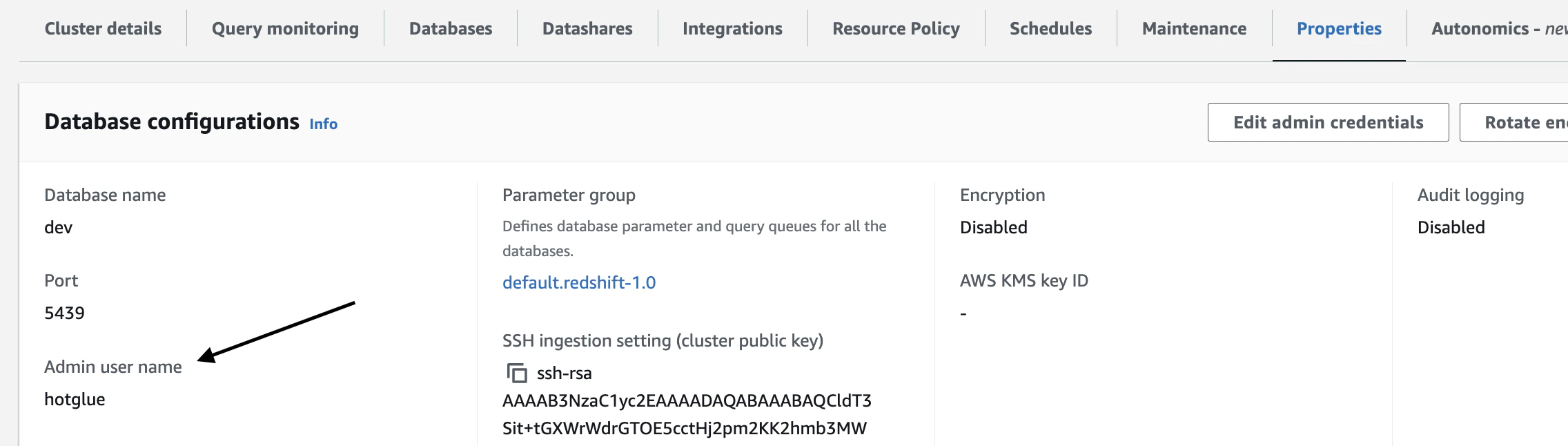
If you need a non-admin or dedicated user instead, contact your AWS administrator.
4. Password
The password is set when the Redshift user is created; it is not visible in the AWS console afterward, so save it then.
The password can be retrieved from AWS Secrets Manager if it was stored there at the time of cluster creation.
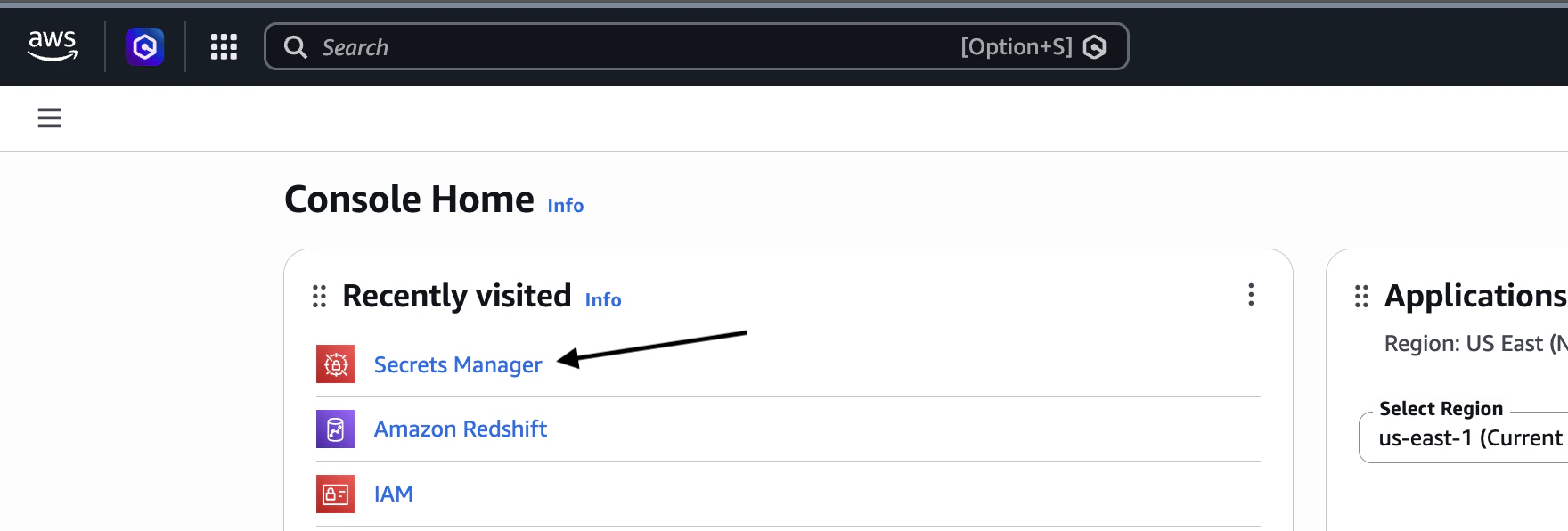
- Click on Query Data.

- Open Query Editor v2.
- Connect to your Redshift cluster or workgroup.
5. Database Name
The database on your Redshift cluster—often dev, analytics, or another name your team uses.
Where to get it:
Follow steps 1, 2 and 3 for getting Host credentials. Then follow these steps:
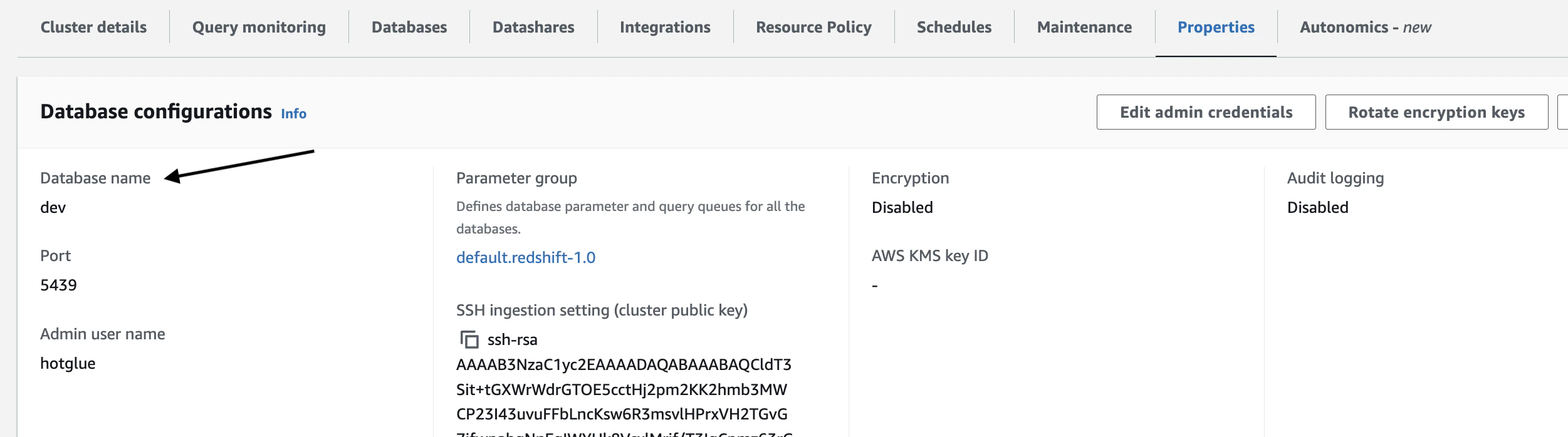
- Click the Properties tab.
- Scroll down to Database configurations.
- Locate Database name.
6. Access Key Id
The AWS access key used for S3 access.
Where to get it:
- Open the AWS Console.
- Go to IAM.
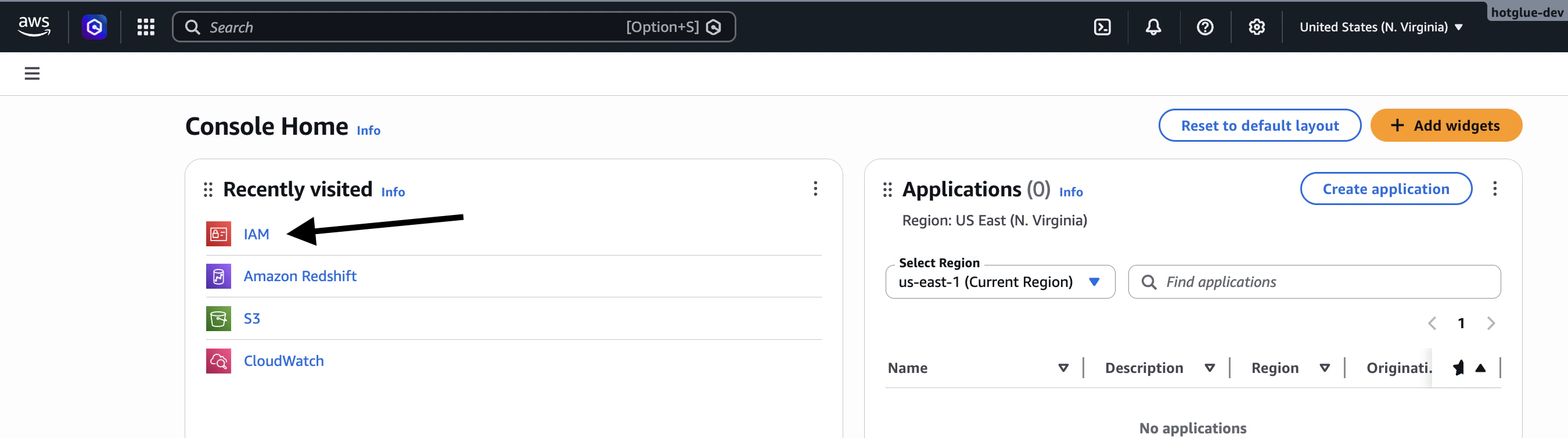
- Select Users.
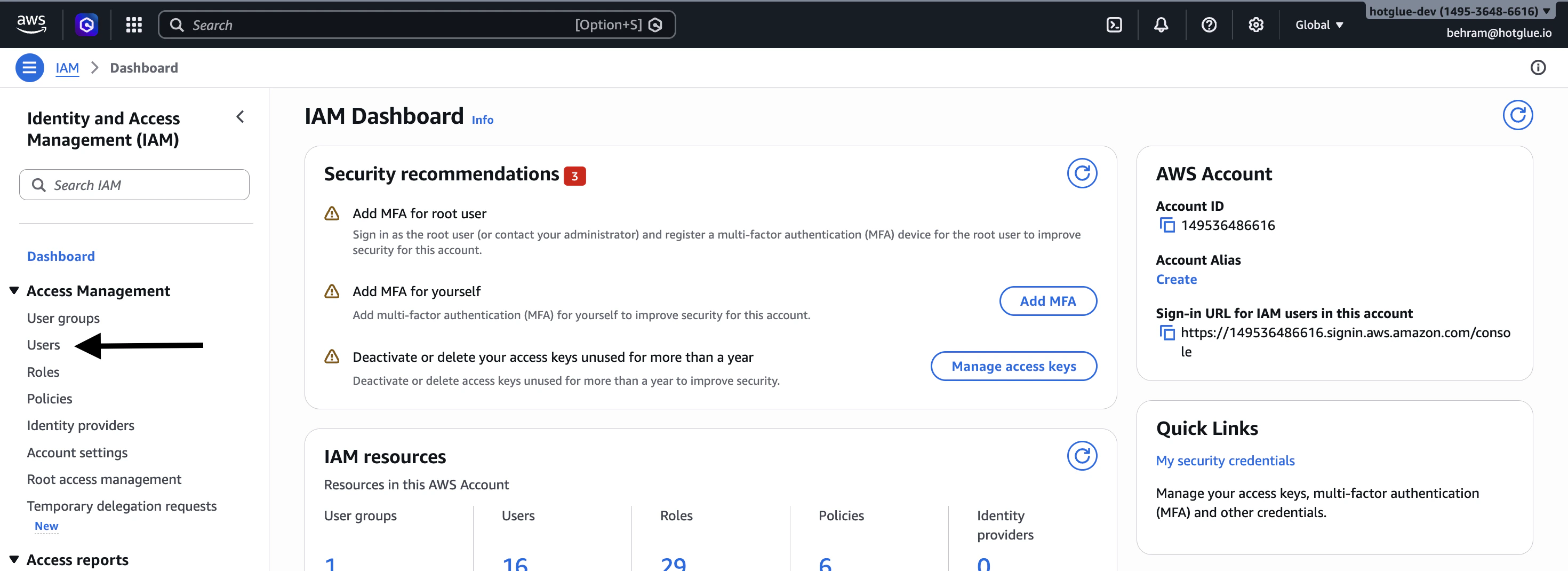
- From the list of Users, click the IAM user that will be used for the integration.
- Open the Security credentials tab.
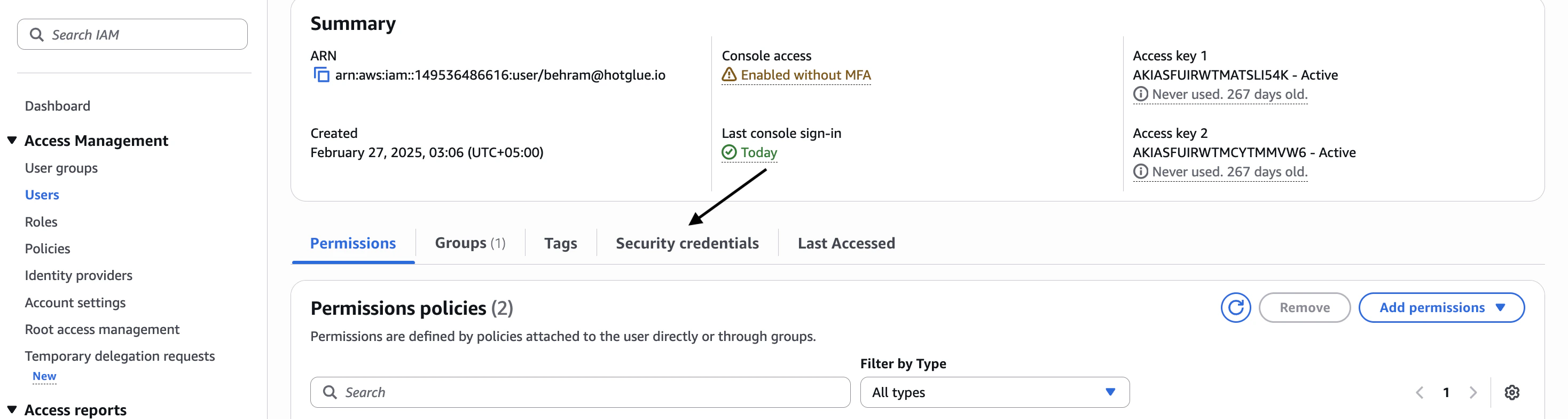
- Under Access keys, create or view the relevant access key metadata.
7. Secret Access Key
The secret paired with the Access Key Id.
Where to get it:
Create a new access key for the IAM user if needed, then copy the secret when it is shown and store it securely.
8. S3 Bucket
The S3 bucket used for staging data.
Where to get it:
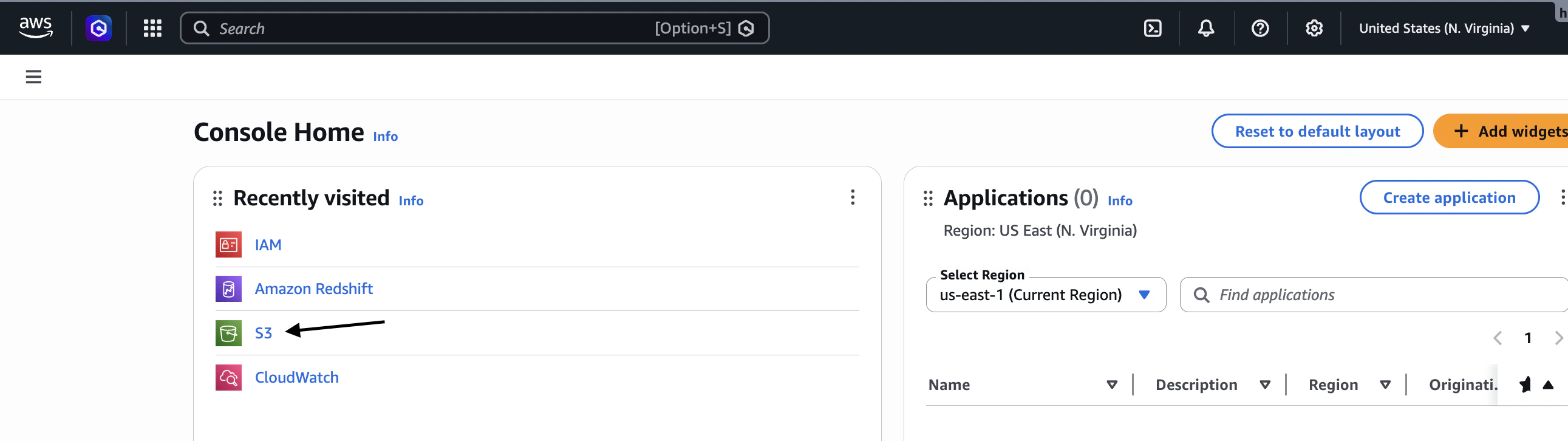
- Open the AWS Console.
- Go to Amazon S3.
- Click on General purpose buckets.
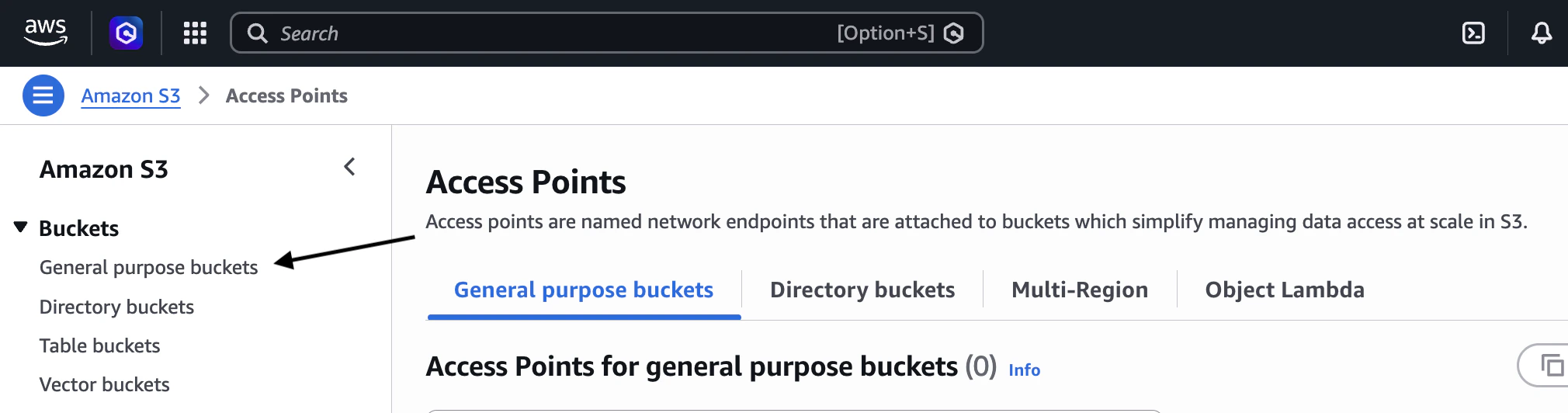
- From the list of buckets, copy the name of the bucket your team uses for Redshift staging.
9. Default Target Schema
Schema name for data loaded into Redshift.
Schemas are not visible in the AWS Console without SQL access. You will need to use a SQL client (e.g., DBeaver, TablePlus, or psql) connected to your Redshift cluster.
- Open your SQL client and connect to your Redshift cluster using your Host, Port, Database, User, and Password credentials.
- Once connected, run the following query:
- Pick the schema where data should land and enter it as Default Target Schema. If unsure, common choices are
public,analytics, orraw. If none exists yet, ask your administrator to create one;publicis a safe default.
10. SSH Host
The public IP address of the EC2 bastion host used to establish the SSH tunnel to the Redshift cluster.
SSH fields are only required if your Redshift cluster is not publicly accessible and requires an SSH tunnel. If your cluster is publicly accessible, you can leave these fields empty.
- Go to AWS Console
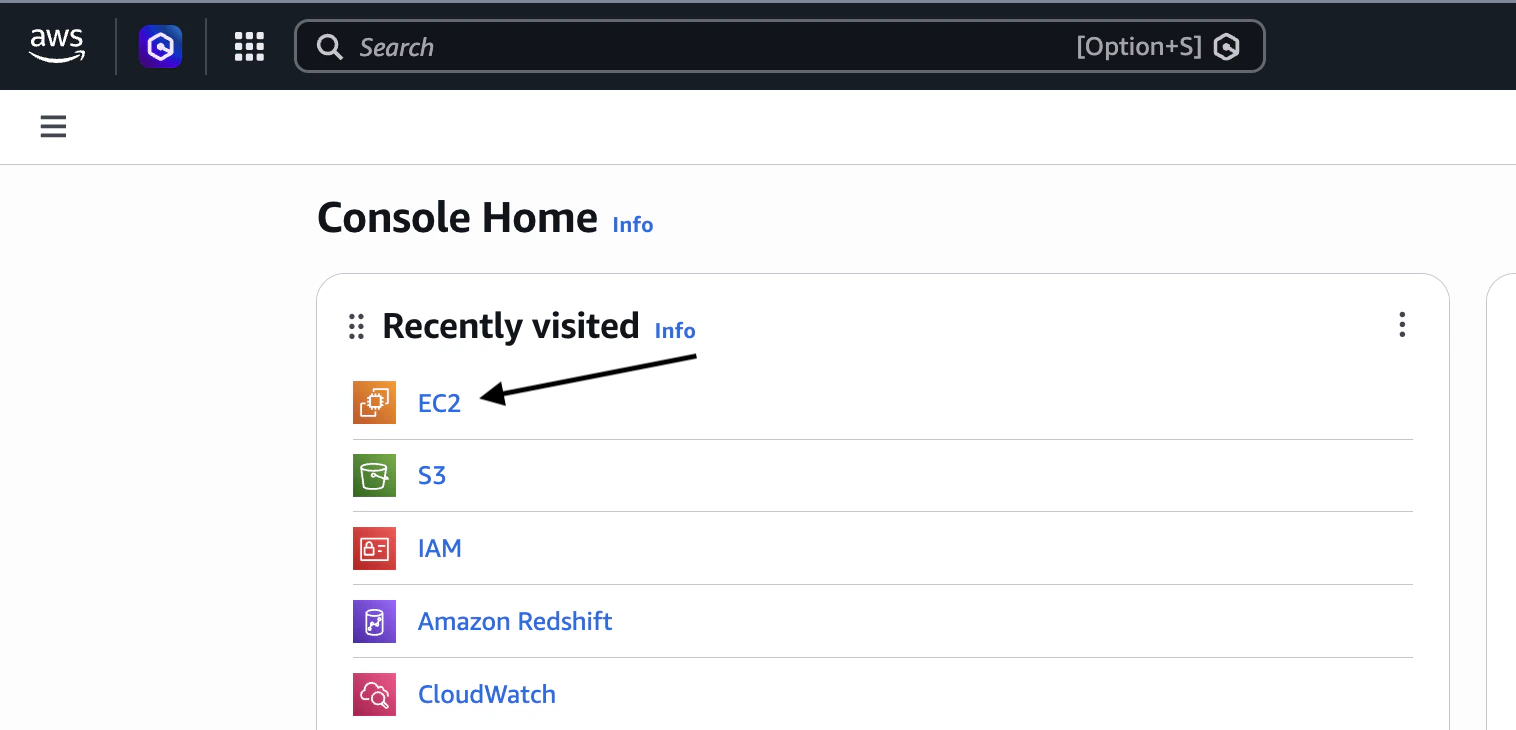
- Open EC2
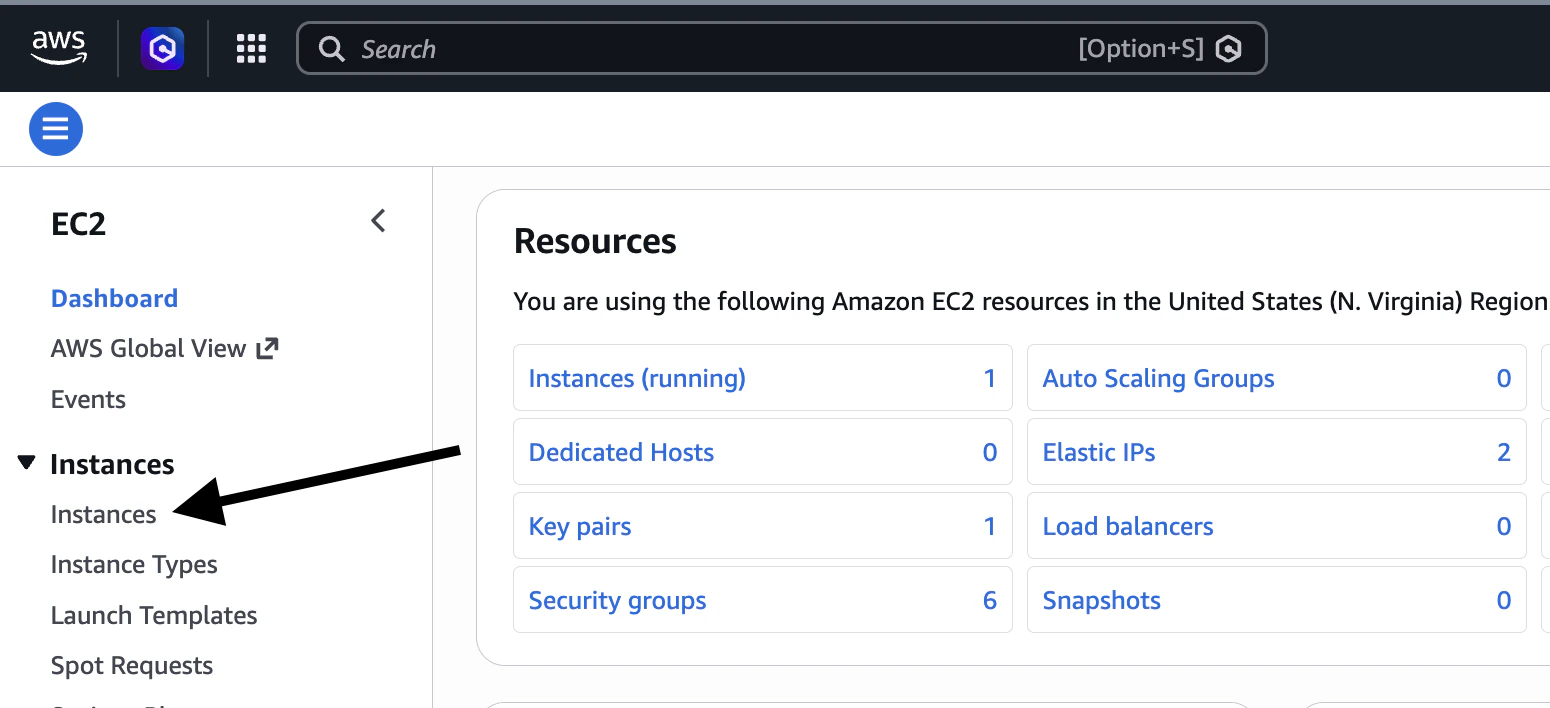
- Click Instances
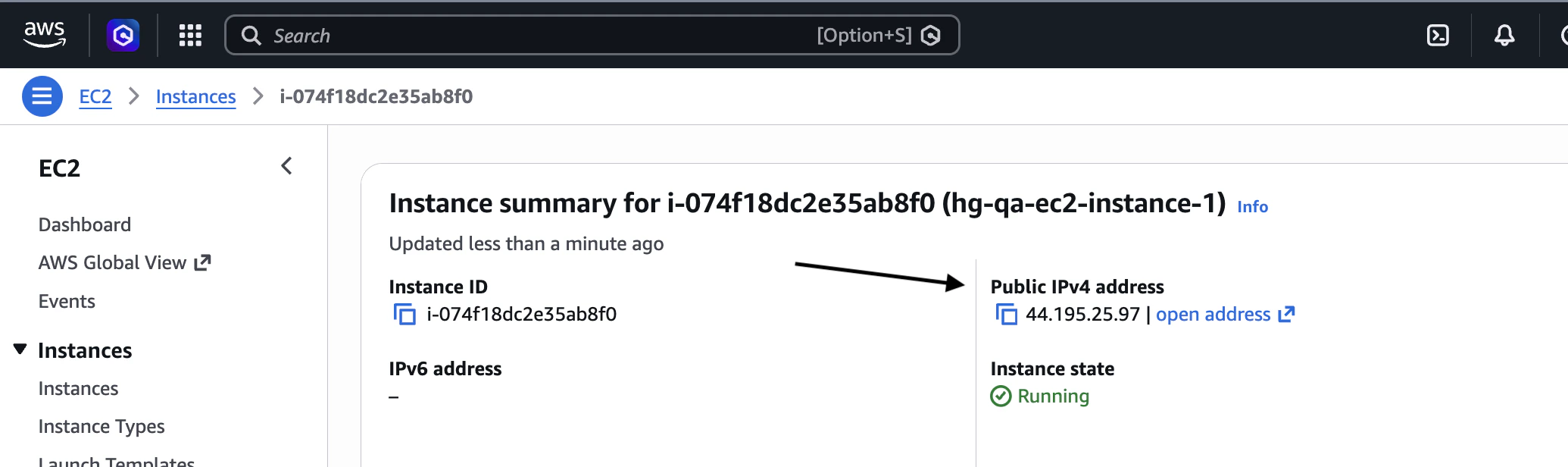
- Select the bastion host instance
- Locate Public IPv4 address
11. SSH User
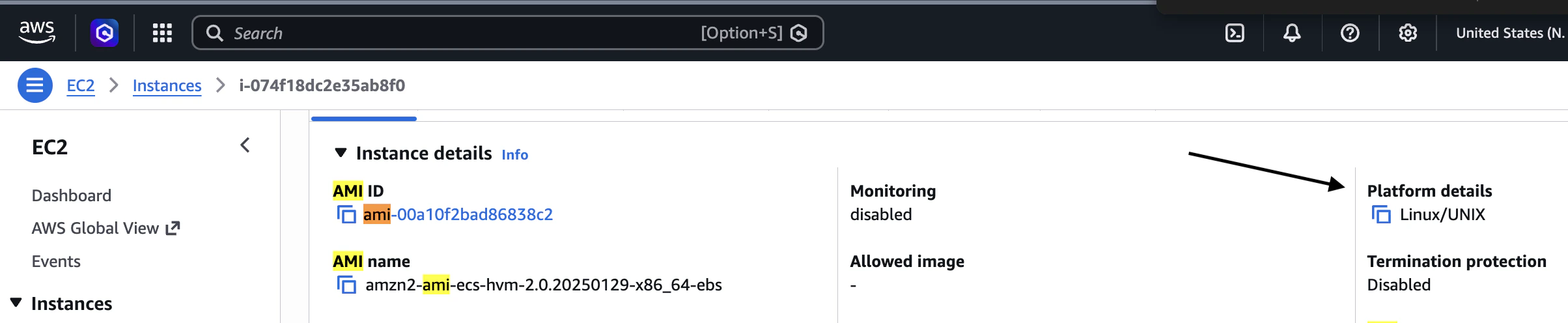
The username depends on the AMI; see AMI default user names in the AWS docs.
Where to verify:
Follow steps 1, 2, 3 and 4 for getting SSH Host credentials. Then follow these steps:
- In the Details tab, check Platform details/AMI
12. SSH Key
The private key file (.pem) associated with the EC2 key pair used when the bastion host instance was launched.
Where to find the key pair name:
Follow steps 1, 2, 3 and 4 for getting SSH Host credentials. Then follow these steps:
- In the Details tab, locate Key pair assigned at launch

.pem file (for example, my-bastion-key → my-bastion-key.pem). That file was downloaded when the key pair was created and cannot be retrieved from AWS again.
You can also view the key pair in:
Target Changelog
Target Changelog
Target Changelog