

Overview
Custom Filters let you control exactly which records get synced for a given stream. Instead of syncing all records, you can define conditions, such as filtering bills by status or vendor, so that only matching records are returned when a job runs.Custom Filters is a beta feature currently supported on Coupa and NetSuite connectors on select streams only. To enable custom filters for other connectors or streams, contact hotglue support.
Prerequisites
To enable custom filters for a connector, add"capabilities": ["customFilters"] to the connector’s root-level configuration in the available entity’s JSON.
Setting up custom filters
Step 1: Link NetSuite
Create a flow and link NetSuite as your source connector. Once linked, navigate to the Configuration tab of the NetSuite source.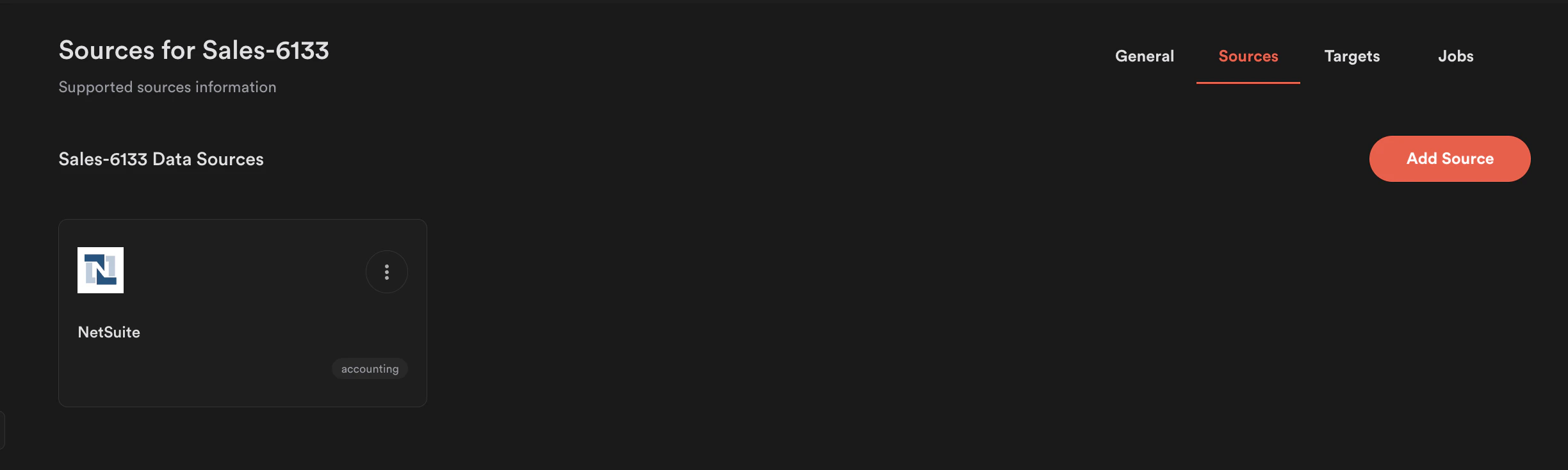
Step 2: Select one or more streams
Click Customize field map and select the streams you want to sync e.g., Bills. Save your selection before proceeding.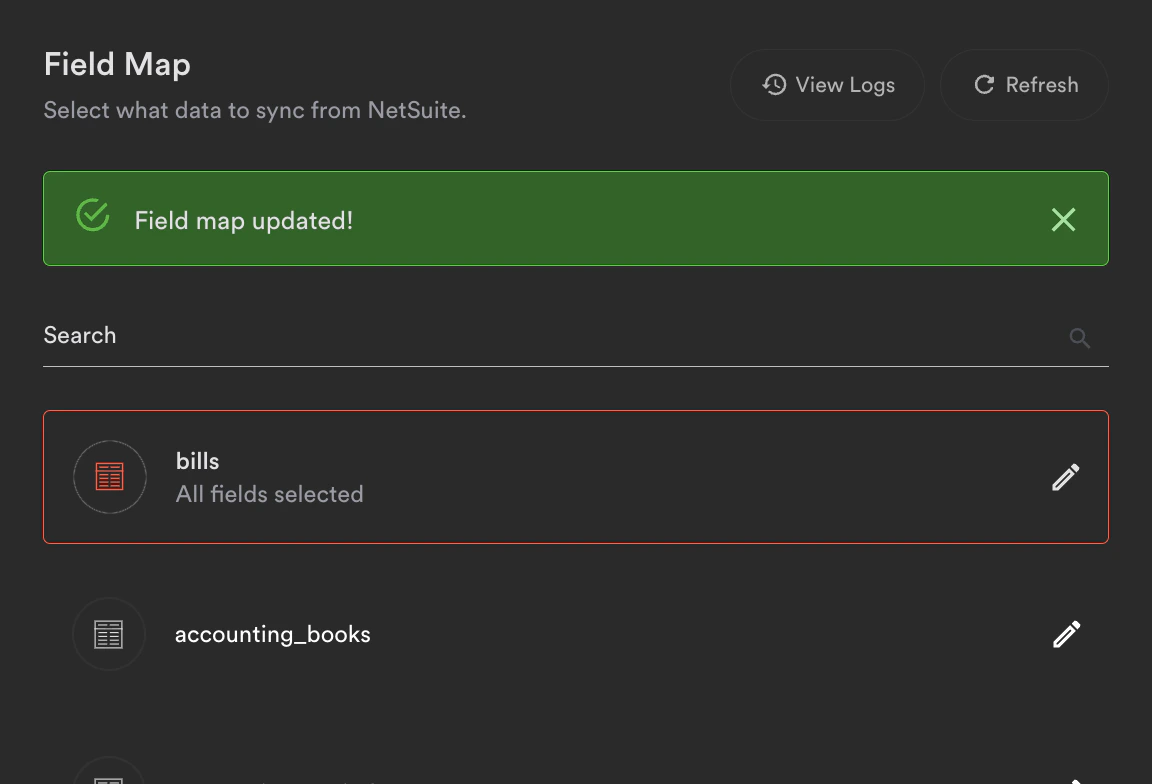
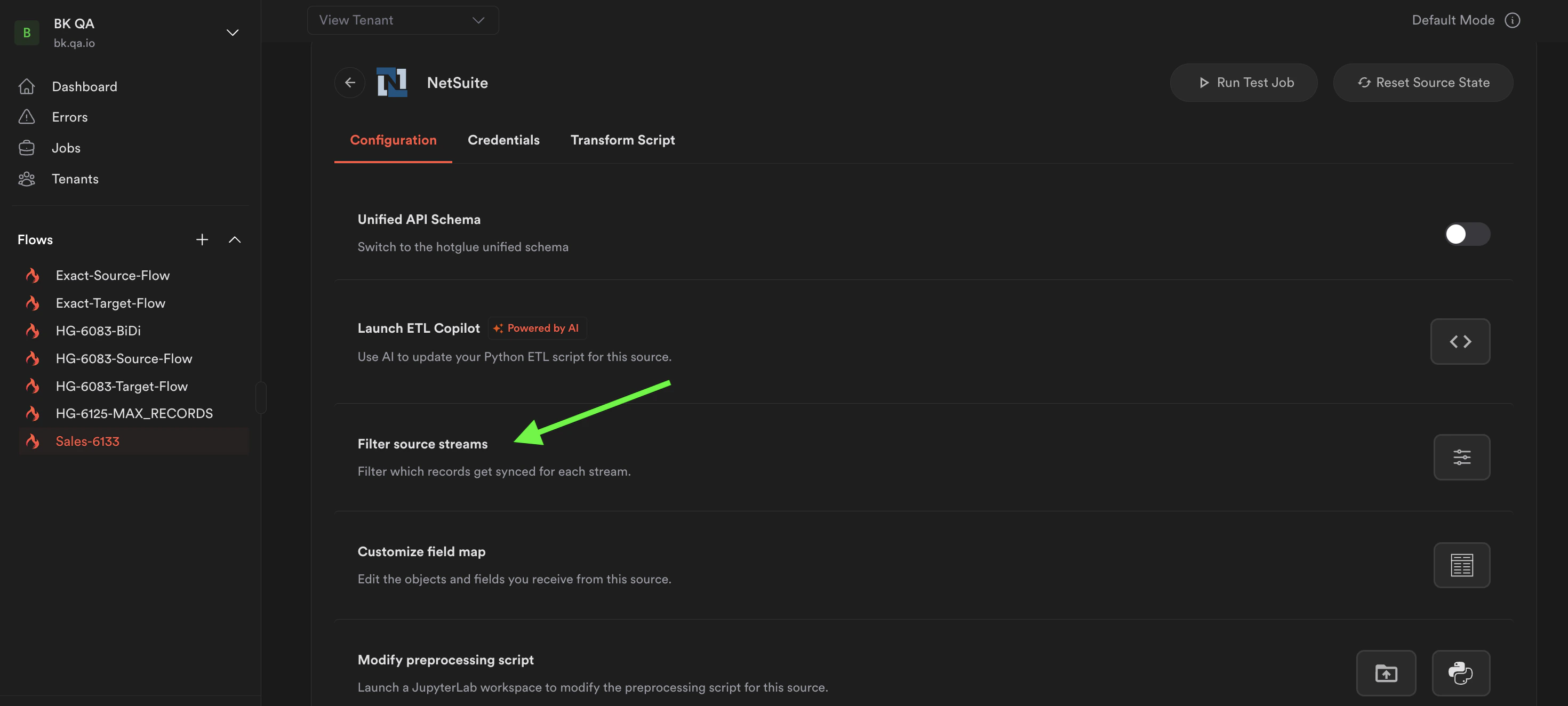
Step 3: Open Filter Source Streams
Once streams are selected and saved, click Filter source streams to open the filter panel. You will see the stream or a list of the streams. Only streams that have been selected in your field map will appear here.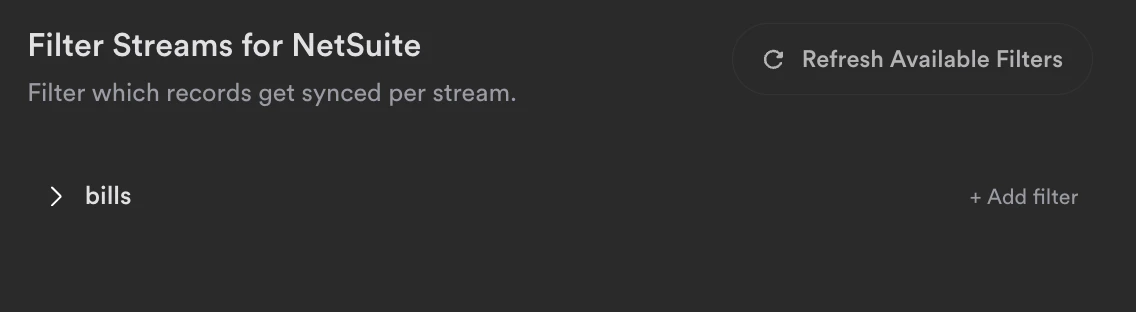
Step 4: Build and Apply a filter
Click on a stream e.g., bills, to open the filter builder.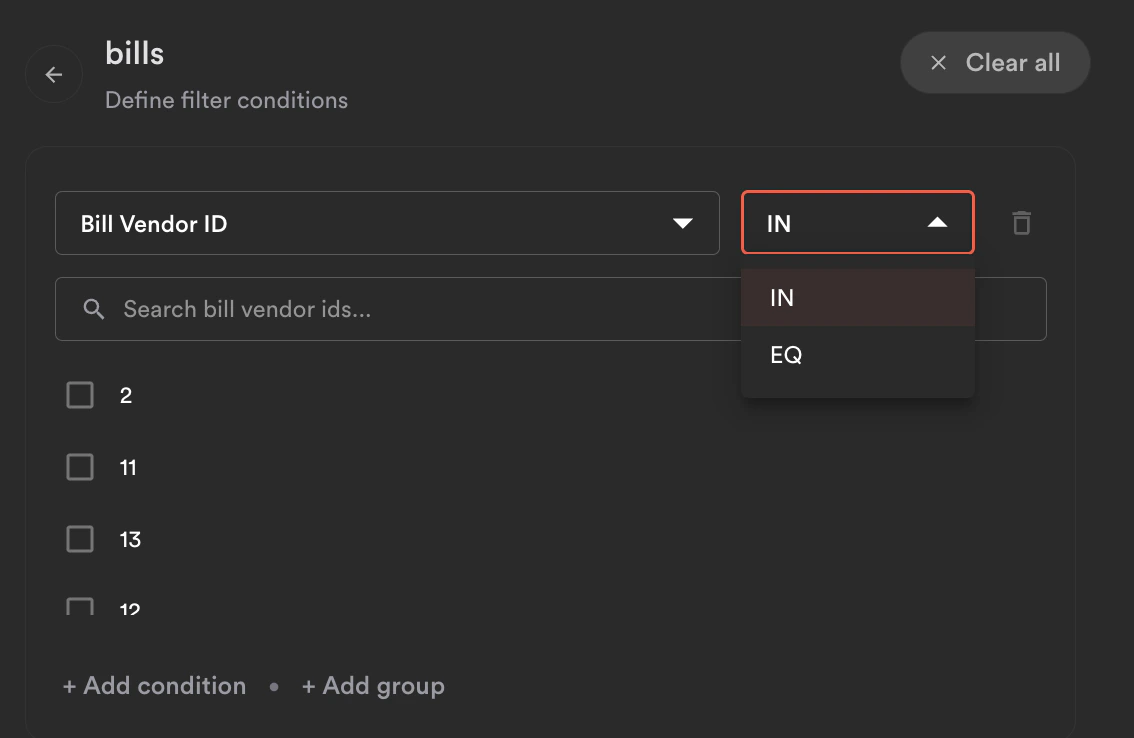
- Field: The property to filter on (e.g., Bill Vendor ID, Bill Vendor Name)
-
Operator: How to match the value:
IN: matches any value in a listEQ: equals a single value
- Value: The value(s) to match against
- AND: Both conditions must be true (narrows results)
- OR: Either condition can be true (broadens results)
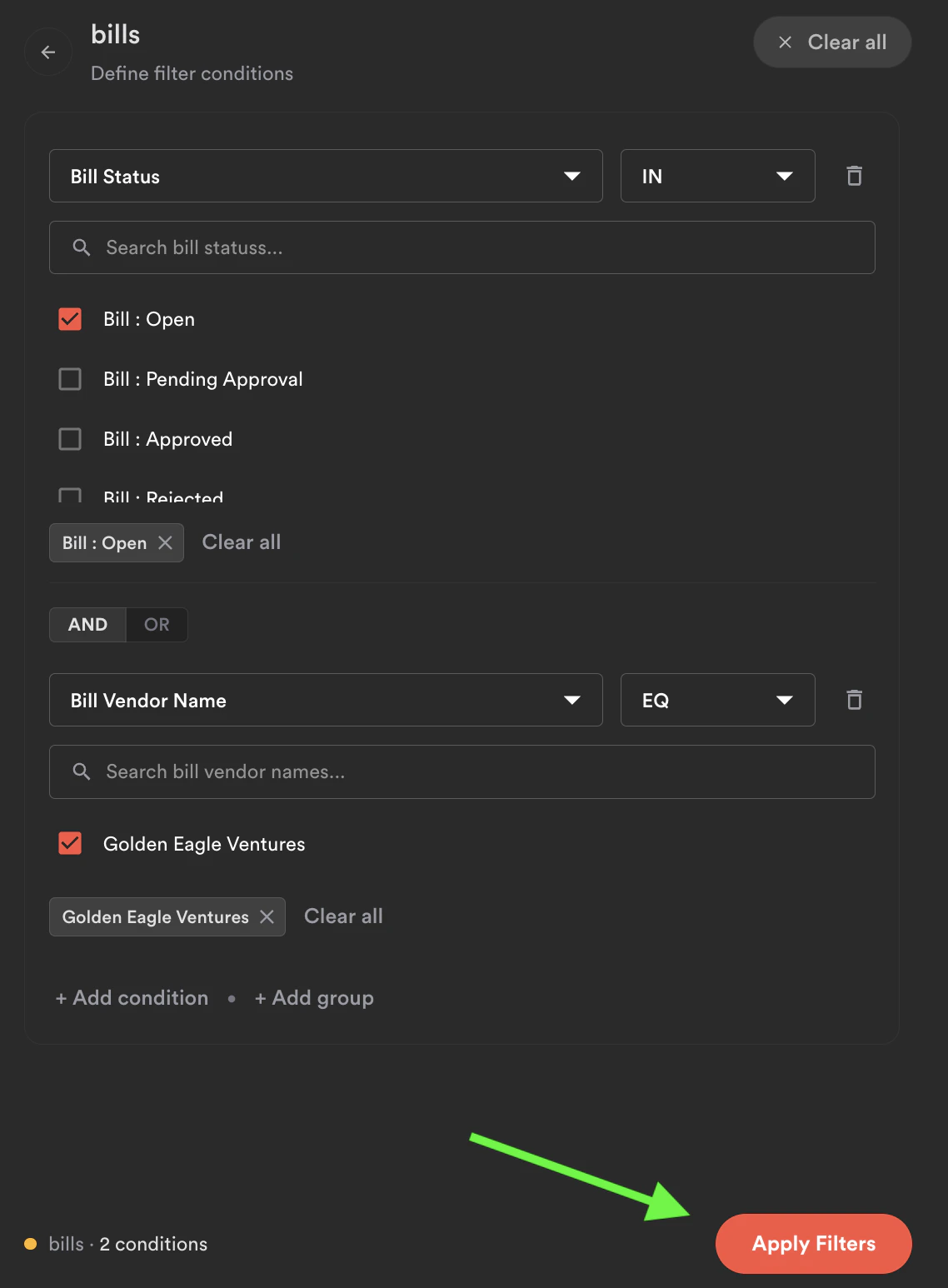
Step 5: Save the filter
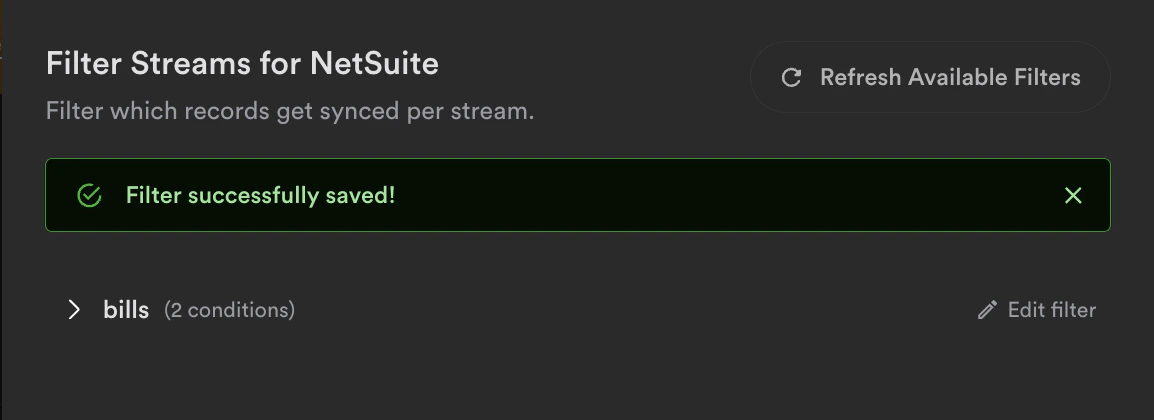
You will be taken back to the stream list, which will now show the number of active conditions next to the stream name (e.g., bills · 2 conditions). Click Save Changes and wait for the confirmation message before proceeding.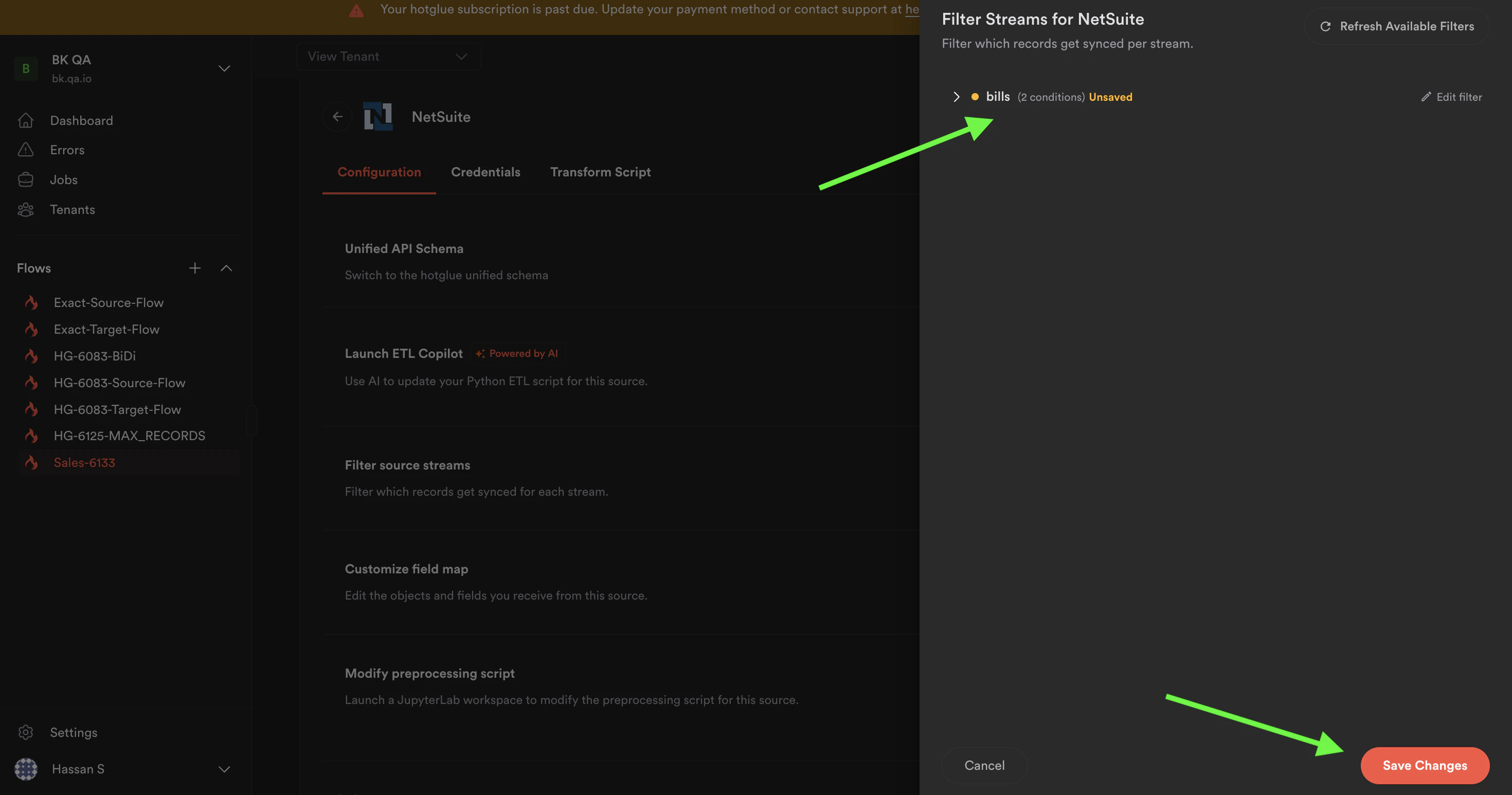
Step 6: Run a job
Navigate to the Jobs tab and run a new job with NetSuite as the source.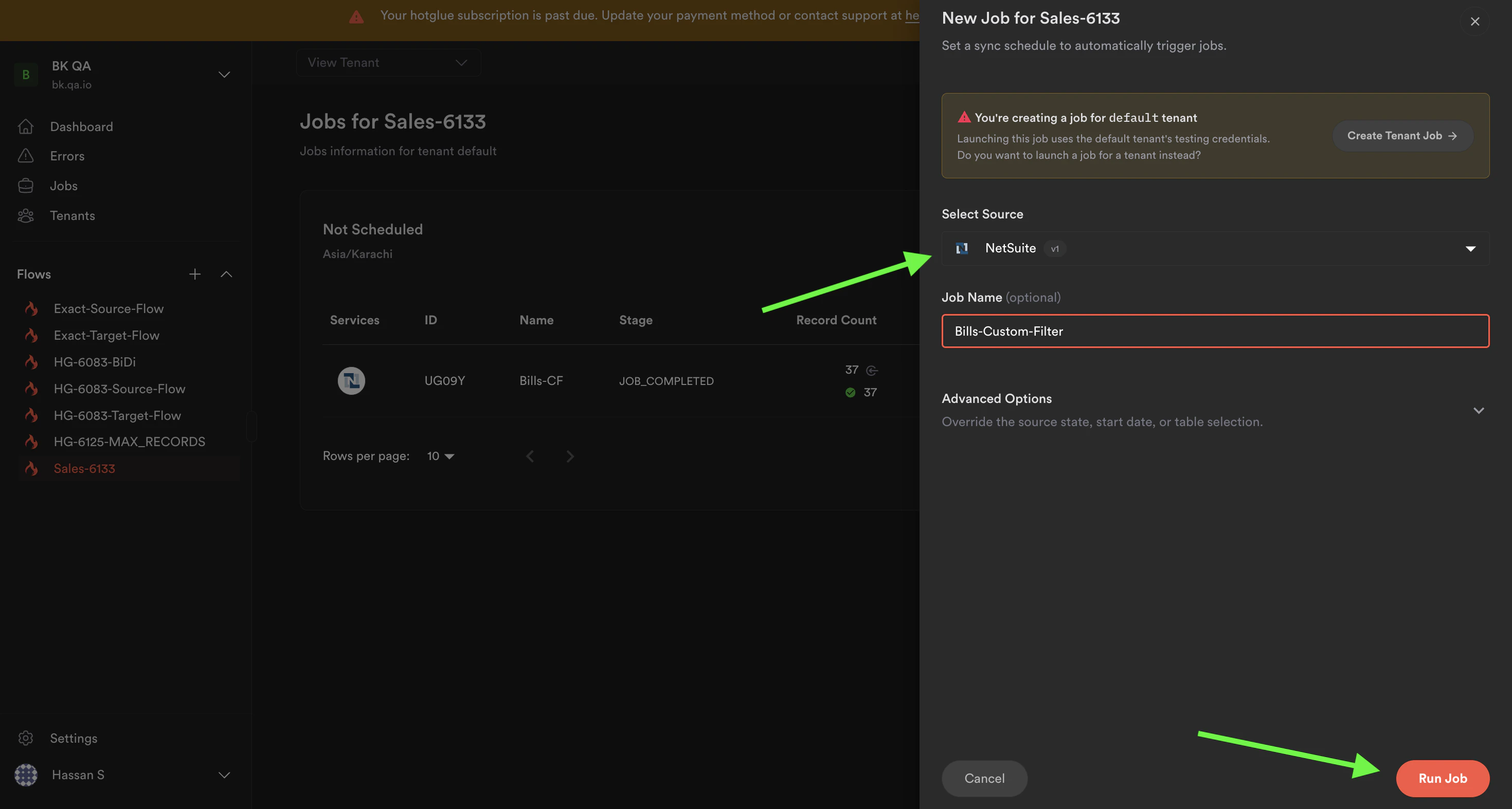
Notes
- Filters are saved per stream and persist across future job runs until changed or removed.
- Filters only apply to streams that have been selected in the field map. If a stream is not selected, it will not appear in the filter panel.
- To clear all filters for a stream, open the filter builder and click Clear all.