Connector Details
Credentials Setup
1
Step 1: Go to the Zoho API Console
Go to the Zoho API Console https://api-console.zoho.com.2
Step 2: Create a new Application
If you see the following screen, then clickGet Started. Otherwise, continue.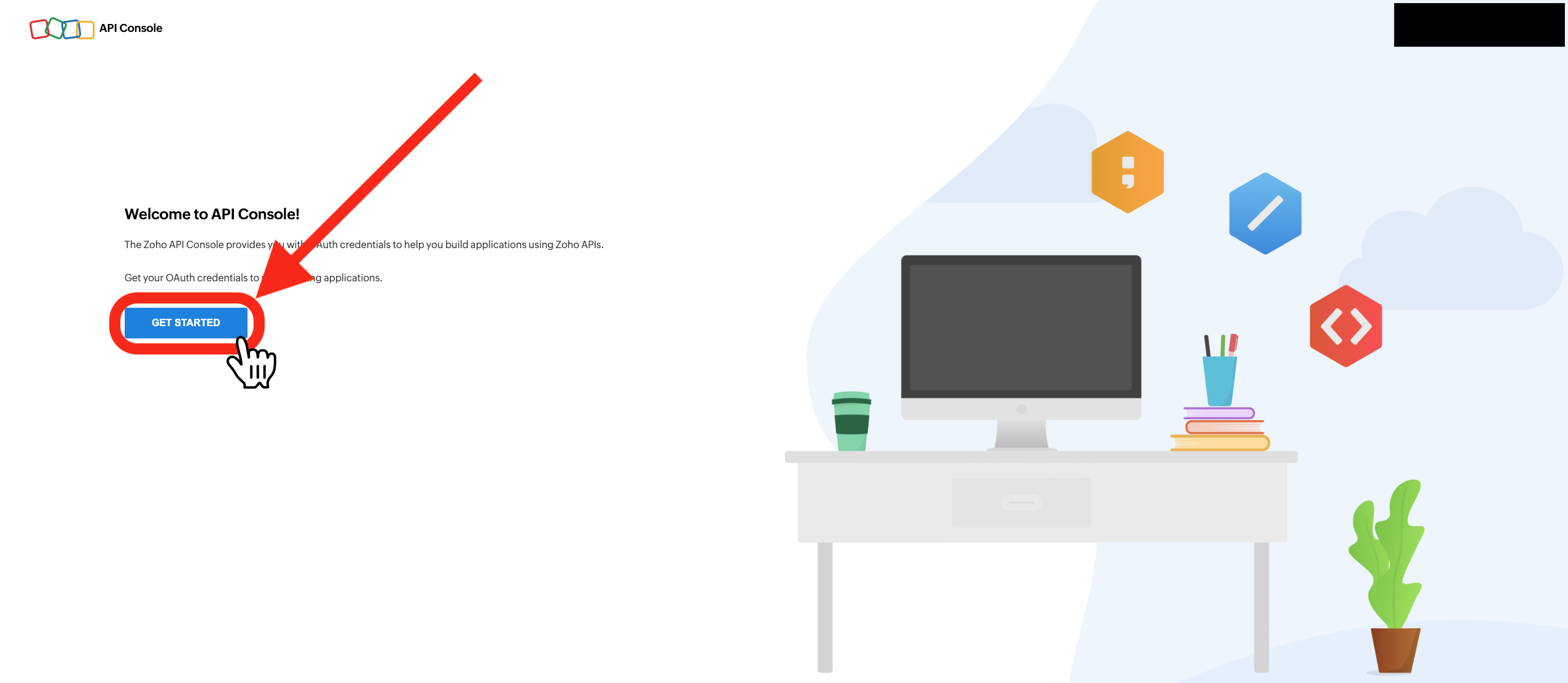
Add Client. Otherwise, continue.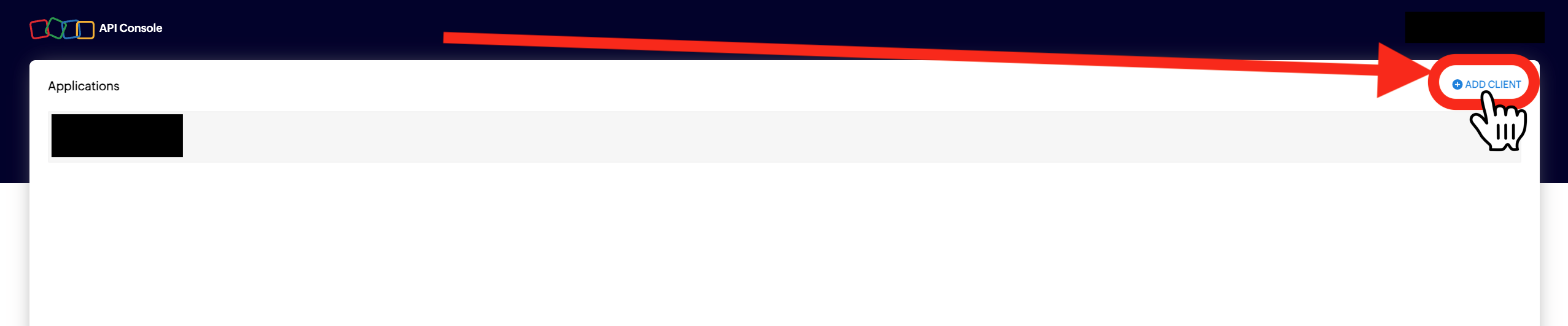
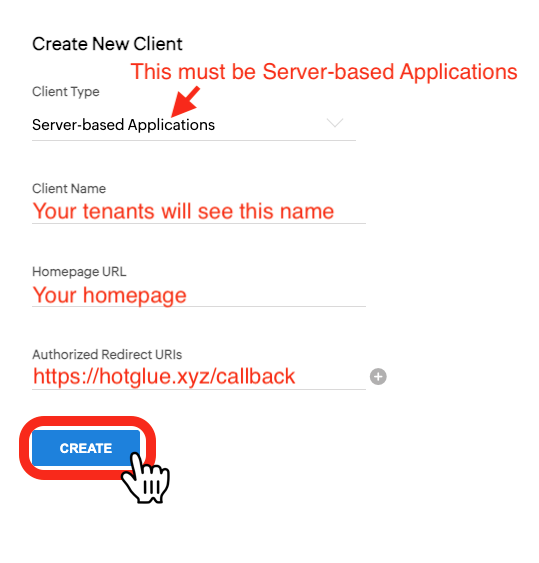
Server-based Applications.
- Client Name: The name your tenants will see when connecting.
- Homepage URL: Your homepage URL.
- Authorized Redirect URIs:
https://hotglue.xyz/callback.
3
Step 3: Set your credentials to work in all regions
Click on your newly created Application in the API Console (see Step 1 if need be).HitSettings.Check the box that says Use the same OAuth credentials for all data centers.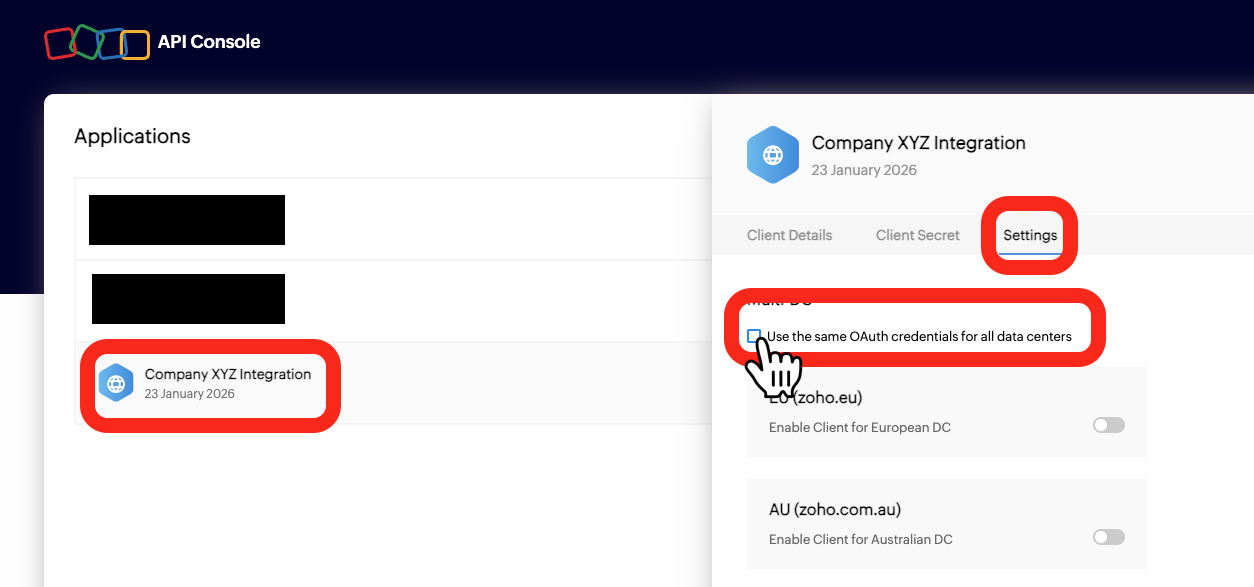
Ok.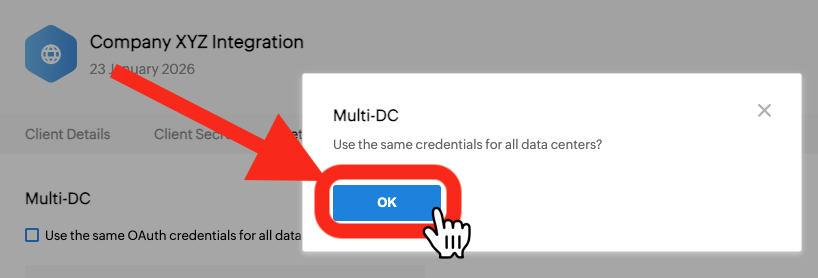
4
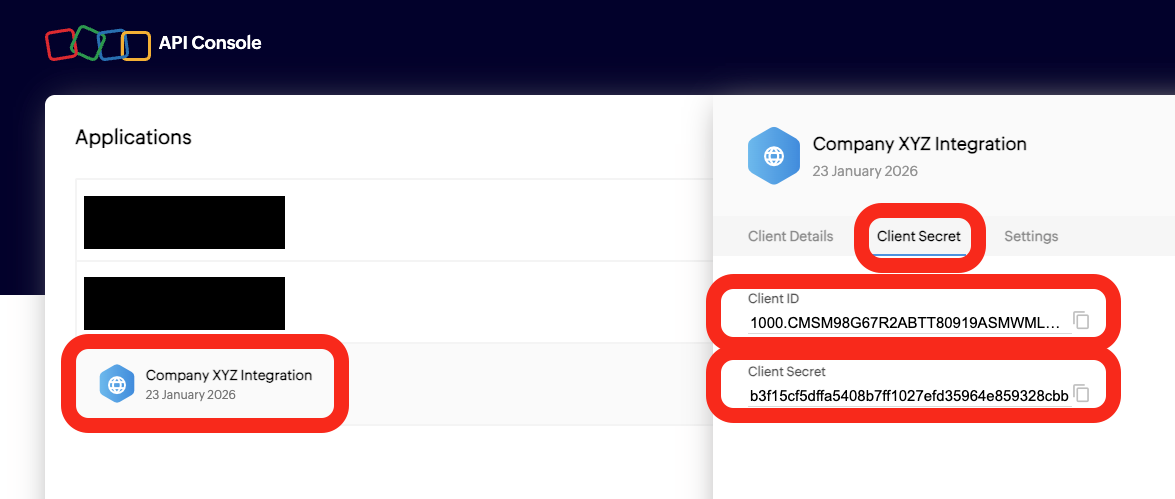
Step 4: Copy your credentials to Hotglue
Click on your newly created Application in the API Console (see Step 1 if need be).HitClient Secret.