

Connector Details
Credentials Setup
Follow the steps below to get the credentials needed to connect CMiC to Hotglue using OAuth 2.0 Client Credentials. This guide covers CMiC Patch 22 or later only. Official CMiC references: Complete Microsoft Entra first, then finish everything in CMiC.- Register an app in Microsoft Entra ID
- Create a service user in CMiC
- Register the app in CMiC API Security
- Admin access to Microsoft Entra ID (Azure AD)
- Admin access to CMiC
1. Register an app in Microsoft Entra ID
- Sign in to the Azure Portal.
- Open Microsoft Entra ID.
- On the Overview page, click + Add → App registration.
- Enter a name (for this example, we used
cmic-oauth2). - Under Supported account types, select Single tenant (your organization only).
- Under Redirect URI, choose Web and enter:
Source: Cloud Web APP and API URLs.
- Click Register.
Copy your IDs
After registration, you land on the app Overview page: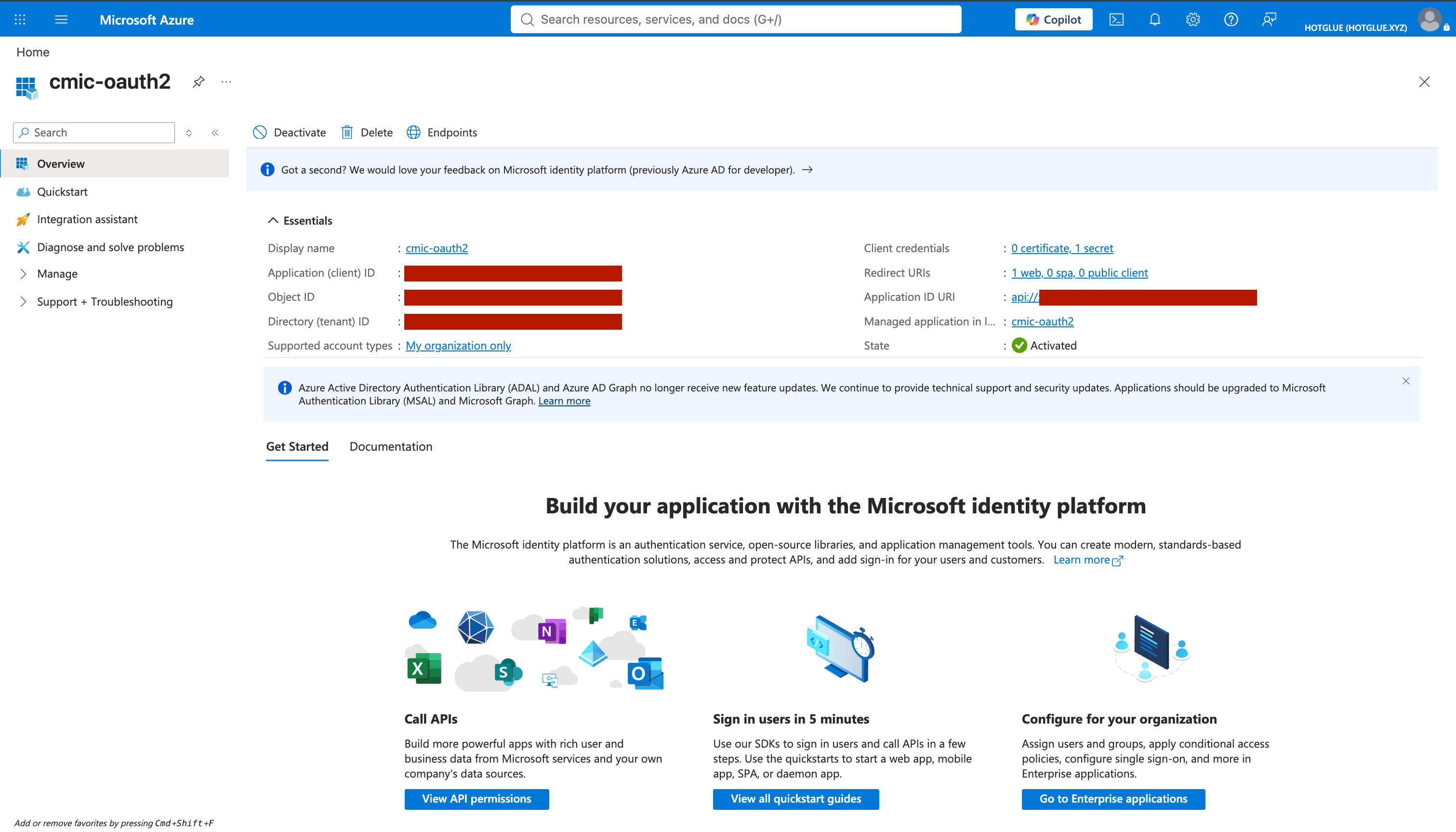
- Application (client) ID — this is your Client ID
- Directory (tenant) ID — this is your Tenant ID
Create a client secret
- On the app Overview page, under Essentials, click Client credentials.
- This opens Certificates & secrets. Open the Client secrets tab.
- Click New client secret.
- Add a description, choose an expiry, and click Add.
- Copy the secret Value right away (you will not see it again). This is your Client Secret.
2. Create a service user in CMiC
Create a dedicated CMiC user for this integration (not a person’s everyday login). Official CMiC guide: System Data – Create New User for Cloud.- Sign in to your CMiC web app.
- Go to System Data → Security → Users → User Maintenance.
- Click Create New User. This opens the User Setup page:
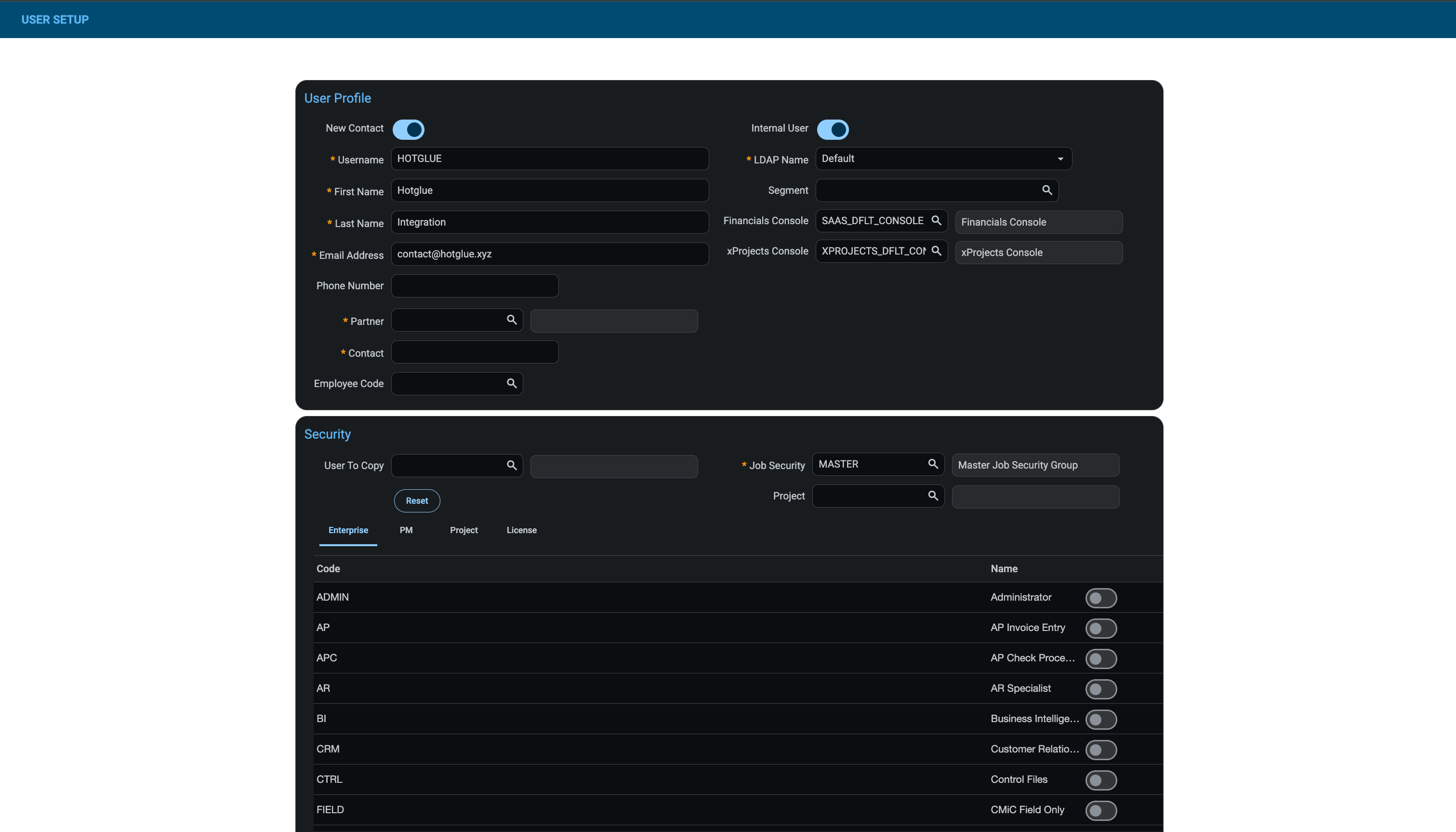
- Fill in the User Profile fields. Example:
- Under Security, assign the roles this service user needs (or copy them from a similar access user).
- Click Create.
- On Finish Setup, follow the steps shown, then click Ok.
- Check the confirmation email sent to the address you entered, and follow the steps there to finish setting up the user.
3. Register the app in CMiC API Security
- In CMiC, go to System Data → API Management → Setup → API Security.
- At the top of the page, open the App Registration step.
- Click Insert and fill in:
- Click Save.
Checklist
- Entra app registered
- Client ID, Client Secret, and Tenant ID stored
- CMiC service user created
- CMiC App Registration saved